Skip to content
  • There are no suggestions because the search field is empty.

1LOOK Sales Pipeline

Find and follow 1LOOK applications from one dashboard before opening the application details.

Find an Application

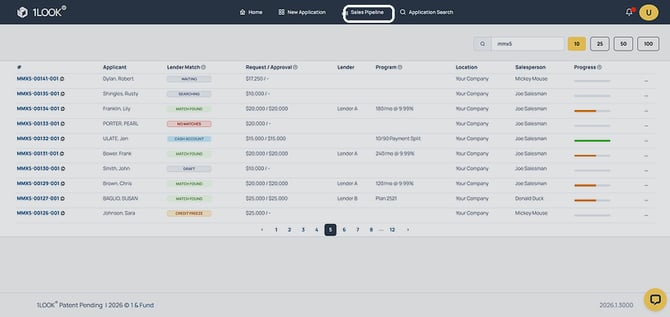
Step 1: Open Sales Pipeline. Select it from the top navigation.
Step 1 - Open Sales Pipeline

Image description: The Sales Pipeline dashboard lists applications from all available lenders in one place.

What each dashboard column means

Column What It Shows
Application ID The application's unique reference number. Select it to open Application Details.
Need Help? Share Your Application ID

When contacting OCC Support about a financing application, always provide the Application ID. This helps the Support team identify the correct application and investigate your request.

Applicant The customer associated with the application.
Lender Match The current matching status, such as Match Found, Waiting, Draft, Credit Freeze, Searching, or No Matches.
Request / Approval The first amount is the initial project-cost request. The second amount is the applicant's maximum approved credit limit, when available.
Lender The lender associated with the application or selected offer.
Program The lender program shown after an offer is selected.
Location The dealer location connected to the application.
Salesperson The team member assigned to the application.
Progress A quick view of application completion. A non-green bar means a required action is still outstanding.
Go Green!

Your goal is to get the progress bar completely green. If any portion is not green, review the application and complete the remaining required actions.


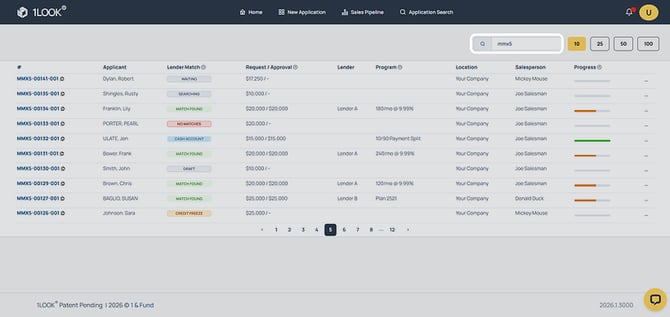
Step 2: Search for the application. Use the search field to find a customer by available application details, including a phone number.
Step 2 - Search and filter applications

Image description: The search field narrows the Sales Pipeline list to the application you need.


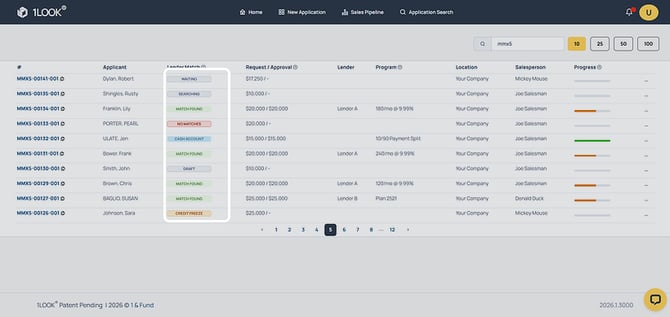
Step 3: Review the Lender Match and Progress columns. Use the status and progress bar to determine the application’s current stage
Step 3 - Review application status

Image description: The Lender Match column displays the current application status, while the Progress column shows completion toward a green bar.

Lender Match

Shows the current lender-matching status of the application.

Match Found A lender program is available.
Waiting Customer has not completed the emailed application.
Credit Freeze Credit freeze requires follow-up.
Draft Application needs to be completed.
Searching Lender matching is in progress.
No Matches No lender match available; review next steps.


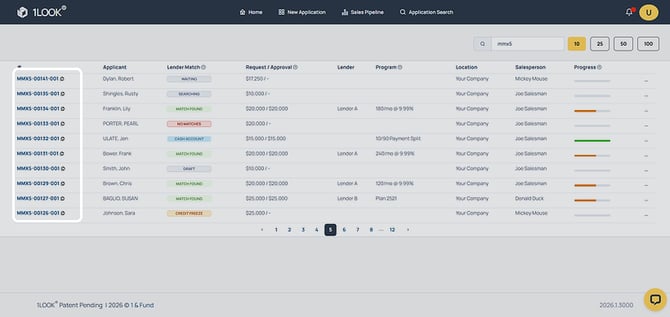
Step 4: Select the Application ID. This opens the application’s details so you can complete the next required sales action.
Step 4 - Open application details

Image description: Each Application ID in the first column opens the related Application Details page.


Remember

What you see can differ depending on your organization's settings and your permission level. Tab names, headers, and available options are configurable. If you cannot see or do something described here, ask your manager first. They can contact support.