![Icon for Courses-1.png]](https://help.oneclickcontractor.com/hs-fs/hubfs/Icon%20for%20Courses-1.png?width=36&height=36&name=Icon%20for%20Courses-1.png)
Requirements
-
One Click Payments enabled for the selected location.
-
An application with the required project and payment information.
-
A signed Financing Agreement when the payment is connected to a financing application.
Collect or Record a Customer Payment
Step 1: Review the payment options. Choose Enter to take payment in 1LOOK, Request to email a payment link, or Record for a payment received outside 1LOOK.
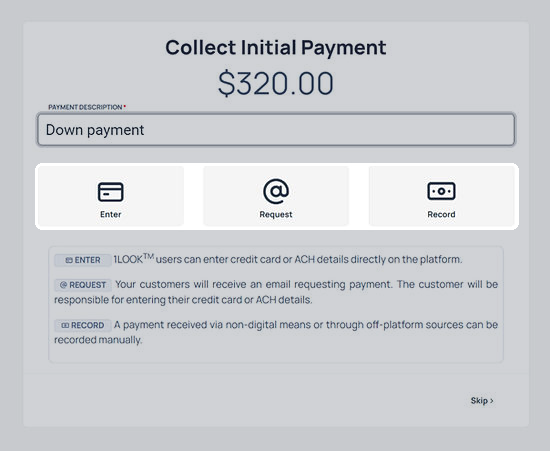
Image description: Collect Initial Payment displays Enter, Request, and Record payment options.
Step 2: Select Enter. Use this option when entering a card or ACH payment directly in 1LOOK.
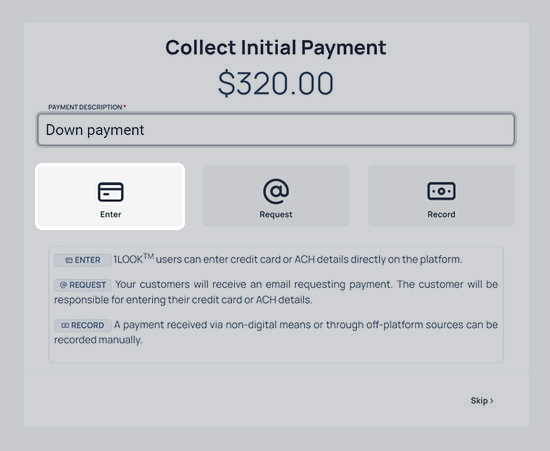
Image description: Enter starts a payment collected directly in 1LOOK.
Step 3: Enter the card or ACH details. Follow the payment form and submit the payment.
👉 Card payments cannot be canceled after submission; use the separate refund procedure if needed. ACH payments cannot be canceled and generally take about four business days to complete.
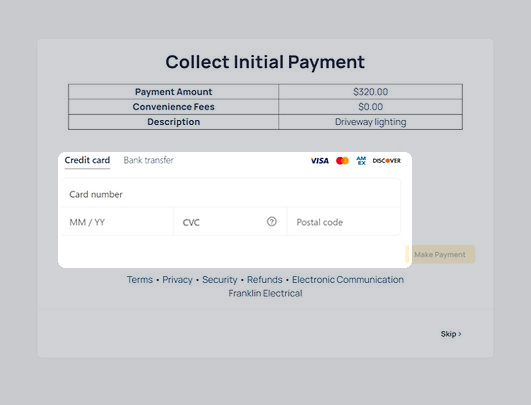
Image description: The payment form collects card details and provides a Bank transfer option for ACH.
Step 4: Select Request or Record when needed. Request emails a customer payment link. Record documents cash, check, or another off-platform payment.
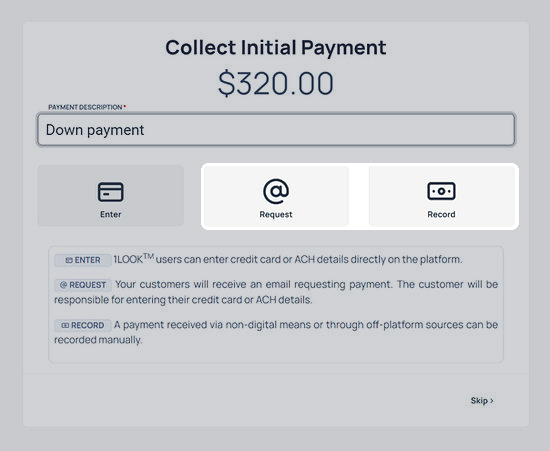
Image description: Request sends a remote payment link, while Record documents a non-digital payment received outside 1LOOK.
Remember
What you see can differ depending on your organization's settings and your permission level. Tab names, headers, and available options are configurable. If you cannot see or do something described here, ask your manager first. They can contact support.