![Icon for Courses-1.png]](https://help.oneclickcontractor.com/hs-fs/hubfs/Icon%20for%20Courses-1.png?width=36&height=36&name=Icon%20for%20Courses-1.png)
Requirements
-
Permission to edit the applicable Product Price List.
-
Know whether the category belongs at Top Level or within an existing parent category.
Create a category
Step 1: Choose where the category belongs. In Products > Price List Editor, open the parent level where you need the category. Select Add, then choose Category. Adding it at Top Level creates a new first-level category; adding it from inside a category creates a child category.
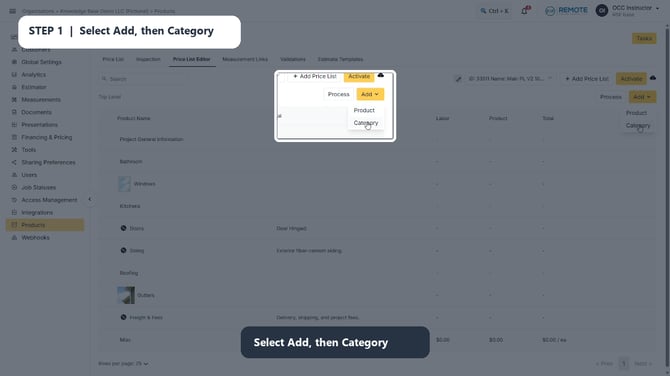
Image description: The Add menu expanded in Price List Editor, with Category available as a selection.
Step 2: Enter the category name and description. Use a clear name that helps your team recognize the section of the price list. Add a description if it helps clarify how the category should be used.
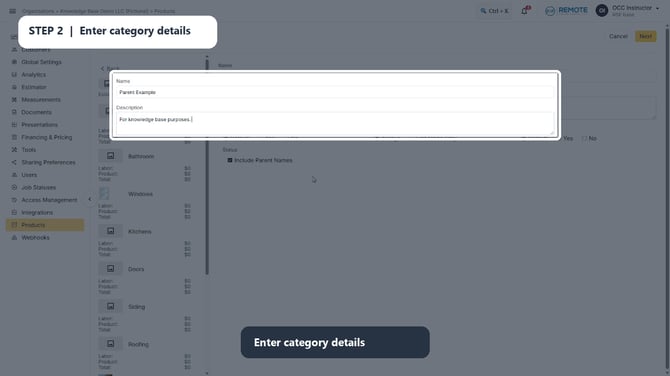
Image description: The Add Category screen, with the Name and Description fields highlighted.
Step 3: Set the category behavior. Choose the appropriate Discountable, Visibility, and Markupable settings.
⚠️Discountable = No prevents price-list discounts from applying to this category and the items nested inside it. Choose Always when the category should appear in client-facing estimates and agreements or, Edit Mode Only when it should be visible only while building the estimate.
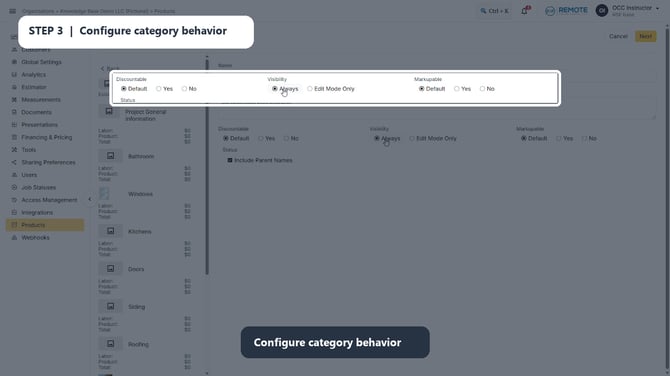
Image description: The category Discountable, Visibility, and Markupable settings highlighted on the Add Category screen.
Step 4: Decide whether to include parent names. Select Include Parent Names when the estimator should display the category within its full parent hierarchy. This is especially useful when similar category names appear in different parts of the price list.
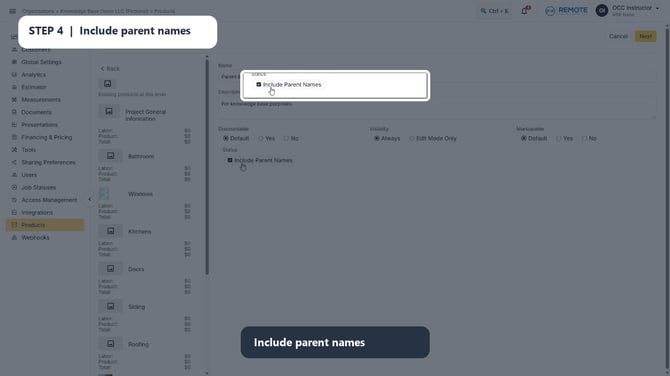
Image description: The Include Parent Names option highlighted on the Add Category screen.
Continue, save, and activate the price list. Select Next to continue the category setup, complete the required save action, and activate the price list so the new category is available to the estimator.
💡Best practice
Set the category behavior before adding products inside it. A choice such as Discountable = No affects the category and everything nested within it. Use Edit Mode Only only when the category should stay out of client-facing estimates and agreements.
Remember
What you see can differ depending on your organization's settings and your permission level. Tab names, headers, and available options are configurable. If you cannot see or do something described here, ask your manager first. They can contact support.