![Icon for Courses-1.png]](https://help.oneclickcontractor.com/hs-fs/hubfs/Icon%20for%20Courses-1.png?width=36&height=36&name=Icon%20for%20Courses-1.png)
Requirements
-
Permission to edit the applicable Product Price List.
Add a product
Step 1: Open the correct level and select Add > Product. In Products > Price List Editor, open the category or parent where the final product belongs. Select Add, then choose Product.
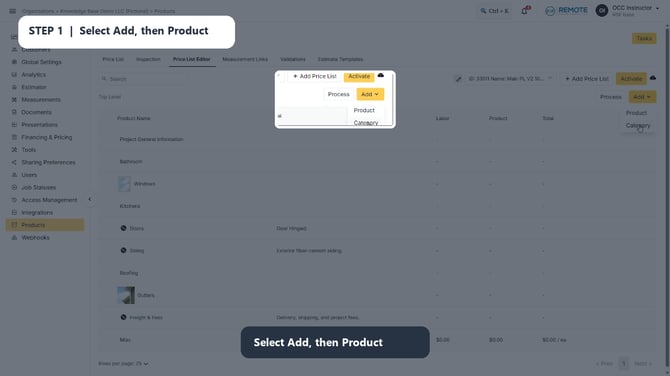
Image description: The Add menu expanded with Product available as a selection.
Step 2: Enter product details. Enter the Name and a helpful description. The description appears in the estimator. Add an SKU when your warehouse or inventory process uses one.
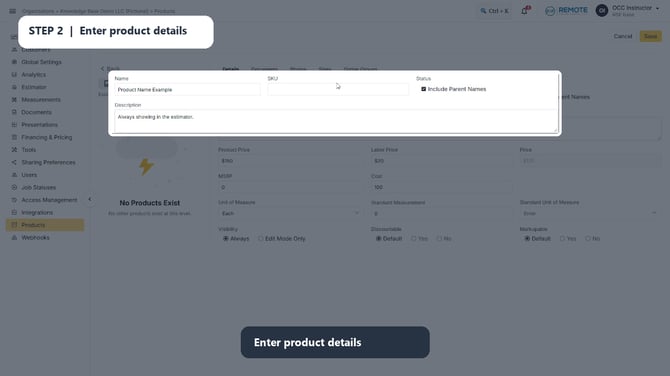
Image description: The Add Product Details tab with Name, SKU, and Description fields highlighted.
Step 3: Set product and labor pricing. Enter the Product Price and Labor Price. The displayed Price is the combined product and labor amount. Add MSRP and Cost when your team uses those values.
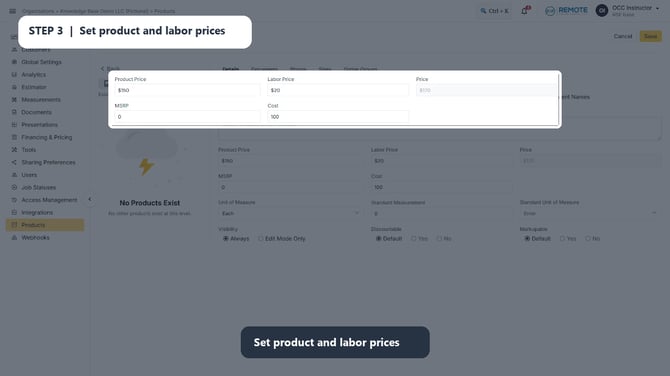
Image description: The Product Price, Labor Price, combined Price, MSRP, and Cost fields highlighted.
Step 4: Choose the unit of measure. Select the product Unit of Measure and, when needed, set its Standard Measurement and Standard Unit of Measure so the product is measured consistently.
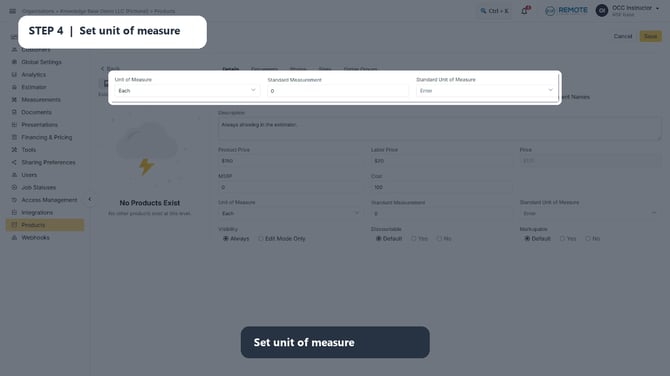
Image description: The product measurement fields highlighted.
Configure visibility, discounts, markup, and save. Choose Always for a product that should appear in client-facing estimates and agreements, or Edit Mode Only for internal estimate-building. Set Discountable and Markupable as needed, select Save, then activate the price list.
💡Best practice
Enter the base Product Price and Labor Price without adding a markup that is already configured in the price list. Applying markup in both places can make the displayed price inaccurate.
Remember
What you see can differ depending on your organization's settings and your permission level. Tab names, headers, and available options are configurable. If you cannot see or do something described here, ask your manager first. They can contact support.