![Icon for Courses-1.png]](https://help.oneclickcontractor.com/hs-fs/hubfs/Icon%20for%20Courses-1.png?height=40&name=Icon%20for%20Courses-1.png)
Article Introduction
Open the Inspection tab and select the applicable inspection category.
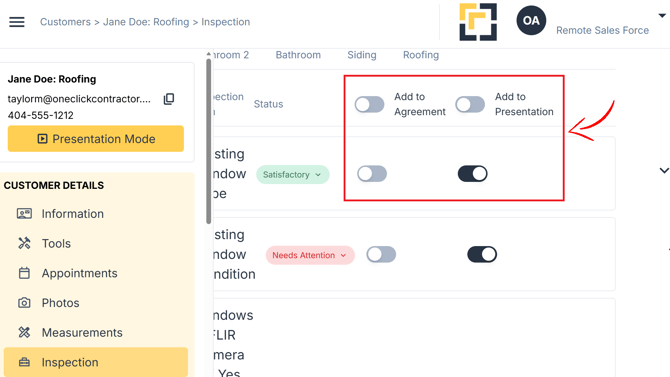
Each inspection item includes separate controls for adding its configured content to the customer’s Agreement or Presentation.
Add an Inspection Item to the Agreement
Locate the inspection item you want to include.
Turn on the Add to Agreement toggle for that item. The inspection item’s configured content will automatically populate the corresponding area of the Agreement.
Repeat this action for any additional inspection items that should appear in the agreement.
Add an Inspection Item to the Presentation
Locate the inspection item you want to include.
Turn on the Add to Presentation toggle for that item. The inspection item’s configured content will automatically populate the corresponding area of the Presentation.
Repeat this action for any additional inspection items that should appear in the presentation.
Choose Where the Item Should Appear
The Add to Agreement and Add to Presentation toggles work independently.
Depending on how the inspection item should be used, you can add it to:
- The Agreement
- The Presentation
- Both the Agreement and Presentation
Review both toggles for each inspection item before completing the customer documents.
What to Expect
The information that appears in the Agreement or Presentation is based on your organization’s preconfigured inspection setup.
The configuration determines how the inspection item is displayed after it has been added. Instructions for configuring this content are covered in a separate article.
Important Notes
- The Inspection tab must be configured and activated for your organization.
- Add to Agreement and Add to Presentation are separate controls.
- Turning on a toggle automatically adds the item’s configured content to the corresponding document.
- The appearance and placement of the content depend on your organization’s configuration.