![Icon for Courses-1.png]](https://help.oneclickcontractor.com/hs-fs/hubfs/Icon%20for%20Courses-1.png?height=40&name=Icon%20for%20Courses-1.png)
-
Accessing the Analytics Page
Navigate to Analytics from the left-hand sidebar. The page is located under the organization-level settings, accessible via the breadcrumb path: *Organizations > [Org Name] > Analytics*.
-
Time Period Filter
At the top of the page, a Month dropdown allows you to filter all charts and summary tables by time period. Adjusting this filter updates every section on the page simultaneously to reflect data for the selected timeframe.
-
Exporting Data
The Generate CSV button (top-right of the page) exports the currently displayed analytics data as a CSV file, making it easy to analyze data in spreadsheet tools or share with stakeholders outside the platform.
-
Dashboard Sections
The Analytics page is divided into four distinct activity sections, each displaying a time-series line chart (plotted by month on the X-axis and created count on the Y-axis) along with a summary table showing totals.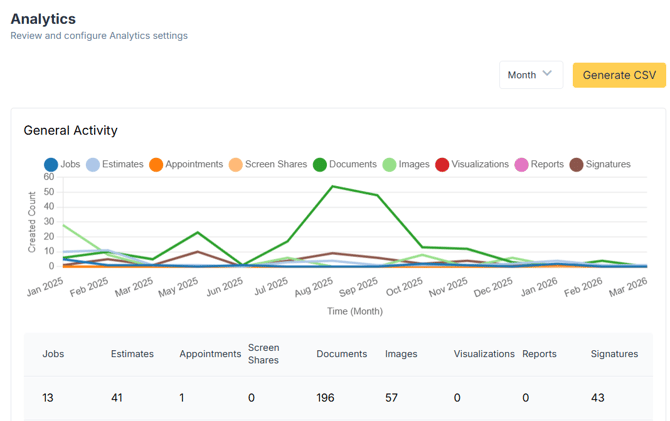
1. General Activity
Tracks the volume of core items created within the organization across nine categories:
-
Jobs: Number of jobs created
-
Estimates: Number of estimates generated
-
Appointments: Number of appointments scheduled
-
Screen Share: Number of screen share sessions initiated
-
Documents: Number of documents created
-
Images: Number of images uploaded
-
Visualizations: Number of visualizations produced
-
Reports: Number of reports generated
-
Signatures: Number of signature requests or completions
Each metric is color-coded in the chart legend for easy identification.
2. Visualization Activity
Tracks usage of third-party visualization tools integrated with the platform. The chart and summary table break down visualizations by provider:
-
Chameleon
-
Chameleon V2
-
Renoworks
-
Hover
This section helps administrators understand which visualization integrations are being used most frequently and identify underutilized tools.
3. Report Activity
Tracks the number of measurement/roofing reports ordered or generated through integrated reporting services:
-
Skymeasure Roof
-
Skymeasure Walls
-
Eagleview Roofing
-
Quickmeasure Roofing
Use this section to monitor report consumption and assess the volume of measurement activity tied to specific providers.
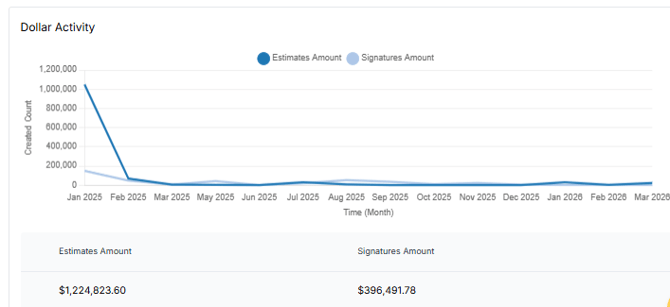
4. Dollar Activity
Provides a financial overview of the organization's pipeline by tracking two monetary metrics over time:
-
Estimates Amount: Total dollar value of estimates created
-
Signatures Amount: Total dollar value of jobs that have been signed/closed
If you don't have access to the Analytics tab, please contact Support@OneClickContractor.com!