![Icon for Courses-1.png]](https://help.oneclickcontractor.com/hs-fs/hubfs/Icon%20for%20Courses-1.png?height=40&name=Icon%20for%20Courses-1.png)
Article Introduction
The Appointments tab is used to schedule, manage, and track meetings associated with a customer file. Appointments are tied directly to the job and remain visible for historical reference, making it easy to review past and upcoming interactions.
Appointments are created from within the customer file and automatically link the meeting to the correct job. Each appointment can be named, described, rescheduled, and shared with the customer through an email invitation.
How to Schedule an Appointment
Step 1:
In the Customer file:
-
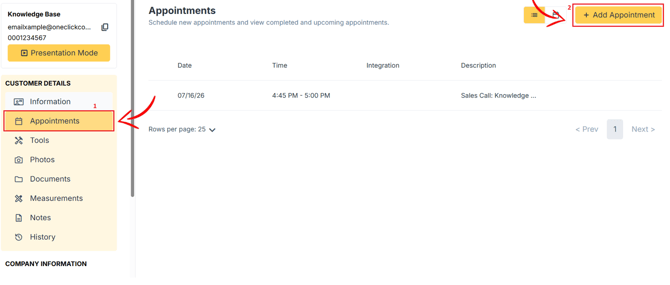
Select the Appointments tab.
-
Click Add Appointment.
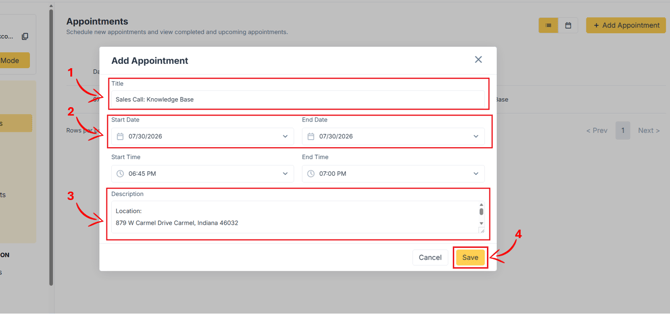
- Update the appointment title if needed.
- Choose a date and time from the calendar view.
- Add a brief description to clarify the purpose of the meeting.
-
Click Save.
How to Update or Reschedule an Appointment
-
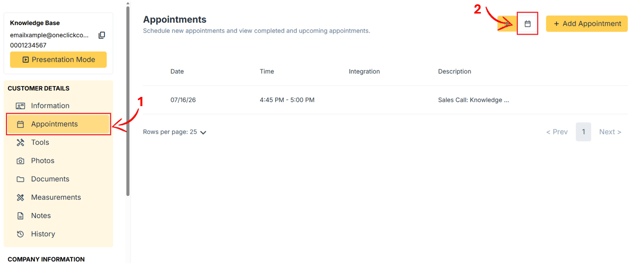
Open the Appointments tab.
-
Locate the appointment on the calendar.
-
Click and drag the appointment to a new date or time.
-
Click outside the calendar to save the change.
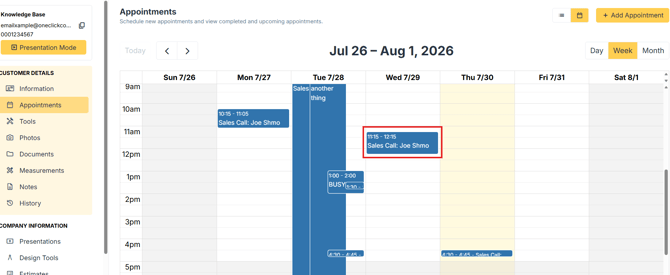
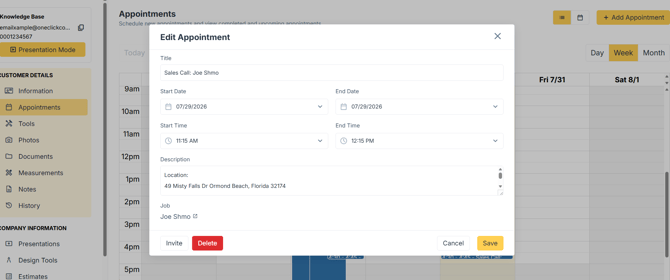
- You can also select the appointment event, which will pop up a new window for you to update the event information.
How to Send an Appointment Invitation
-
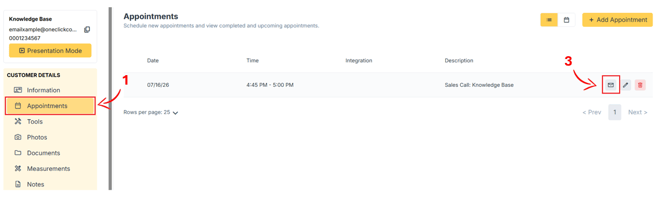
Open the Appointments tab.
-
Hover the cursor/tap on the appointment you want to send an invite about.
-
Click/Tap on the Mail Icon.
-
Review the auto-filled email details.
-
Click Send Invite.
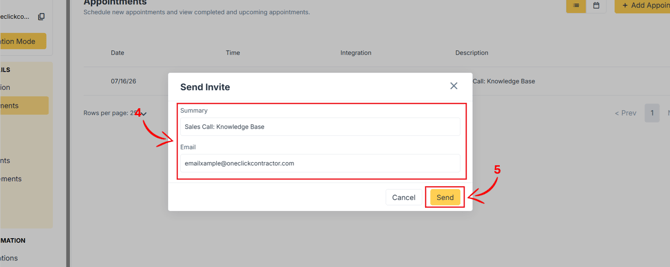
The customer will receive an email with the meeting details and a Join Meeting option when applicable.
Appointment History
All scheduled and completed appointments remain visible in the Appointments tab for historical tracking. This provides a timeline of customer interactions tied to the job.