![Icon for Courses-1.png]](https://help.oneclickcontractor.com/hs-fs/hubfs/Icon%20for%20Courses-1.png?height=40&name=Icon%20for%20Courses-1.png)
Article Introduction
You can customize how your Customer List displays in One Click Contractor by setting your preferred default view.
If you prefer a more compact, spreadsheet-style layout instead of the visual card layout, you can switch from Card View to List View in just a few clicks.
This setting is controlled directly from your User Profile.
Access Your Profile
-
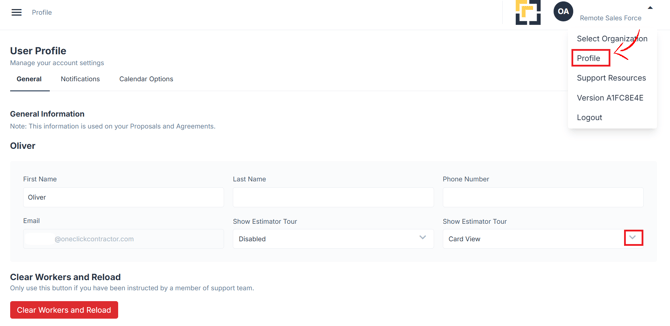
Click the drop-down arrow in the top right corner of your screen next to your display name.
-
Select Profile from the menu.
Locate Customer List Default
- Find the section labeled Customer List Default.
-
Click the drop-down arrow.
- Save changes
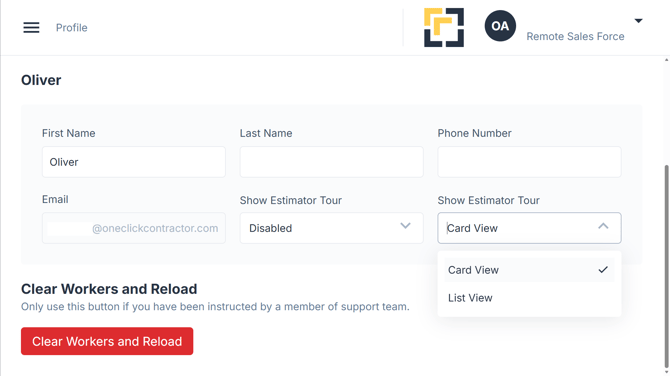
You will see the available options:
-
Card View
-
List View