Skip to content
  • There are no suggestions because the search field is empty.

CompanyCam Integration FAQ and Data Mapping

Understand CompanyCam synchronization, project and job mapping, assignments, media, and troubleshooting.

Synchronization and user mapping

When do users synchronize?

CompanyCam users synchronize weekly at 1:00 AM UTC on Sundays. Selecting Sync also retrieves users. OCC links CompanyCam users to OCC users when their email addresses match. Users without a matching address can be associated manually from Users Connected; only active mappings are used for project assignment and job creation.

How often do CompanyCam project updates and media synchronize?

OCC checks for CompanyCam project and image updates every 15 minutes, at 7, 22, 37, and 52 minutes after the hour. Updates include project information and media available from CompanyCam. Images are added to the OCC Photos tab; CompanyCam documents and images are also available in OCC for reference and incorporation into estimates.

What does Sync do?

Selecting Sync starts or forces a synchronization. The initial Sync retrieves all CompanyCam users and CompanyCam projects updated within the prior 29 days. User matching uses email addresses. OCC creates a job from an eligible project only when Create a Job in One Click Contractor from Project in CompanyCam is enabled and the project’s assigned user is actively mapped to an OCC user.

How do I force a sync and inspect its errors?

Use these steps when you need to request a synchronization or review its recorded errors:

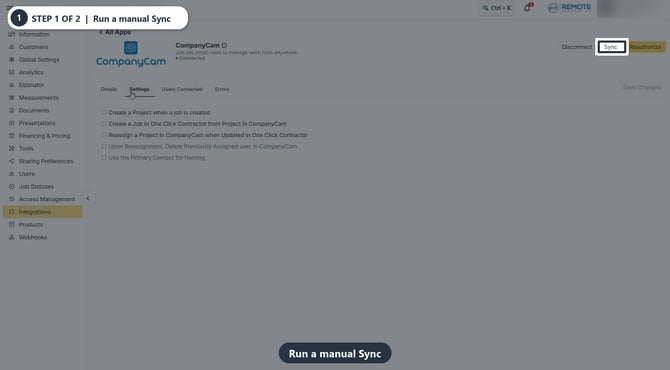
Select Sync on the CompanyCam integration card. This requests a synchronization instead of waiting for the next scheduled run.
01-run-a-manual-sync

Connected CompanyCam card with the Sync button highlighted.

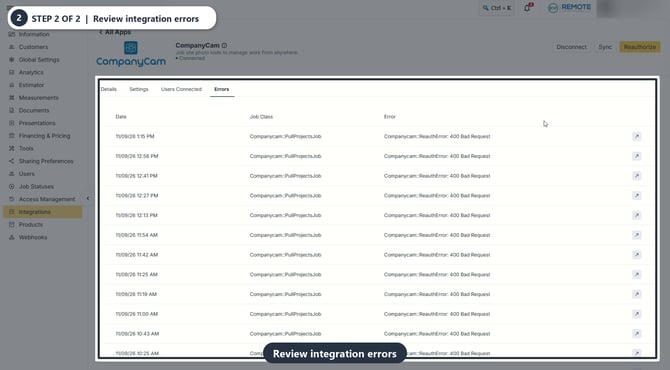
Open Errors and inspect the error row. Review the Date, Job Class, and Error columns. Record the exact message and timestamp before contacting OCC Support. The supplied current recording shows Companycam::ReauthError: 400 Bad Request entries; the source materials do not identify their root cause.
02-review-integration-errors

1. Configuration Options and Job Creation

CompanyCam integration settings control whether jobs and projects are created between One Click Contractor (OCC) and CompanyCam, how assignments are updated, and which contact information is used.

Job and Project Creation Settings

Setting Behavior
Create a Project when a job is created Creates a CompanyCam project when an OCC job is created.
Create a Job in One Click Contractor from Project in CompanyCam Creates an OCC job from an eligible CompanyCam project. The project must have been updated since the previous synchronization and its assigned user must be actively mapped.
Reassign a Project in CompanyCam when Updated in One Click Contractor Sends OCC job assignment changes to the corresponding CompanyCam project.
Upon Reassignment, Delete Previously Assigned user in CompanyCam Available only when project reassignment is enabled. Removes the previously assigned CompanyCam user. When disabled, the new user is added while the previous user remains assigned.
Use the Primary Contact for Naming Uses the primary contact for project naming when multiple contacts are associated with a project.
Important: Avoid Duplicate Job Creation

Use one job-creation source for the same workflow. If a connected CRM already creates OCC jobs, keep CompanyCam project-to-job creation disabled. CompanyCam can serve as an alternative source when the CRM is not creating those OCC jobs.

Project Filters and Custom Mappings

The integration does not provide settings to filter which CompanyCam projects are pulled into OCC. The documented configuration also does not offer alternate field mappings or job-creation mappings.

2. OCC Jobs Created from CompanyCam Projects

When project-to-job creation is enabled, OCC uses the following default CompanyCam project information.

Job Creation Requirements

The CompanyCam project must have been updated since the last synchronization. Its assigned user must also have an active mapping to an OCC user.

Customer and Job Details

OCC Field CompanyCam Source / Behavior
Customer Name {project.name}
Name {project.contact.name}
Or {project.primary_contact.name} when Use the Primary Contact for Naming is enabled.
Email {project.primary_contact.email}
Included only when the Primary Contact naming setting is enabled.
Address Line 1 {project.address.street_address_1}
Address Line 2 {project.address.street_address_2}
City {project.address.city}
State {project.address.state}
Postal Code {project.address.postal_code}
Phone Number {project.primary_contact.phone_number}
Included only when the Primary Contact naming setting is enabled.
Assigned User CompanyCam project assigned user ID. Requires an active OCC user mapping.

3. Project Metadata and Duplicate Detection

OCC retains CompanyCam identifiers in integration metadata to maintain source relationships and support duplicate detection.

OCC Metadata CompanyCam Source
cc_project_id {project.id}
cc_company_id {project.company_id}
cc_creator_id {project.creator_id}
cc_{integration.type.underscore}_relation_id integration.relation_id
Related Integration Duplicate Detection

The integration relation identifier is used for duplicate detection when a CompanyCam project has multiple integrations.

The documented supported integration types are JobNimbus and JobProgress.

4. CompanyCam Documents and Images Copied into OCC

CompanyCam documents and images can synchronize into OCC with source identifiers retained in metadata.

Document Mapping

OCC Field CompanyCam Source / Behavior
Document Name CompanyCam Document-{document.id}-{document.name}
Document Metadata cc_document_id: {document.id}
Document File {document.url}

Image Mapping

OCC Field CompanyCam Source / Behavior
Image Name CompanyCam Image-{image.id}.jpg
Image Metadata cc_image_id: {image.id}
Image File {image.uris.first.uri}
Media Synchronization Direction

CompanyCam documents and images synchronize into OCC. OCC documents are not uploaded or pushed back to CompanyCam through this integration.

5. Projects Created in CompanyCam from OCC Jobs

When Create a Project when a job is created is enabled, OCC creates a CompanyCam project using the following job information.

OCC Job to CompanyCam Project Mapping

CompanyCam Destination OCC Source
Project Name OCC Job Name
Street Address 1 OCC Job Address Line 1
Street Address 2 OCC Job Address Line 2
City OCC Job Address City
State OCC Job Address State
Postal Code OCC Job Address Postal Code
Assigned User CompanyCam ID of the OCC job's assigned user

6. Synchronization Schedule and Assignment Updates

Scheduled Synchronization

CompanyCam project updates are pulled into OCC every 15 minutes, at the following minutes after each hour:

:07   :22   :37   :52

Manual Synchronization

Use Sync to request an earlier synchronization rather than waiting for the next scheduled run.

Assignment Changes from CompanyCam

A CompanyCam project assignment change is included in a later pull when the project's assigned user remains actively mapped to an OCC user.

Assignment Changes from OCC

When Reassign a Project in CompanyCam when Updated in One Click Contractor is enabled, OCC assignment changes are sent to CompanyCam.

The optional Upon Reassignment, Delete Previously Assigned user in CompanyCam setting determines whether the previous user is removed or remains assigned.

7. Deletion Behavior and Writeback Limitations

Deleted CompanyCam Records

Deleting a CompanyCam project, image, or document does not automatically delete its corresponding OCC record.

Existing OCC information can become orphaned or unlinked, and subsequent updates for the deleted source record are no longer pulled.

Supported OCC-to-CompanyCam Updates

OCC Action CompanyCam Behavior
New OCC Job Can create a CompanyCam project when enabled, sending its mapped name, address, and assigned user.
Job Assignment Change Updates CompanyCam project assignment only when the reassignment setting is enabled.
OCC Document Upload Not pushed to CompanyCam.
Important: Writeback Limitations

For existing CompanyCam projects, the documented OCC-side update is assignment only, when enabled. Do not assume that ordinary OCC job edits, documents, or images will update CompanyCam.

8. Technical Troubleshooting

A CompanyCam Project Has Not Created an OCC Job

  1. Confirm Create a Job in One Click Contractor from Project in CompanyCam is enabled.
  2. Verify the project has been updated since the previous synchronization.
  3. Confirm the assigned CompanyCam user has an active OCC user mapping.
  4. Run Sync or allow the scheduled interval to complete.

A User Is Not Connected

  1. Compare the CompanyCam and OCC user email addresses.
  2. Run Sync to refresh users.
  3. Open Users Connected.
  4. Manually associate users whose emails do not match.
  5. Confirm the user mapping remains Active.

A Project Update or Photo Is Missing

  1. Run Sync.
  2. Verify the source project still exists in CompanyCam.
  3. Open the Errors tab.
  4. Review the reported date, job class, and error message.

A Project Is Assigned to the Wrong User

  1. Verify the CompanyCam project assignee.
  2. Confirm that user has an active mapping to the correct OCC user.
  3. If the change originated in OCC, review the project reassignment setting.
  4. Check whether previously assigned users are configured to remain on the project.

Authorization-Related Errors

  1. Open the Errors tab.
  2. Record the exact error date, job class, and message.
  3. Verify whether the CompanyCam authorization is still valid.
  4. Use Reauthorize if authorization is no longer valid.
  5. If the error continues, provide the error details to OCC Support.

9. Final Technician Checklist

  1. CompanyCam authorization verified
  2. Job-creation direction confirmed
  3. Duplicate job-creation sources avoided
  4. Project-to-job creation setting reviewed
  5. OCC-to-CompanyCam project creation setting reviewed
  6. Active user mappings confirmed
  7. Primary Contact naming setting checked
  8. Default field mappings reviewed
  9. CompanyCam project and company metadata retained
  10. Related integration identifiers checked for duplicate detection
  11. Documents and images verified in OCC
  12. Project reassignment settings reviewed
  13. Previous-user removal behavior confirmed
  14. Scheduled or manual synchronization tested
  15. Deleted source record behavior understood
  16. Errors tab reviewed for failed synchronization

 Remember

  • What you see can differ depending on your organization's settings and your permission level. Tab names, headers, and available options are configurable. If you cannot see or do something described here, ask your manager first. They can contact support.

  • Only one integration should create OCC jobs for the same workflow. CompanyCam can create OCC jobs only when its project-to-job setting is enabled; avoid enabling that alongside a CRM job source.