![Icon for Courses-1.png]](https://help.oneclickcontractor.com/hs-fs/hubfs/Icon%20for%20Courses-1.png?width=36&height=36&name=Icon%20for%20Courses-1.png)
After starting an onscreen signing session from the Signatures tab, OCC opens the agreement in a signing tool called Scribble.
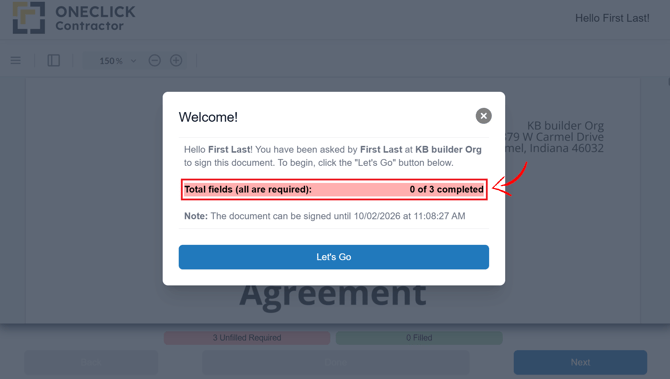
The signing page displays the fields assigned to the current signer and identifies which fields are required before the agreement can be completed.
For instructions on starting the onscreen signing process, see Signing an Agreement Onscreen in the Estimator.
Understanding the Required Field Count
The signing page displays the number of required fields assigned to the current signer.
Understanding the Field Colors
The color of each field indicates whether it is required or optional.
-
Fields displayed in red are mandatory.
-
The signer must complete every red field before finishing and saving the agreement.
Fields displayed in green are optional.
-
Green fields do not prevent the agreement from being completed, but they may request information that is relevant to the document. Review each green field and complete it when applicable.
Use Next to Move Through the Agreement
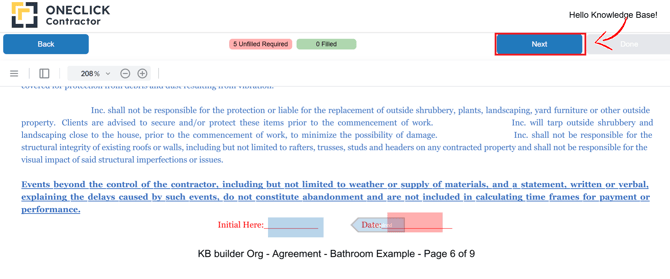
Select Next to move to the next field that requires attention.
Continue using Next to work through the fields assigned to the signer. Before completing the agreement, review the required-field count and confirm that no mandatory fields remain incomplete.
Supported Agreement Field Types
OCC supports the following field types during onscreen signing.
-
Initials: allows the signer to acknowledge a specific part of the agreement.
-
Signature: is used where the signer’s full signature is required.
-
Text: allows the signer to enter requested written information.
-
Date: allows the signer to enter or confirm a date.
The fields available in an agreement depend on how the document was configured for your organization.
Complete and Save the Agreement
After all required fields have been completed, click Done to save.
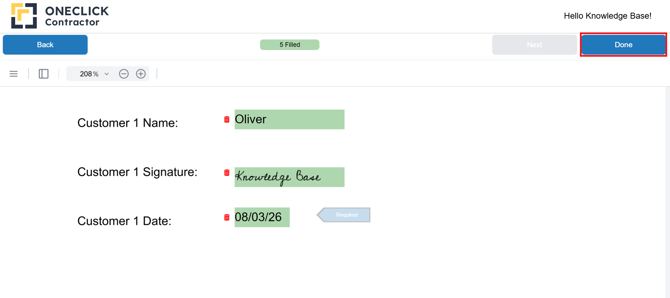
Note: An agreement that is not completed and saved will not be available for download in OCC.