Configure and Troubleshoot ImproveIt360 Classic
Configure incoming appointment filters and document events, then diagnose Classic sync and mapping issues.
Use this article only when Platform is set to Classic on the ImproveIt360 integration. Classic imports i360__Appointment__c records. It creates OCC jobs for appointments assigned to the first sales representative, i360__Sales_Rep_1__c, when that representative has an active OCC user mapping.
Configure the Classic integration
1. Open ImproveIt360 Settings and confirm Classic. In Integrations, open the ImproveIt360 card, select Settings, and verify Platform shows Classic.
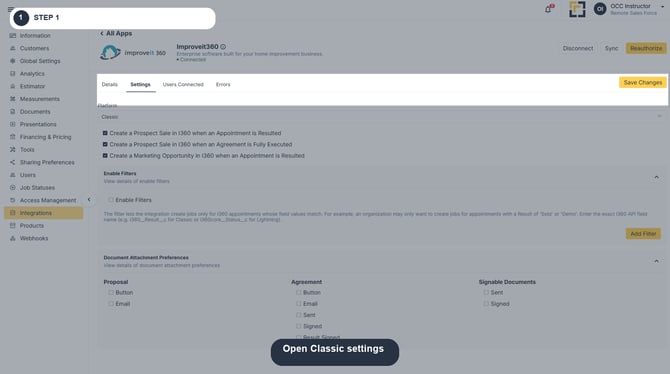
Image description: Open Classic settings.
2. Review the three appointment-result and sale options. Settings can independently create a Prospect Sale when an appointment is resulted, create a Prospect Sale when an agreement is fully executed, and create a Marketing Opportunity when an appointment is resulted. Select only the events your organization intends to create in Classic. The supplied current screenshot shows the controls checked; it does not establish an organization-wide default.
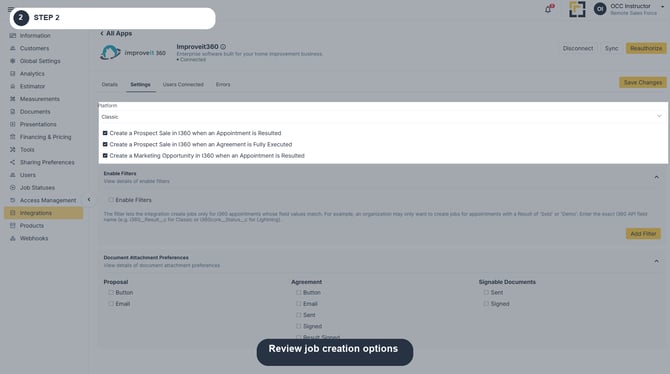
Image description: Review job creation options.
3. Configure Enable Filters for incoming appointments. Expand Enable Filters, turn it on, and add a filter. Enter the exact Classic API field name and the allowed field value(s). The interface’s example field is i360__Result__c; example values include Sold or Demo. Match values exactly to the ImproveIt360 field. Enable filters only when you intend to exclude appointments that do not match. The screenshot shows this organization's current control unchecked; it locates the controls and does not mean filtering is enabled or that a rule is saved.
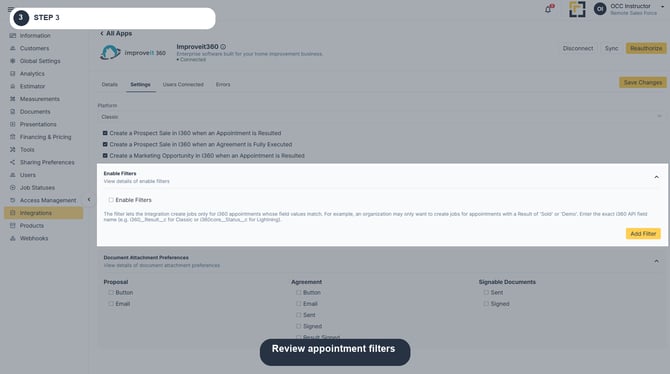
Image description: Review appointment filters.
4. Choose Document Attachment Preferences. Expand the section and select the events that should send documents to Classic. Proposal events: Button, Email. Agreement events: Button, Email, Sent, Signed, Result Signed. Signable Documents events: Sent, Signed. The selected boxes determine which events trigger attachment.
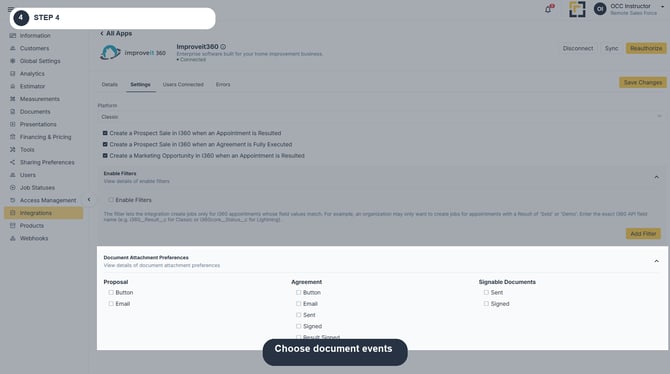
Image description: Choose document events.
5. Review Users Connected and verify active mappings. Staff refresh weekly on Sunday at 1:00 AM UTC. OCC matches staff to OCC users by email; use the user association control to manually link an unmatched staff record. The mapping must be active for that representative’s appointments to create jobs.
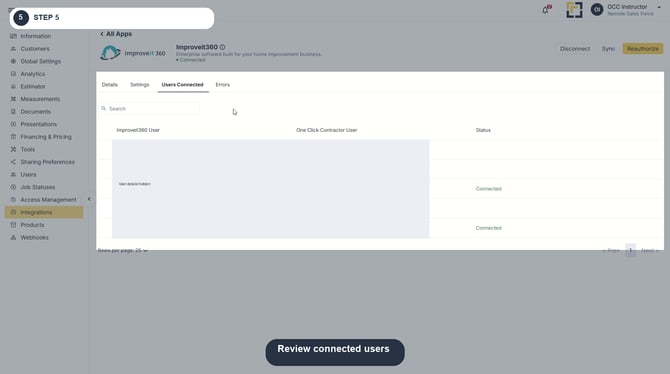
Image description: Review connected users.
6. Save changes and request Sync when an immediate pull is needed. Normal appointment sync runs every 15 minutes at :07, :22, :37, and :52. The manual Sync button requests a synchronization without waiting for the next scheduled run.
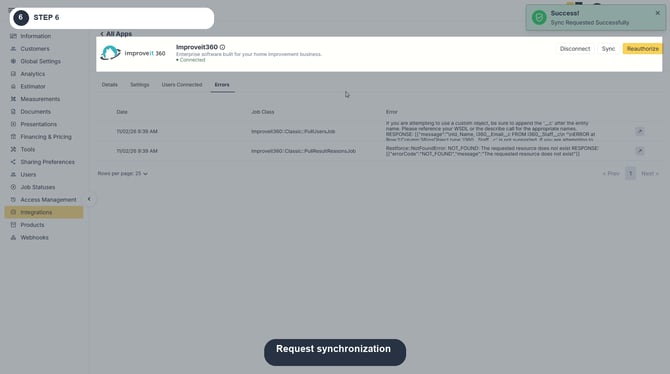
Image description: Request synchronization.
7. Open Errors to inspect failed synchronization records. Review the error row and its details. Use the reported object or field to investigate permissions, field availability, and the configured i360 platform. An error shown in one organization is not necessarily a universal correction; do not change fields or permissions without confirming the cause for that org.
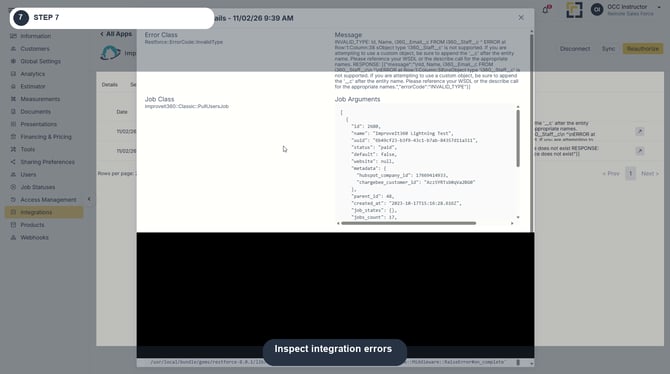
Image description: Inspect integration errors.
1. Classic Appointment-to-Job Field Mapping
Classic uses Prospect and Appointment records to create OCC jobs and appointments. The mappings below describe the source fields and identifiers used during synchronization.
Customer and Job Information
| OCC Destination | Classic Source / Behavior |
|---|---|
| Customer Name |
i360__Prospect__r.i360__Primary_First_Name__c
+ i360__Primary_Last_Name__c
|
| Job Name |
Prospect primary first and last name,
plus i360__Components__c
|
i360__Primary_Email__c
|
|
| Lead Source |
i360__Lead_Source__r.i360__Source_Name__c
|
| Assigned User |
i360__Sales_Rep_1__c
|
Address Mapping
| Address Component | Classic Source |
|---|---|
| Street / Address Line 1 | i360__Address__c |
| Address Line 2 | Not mapped; remains blank |
| City | i360__City__c |
| State | i360__State__c |
| ZIP Code | i360__Zip__c |
Phone Number Mapping
Classic supports three Prospect phone slots. Each phone number is paired with its corresponding phone type to identify the number in OCC.
| OCC Phone | Classic Source |
|---|---|
| Phone 1 | i360__Phone_1__c + corresponding phone type field |
| Phone 2 | i360__Phone_2__c + corresponding phone type field |
| Phone 3 | i360__Phone_3__c + corresponding phone type field |
Appointment Mapping
| OCC Appointment Field | Classic Source |
|---|---|
| Start Time | i360__Computed_Start_DateTime__c |
| End Time | i360__Computed_End_DateTime__c |
| Summary | Appointment Name |
| Notes | i360__Comments__c |
Integration Metadata
OCC retains the following source identifiers for record association and synchronization:
- Prospect ID
- Sales representative ID
- Lead source ID
- Appointment ID
2. Synchronization Conditions and Assignment Behavior
Appointment Update Lookback
OCC checks appointments updated within this period for actively mapped users.
First Sales Representative Mapping
The assigned OCC user is determined by
i360__Sales_Rep_1__c.
An appointment assigned only to a different representative will not create an OCC job through this first-representative mapping.
Representative Reassignment
When the assigned representative changes, OCC evaluates the update on the next 15-minute run, provided the replacement representative has an active user mapping.
The Classic FAQ additionally describes a reassigned appointment window from two days before through 30 days after the current date. This is distinct from the 29-day update lookback described above.
Deleted Source Records
Deleting a Classic Prospect or Appointment does not automatically delete the corresponding OCC job or appointment.
Existing OCC records may remain unlinked or unchanged.
3. Appointment Results and Staff Synchronization
Appointment Result Mapping
During synchronization, Classic reads the following
fields from i360__Appointment__c:
| Result Information | Classic Field |
|---|---|
| Result | i360__Result__c |
| Result Detail | i360__Result_Detail__c |
OCC stores each returned value as a result description and preserves the returned order as the result position.
Staff Synchronization
Staff records are retrieved from
i360__Staff__c.
SELECT Id, Name, i360__Email__c FROM i360__Staff__c
| OCC User Information | Classic Source |
|---|---|
| Linked Staff ID | Id |
| Display Name | Name |
| Email for Matching | i360__Email__c |
Staff Refresh Schedule
Weekly staff synchronization
If users are missing, verify their email addresses and allow for the scheduled staff refresh. Users may also require manual association.
4. Synchronization Schedule
Classic appointment synchronization runs every 15 minutes at the following minutes after each hour:
Use Sync when a manual synchronization is needed, and review Errors if a job or appointment fails to arrive.
5. Result and Document Writeback
When an OCC user results an imported appointment, configured updates are sent to the corresponding Classic appointment.
Standard Outbound Updates
| OCC Information | Classic Behavior |
|---|---|
| Appointment Result | Updates the corresponding Classic appointment result. |
| Result Detail | Updates the corresponding Classic result detail. |
| Notes | Updates the appointment comments field. |
| Latest Estimate Total | Updates the quoted amount. |
Document Attachments
Documents are attached to the latest appointment associated with the Prospect.
They appear in the appointment's Notes & Attachments area.
Changing an ordinary OCC job status or editing customer and job fields does not generally synchronize those changes back to Classic.
6. Sold and Non-Sold Result Behavior
Classic can trigger additional actions based on appointment results when the relevant options are enabled in Settings.
Sold Result - Prospect Sale
When a resulted appointment is marked Sold, OCC can create an i360 Prospect Sale if the corresponding setting is enabled.
| Prospect Sale Information | Source / Behavior |
|---|---|
| Customer Name | OCC customer name |
| Source Appointment | Classic appointment ID |
| Sold Price | Latest OCC estimate total |
| Sold Date | Current time when created |
| Components | Appointment Components |
Non-Sold Result - Marketing Opportunity
For a configured non-Sold result, the Marketing Opportunity option can create a Marketing Task.
| Marketing Task Property | Value / Behavior |
|---|---|
| Due Date | Seven days later |
| Lead Source | Saved lead source |
| Task Type | Rehash Appointment |
Prospect Sale creation and Marketing Opportunity creation are separate configured events. Each requires its relevant Settings option to be enabled.
7. If a Job Is Missing or Incorrect
Verify Platform and Filters
- Confirm Platform is set to Classic.
- Verify the configured filter field and value.
- Confirm the appointment matches the filter criteria.
An enabled filter excludes nonmatching records.
Verify the Appointment and Assignment
- Confirm the appointment was updated within the 29-day lookback.
- Verify the first assigned sales representative has an active OCC user mapping.
- Check whether the appointment was reassigned to another representative.
Check Synchronization
- Review the next scheduled run at :07, :22, :37, or :52.
- Use Sync to request synchronization when appropriate.
- Review Errors for failed records or API issues.
Check Source Record Availability
Confirm the source Prospect and Appointment still exist in Classic.
Their deletion does not delete or automatically update the corresponding OCC record.
Users Missing from Mapping
- Verify the Classic staff record exists.
- Check the email address used for OCC matching.
- Allow for the Sunday 1:00 AM UTC staff refresh.
- Manually associate the user when needed.
Unavailable Fields or Objects
If an error references an unavailable field or object, verify the exact Classic configuration and organization permissions before escalation.
Escalate with the relevant error details, affected object, and field name. Do not share consumer credentials.
8. Final Technician Checklist
- Platform set to Classic
- Filter fields and values verified
- Prospect and Appointment records confirmed
- 29-day update lookback checked
- First sales representative actively mapped
- Staff email matching verified
- Customer and job field mappings reviewed
- Phone and address fields validated
- Appointment start and end times confirmed
- Source identifiers preserved in metadata
- Appointment results and details synchronized
- Document attachment destination reviewed
- Prospect Sale setting verified if applicable
- Marketing Opportunity setting verified if applicable
- Scheduled or manual synchronization checked
- Error logs reviewed
What you see can differ depending on your organization's settings and your permission level. Tab names, headers, and available options are configurable. If you cannot see or perform something described here, ask your manager first. They can contact support.