Skip to content
  • There are no suggestions because the search field is empty.

Configure and Troubleshoot ImproveIt360 Lightning

Configure Lightning appointment filters and document events, and troubleshoot staff mapping and synchronization.

Configure the Lightning integration

1. Open the ImproveIt360 Settings tab and confirm Lightning. Open the ImproveIt360 card under Integrations, select Settings, and verify Platform is Lightning.
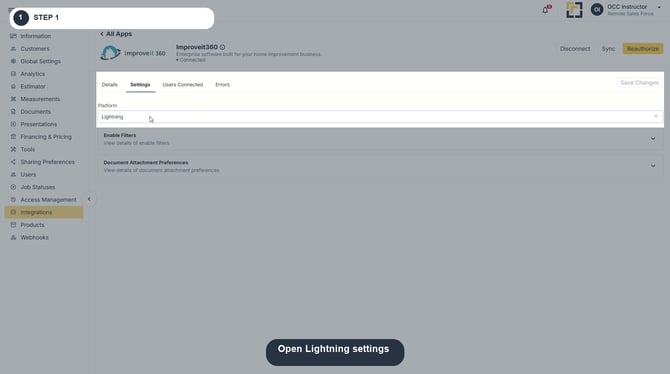
01-open-lightning-settings

Image description: Open Lightning settings.

2. Expand Enable Filters to review appointment filtering. Open the Enable Filters section. If incoming appointments should be limited, turn it on and add a filter using the exact Lightning API field and its permitted value(s). The interface example is i360core__Status__c. The screenshot shows the section collapsed before opening; it does not show filtering enabled.
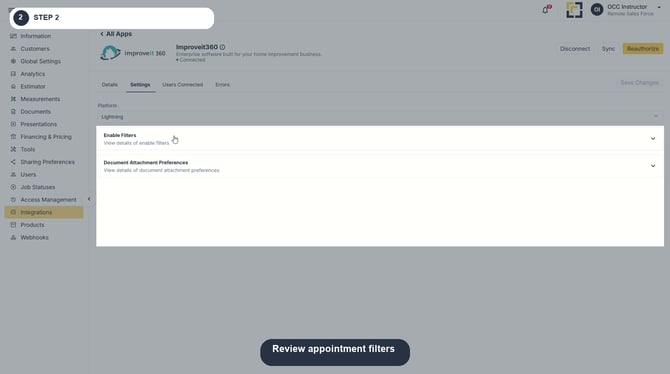
02-review-appointment-filters

Image description: Review appointment filters.

3. Complete both required filter inputs, then save. In Column, enter the exact Lightning API field, such as i360core__Status__c. In Valid Values, enter the exact permitted value(s) for that field. Then click Save Changes. Do not copy the Classic example field. The captured screen below shows a blank, incomplete row with Required validation; it documents the two required inputs and is not evidence of a saved filter.
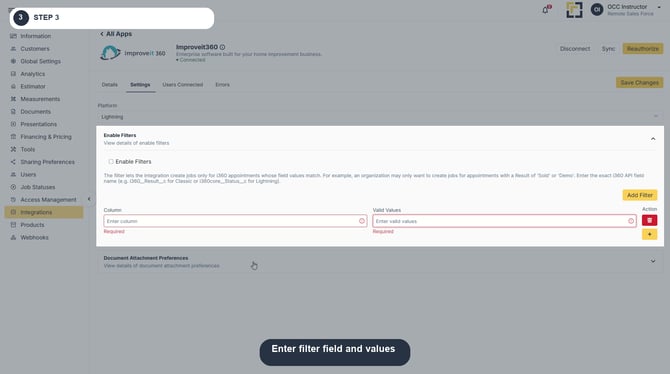
03-enter-filter-field-and-values

Image description: Required filter fields (captured form is incomplete).

4. Choose Document Attachment Preferences. Select which Proposal events (Button, Email), Agreement events (Button, Email, Sent, Signed, Result Signed), and Signable Documents events (Sent, Signed) should send documents back to Lightning.
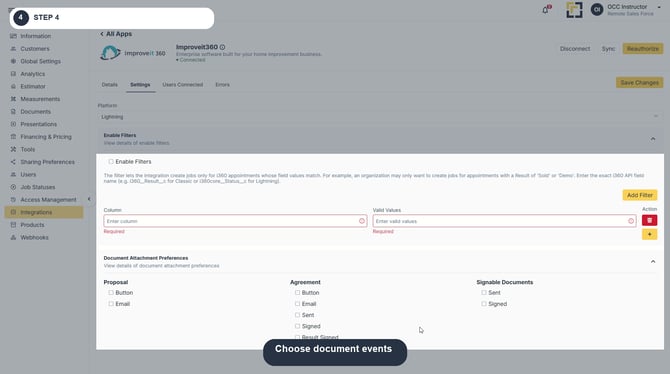
04-choose-document-events

Image description: Choose document events.

5. Check Users Connected when an assignee is not linked. Staff are pulled weekly on Sunday at 1:00 AM UTC. OCC automatically matches staff to OCC users by email. If email matching did not associate a user, manually select the OCC account for that staff row. The association must be active for appointment jobs to be created.
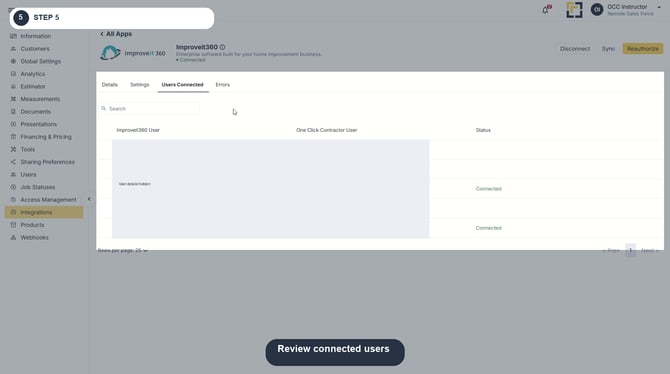
05-review-connected-users

Image description: Review connected users.

6. Save settings and request Sync to pull immediately. Scheduled job syncs run every 15 minutes at :07, :22, :37, and :52. The manual Sync control requests a sync outside that schedule.
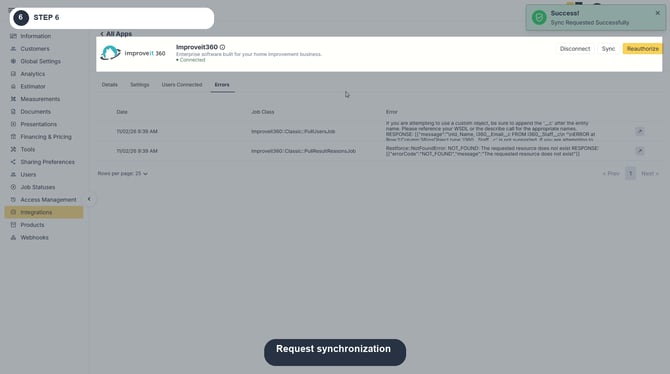
06-request-synchronization

Image description: Request synchronization.

7. Open Errors and inspect the error details. Use the failing record’s message to determine whether the issue is authorization, object/field access, or source data. Confirm the correct Lightning object and the organization’s permissions before changing configuration.
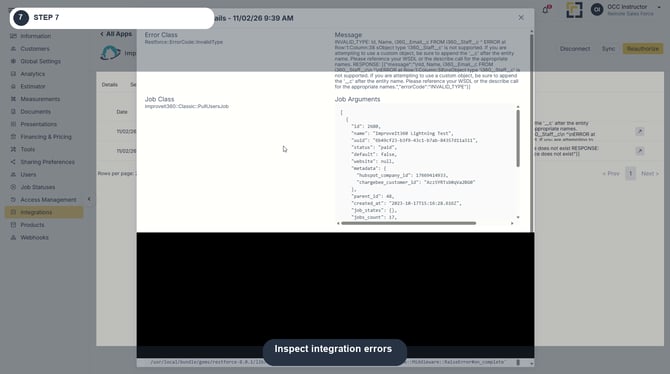
07-inspect-integration-errors

Image description: Inspect integration errors.

1. Lightning Appointment-to-Job Mapping

Lightning uses Contact and Appointment information to create OCC jobs and appointments. The mappings below identify the source fields and identifiers used during synchronization.

Customer and Job Information

OCC Destination Lightning Source / Behavior
Customer Name i360core__Contact_Name__c
Customer Email i360core__Contact_Email__c
Job Name i360core__Contact_Name__c + i360core__Product_Categories__c
Lead Source No lead-source mapping provided
Assigned User i360core__Sales_Rep_1__c

Address Mapping

Address Component Lightning Source
Street i360core__Street_Address__c
City i360core__City__c
State / Province i360core__State_Province__c
ZIP / Postal Code i360core__Zip_Postal_Code__c

Phone Number Mapping

Lightning reads phone information from Contact_Phone__c.

OCC splits the value on commas to identify individual phone entries, then splits each entry on a colon to separate the phone name or type from its number.

Phone Parsing Format

Comma: separates phone entries.
Colon: separates each phone type and number.

Appointment Mapping

OCC Appointment Field Lightning Source
Start Time i360core__Appointment_Date_Time__c
End Time i360core__Appointment_End_Date_Time__c
Summary Contact name, product categories, and appointment type

Related Sales Opportunities

The Contact's related sales appointment opportunities are retained with the appointment.

  • Opportunity ID
  • Interested In
  • Opportunity Name
  • Result
  • Result Detail

Integration Metadata

OCC retains the following source identifiers:

  • Account ID
  • Sales representative ID
  • Appointment ID

2. Synchronization Conditions and Assignment Behavior

Appointment Update Lookback

Previous 29 Days Through Current Time

OCC imports appointments updated within this window, with a five-minute overlap, for actively mapped users.

First Sales Representative Mapping

Lightning uses i360core__Sales_Rep_1__c to identify the primary assigned representative.

That representative must have an active OCC user association for the appointment to be eligible for synchronization.

Representative Reassignment

When the assigned representative changes, OCC evaluates the appointment on the next 15-minute run, provided the new representative has an active OCC user mapping.

Reassignment Window

The Lightning FAQ additionally describes a reassigned appointment eligibility window from two days before through 30 days after the current date.

This is separate from the 29-day update lookback.

Deleted Source Records

Deleting a Lightning Contact, Account, or Appointment does not automatically remove or update the corresponding OCC records.

3. Staff Synchronization and User Matching

Lightning retrieves staff records from i360core__Staff__c.

Staff Query

SELECT Id, Name, i360core__Email__c FROM i360core__Staff__c
OCC User Information Lightning Source
Integration Staff ID Id
Display Name Name
Email for Matching i360core__Email__c

User Matching Behavior

  • Matching email addresses are automatically associated with OCC users.
  • Unmatched staff members can be linked manually.
  • Appointments require an active association for their first assigned representative.

Staff Refresh Schedule

Sunday - 1:00 AM UTC

Weekly staff synchronization

4. Synchronization Schedule

Lightning appointment synchronization runs every 15 minutes at the following minutes after each hour:

:07   :22   :37   :52

Use Sync when a manual synchronization is needed. Review Errors when an appointment or job does not arrive.

5. Appointment and Sales Opportunity Results

Lightning synchronizes appointment results and related sales opportunity results using their corresponding status and detail fields.

Appointment Results

Result Information Lightning Source
Appointment Object i360core__Sales_Appointment__c
Result i360core__Status__c
Result Detail i360core__Status_Detail__c

Sales Opportunity Results

Result Information Lightning Source
Sales Opportunity Object i360core__Sales_Opportunity__c
Result i360core__Result__c
Result Detail i360core__Result_Detail__c

Dependent Result Details

Synchronization retrieves picklist values and their dependent details.

  1. OCC records each returned result value.
  2. The returned order is preserved as the result position.
  3. Each dependent detail is associated with its parent result.
  4. The same result-and-detail relationship is retrieved for sales opportunities.
Important: Result and Detail Relationships

A result and its dependent detail must be reviewed as a matched pair when validating configuration or troubleshooting writeback.

6. Result and Document Writeback

When an imported appointment is resulted in OCC, configured updates are sent to the corresponding Lightning records.

Outbound Result Updates

  • Appointment result
  • Appointment result detail
  • Associated sales opportunity results
  • Associated sales opportunity result details

These values update the corresponding Lightning appointments and related sales opportunity records.

Document Attachments

Documents are sent to the latest appointment associated with the Contact.

They are available in the appointment's Files area.

Attachment events are controlled by Document Attachment Preferences.

Outbound Synchronization Limitations

Ordinary OCC job-status changes and edits to customer or job information do not automatically synchronize back to Lightning.

Unlike Classic, the Lightning FAQ does not describe additional Prospect Sale or Marketing Opportunity creation when an appointment is resulted.

7. Troubleshooting Missing Jobs

Verify Platform and Filters

  1. Confirm Platform is set to Lightning.
  2. Review all enabled filters.
  3. Verify each filter uses a Lightning API field and an exact allowed value.

Verify User Mapping

  1. Confirm the first assigned sales representative is associated with an active OCC user.
  2. Review automatic email matching for Lightning staff.
  3. Manually associate users that remain unmatched.

Review Synchronization Timing

  1. Confirm the appointment was updated within the prior 29 days.
  2. Account for the five-minute synchronization overlap.
  3. Check the next scheduled run at :07, :22, :37, or :52.
  4. Use Sync when an additional pull is needed.

Check Authorization and Field Access

  1. Open Errors and review the reported issue.
  2. Identify any affected Salesforce object or field.
  3. Validate its availability in the Lightning organization.
  4. Confirm the integration-user permissions before changing access.

Check Source Record Availability

Confirm the Contact, Account, and Appointment still exist in Lightning.

Source deletion is not mirrored into OCC, so previously synchronized records may remain.

8. Final Technician Checklist

  1. Platform set to Lightning
  2. Filter API fields and exact values verified
  3. Source Contact, Account, and Appointment confirmed
  4. 29-day update lookback checked
  5. Five-minute synchronization overlap considered
  6. First sales representative actively mapped
  7. Staff email matching confirmed
  8. Customer and job field mappings reviewed
  9. Address and phone parsing verified
  10. Appointment start and end times checked
  11. Related sales opportunity information reviewed
  12. Source IDs retained in metadata
  13. Appointment result and detail relationships validated
  14. Sales opportunity result and detail relationships validated
  15. Document Attachment Preferences reviewed
  16. Document destination confirmed in Files
  17. Scheduled or manual synchronization tested
  18. Error logs reviewed
Remember

What you see can differ depending on your organization's settings and your permission level. Tab names, headers, and available options are configurable. If you cannot see or perform something described here, ask your manager first. They can contact support.