![Icon for Courses-1.png]](https://help.oneclickcontractor.com/hs-fs/hubfs/Icon%20for%20Courses-1.png?width=36&height=36&name=Icon%20for%20Courses-1.png)
Requirements
-
Finance Manager permission.
-
Business, ownership, and banking information for merchant onboarding.
-
Allow one to two business days for underwriting before One Click Payments is enabled.
Set Up One Click Payments
Step 1: Select Apply for One Click Payments from your account menu.
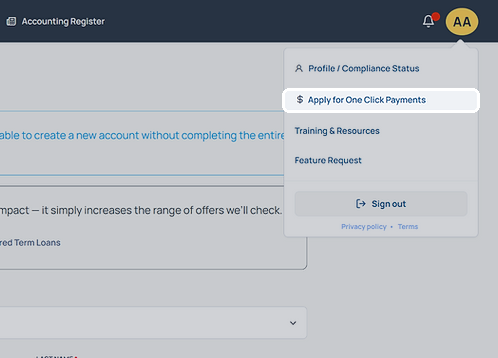
Image description: The account menu shows the Apply for One Click Payments option.
Step 2: Choose your merchant setup. Select the new-merchant option or join your parent organization’s existing payment processing.
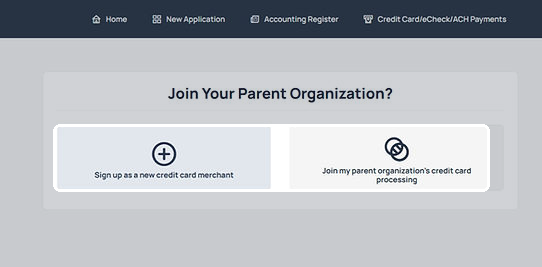
Image description: Merchant setup offers new-merchant signup or enrollment under a parent organization.
Step 3: Complete Merchant Onboarding. Enter the requested business, activity, ownership, and banking information.
👉 Underwriting typically takes one to two business days. Payment options become available after approval and enablement.
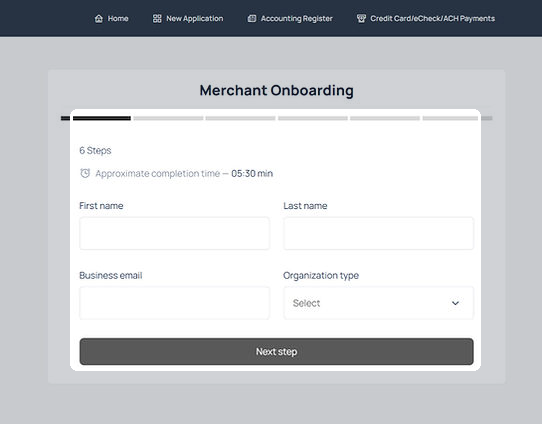
Image description: The Merchant Onboarding form collects the information needed to apply for payment processing.