![Icon for Courses-1.png]](https://help.oneclickcontractor.com/hs-fs/hubfs/Icon%20for%20Courses-1.png?width=36&height=36&name=Icon%20for%20Courses-1.png)
Overview
Use this procedure to enable MarketSharp for your company, have OCC connect the organization, and map MarketSharp salespeople to OCC users. MarketSharp appointments are only eligible for OCC job synchronization when the assigned MarketSharp salesperson has an active OCC user mapping. Matching email addresses are linked automatically; administrators can correct or create a link manually.
Before you begin
-
Sign in to MarketSharp as an administrator and have your MarketSharp Company ID available.
-
Sign in to OCC as an organization administrator.
-
Confirm which MarketSharp salesperson should map to each OCC user. When a MarketSharp account contains multiple comma-separated email addresses, OCC uses only the first address for automatic matching.
-
Enable the connection in MarketSharp first. OCC support must enable the MarketSharp integration for the organization using the MarketSharp Company ID.
Step by step
Step 1: Open MarketSharp administration
In MarketSharp, sign in as an administrator and open the Admin page. Under Apps & Add ons Setup, select One Click Contractor.
Step 2: Enable One Click Contractor in MarketSharp
Turn on Enable One Click Contractor and save the setting. Complete any additional authorization steps required by the platform.
Step 3: Request OCC enablement
Contact OCC Support and ask them to enable MarketSharp for your organization. Provide your MarketSharp Company ID. Keep the Company ID available to support; do not include it in public screenshots.
Step 4: Open the MarketSharp integration card in OCC
In OCC, open Administration > Integrations, then select the MarketSharp card. Confirm the card shows the connection state. If OCC Support has just enabled the integration, continue through any authorization prompt required by the platform.
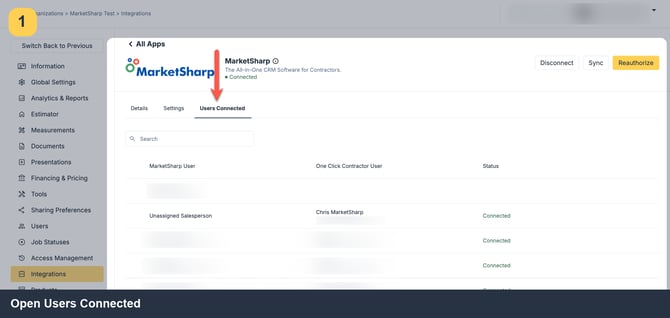
Image description: Current OCC MarketSharp integration card showing the connected state and integration controls.
Step 5: Open Users Connected
On the MarketSharp integration card, select Users Connected. Review the MarketSharp users and their linked One Click Contractor users. The current card also provides Sync and Reauthorize controls.
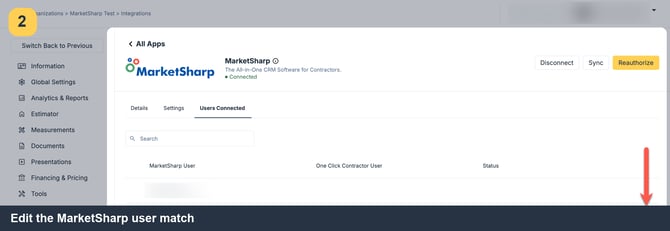 Image description: MarketSharp integration card with Users Connected selected.
Step 6: Check the MarketSharp salesperson record
MarketSharp only sends users defined as salespeople through its API. If a user is missing, sign in to MarketSharp as an administrator, open the user record, and confirm that Salesperson is selected under Employee Types. Save the user. The next user pull can then bring that person into OCC.
Step 7: Check the email used for automatic matching
OCC compares the MarketSharp user's email with OCC user emails. If they match, OCC links the accounts automatically. If MarketSharp lists multiple email addresses separated by commas, only the first is used for this comparison. Correct the first address in MarketSharp if needed.
Step 8: Edit a user link when automatic matching is wrong or absent
In Users Connected, find the MarketSharp user and hover over the row. Select the pencil edit control.
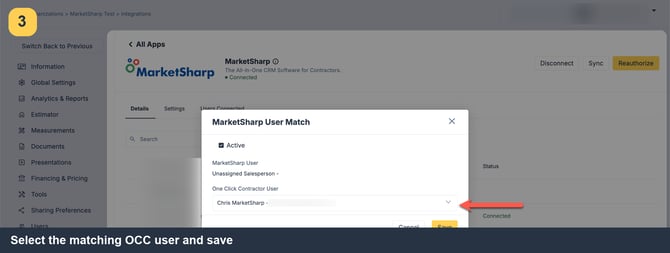
Image description: Edit control for a MarketSharp user row.
Step 9: Choose the OCC user and activate the mapping
In the MarketSharp User Match dialog, select the correct One Click Contractor User, make sure Active is checked, and select Save. An inactive or missing mapping prevents that salesperson's appointments from being pulled into OCC.
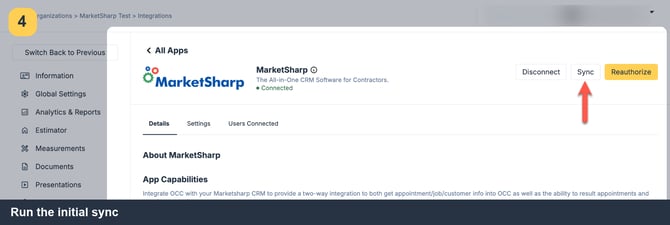
Image description: MarketSharp User Match dialog with the OCC user selection and Active setting.
Step 10: Run an initial sync when you need to refresh the connection
Select Sync on the MarketSharp integration card. This starts the Initial Sync process. It pulls MarketSharp salesperson users and links users by email, retrieves the appointment Result and Result Reason lists for the organization, and pulls appointments for users with active mappings. Use this when you need to expedite a sync or verify an updated user mapping.
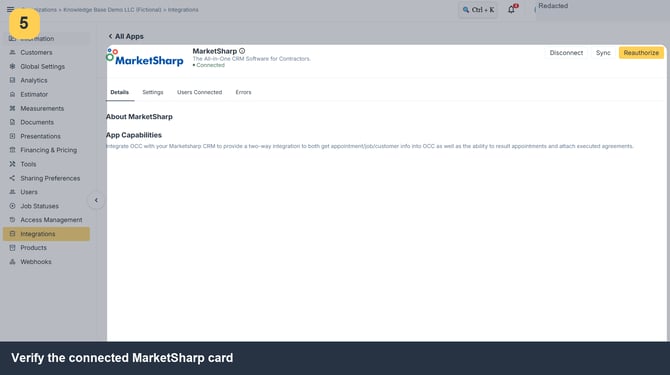
Image description: Sync control on the MarketSharp integration card.
Sync timing and troubleshooting
-
MarketSharp users are synchronized weekly at 4:00 AM UTC on Sundays. Only users defined as salespeople in MarketSharp are included.
-
Appointments and job updates are checked every 15 minutes, at :00, :15, :30, and :45. A user mapping change should be picked up on the next sync; an active mapping is still required.
-
On the first sync, OCC looks for appointments scheduled 29 days in the past or in the future. For a user who has synced before, OCC uses the last sync time.
-
If a user is absent, check the MarketSharp Salesperson employee type first. Then confirm the email address (first address only if comma-separated), the linked OCC user, and that Active is checked.
-
If appointments for one user are absent, open Users Connected, verify the correct OCC user is selected, and confirm the mapping is active. The next scheduled pull uses the corrected mapping.
-
If the card is disconnected or authorization has expired, use Reauthorize and complete the authorization steps required by the platform.