![Icon for Courses-1.png]](https://help.oneclickcontractor.com/hs-fs/hubfs/Icon%20for%20Courses-1.png?width=36&height=36&name=Icon%20for%20Courses-1.png)
The Signatures tab allows you to create a signature request from an existing document.
You can select the document that needs to be signed, review the recipient’s information, and choose whether the document will be signed Onscreen or sent by Email.
Step 1: Select the Document
- Open the Signatures tab.
- Click + Signature Request.
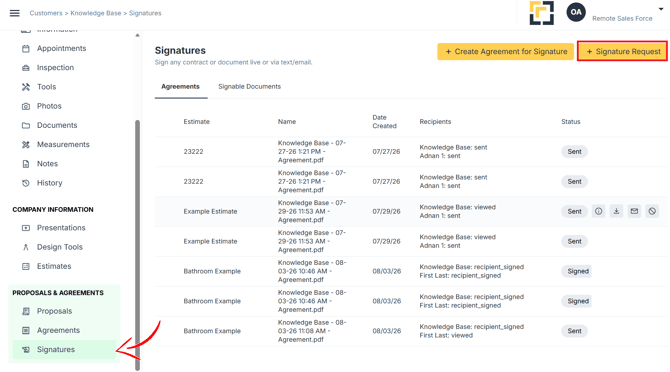
- Locate the folder containing the document you need.
- Select the document.
- Click Create.
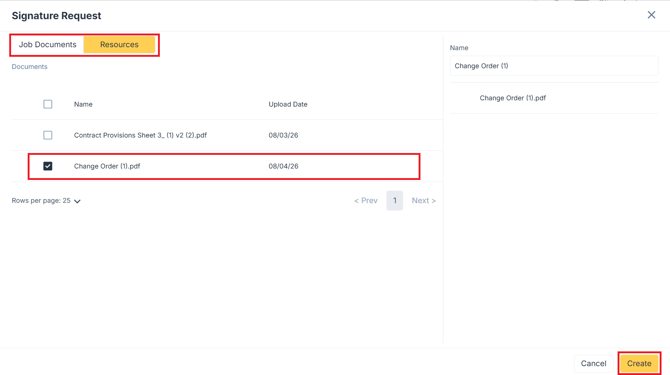
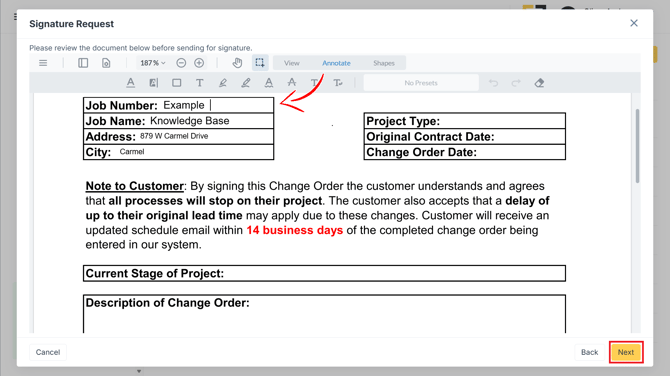
Step 2: Enter the Required Information
-
Complete the requested document and recipient information.
-
Review the details to make sure the correct signer is included, then click Next.
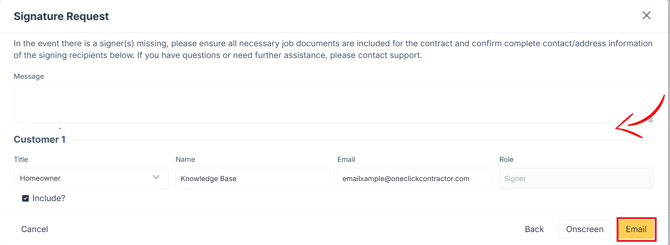
Step 3: Review the Signature Request
Before sending the document, you can:
- Enter a message for the recipient
- Review the signer’s name and email address
- Confirm that the correct recipient is included
- Choose how the document will be signed
Select Onscreen to complete the signature process directly from the current device.
Select Email to send the signature request to the recipient’s email address.
💡 Notes:
- Documents must be coded for signatures before they can be used in a signature request.
- A document that is not coded for signatures may display an error or fail to load after you click Next.
- Contact Support if a document that should be signable does not load.