Skip to content
English
  • There are no suggestions because the search field is empty.

Creating Estimates and Managing Line Items Without Templates

Learn how to manually create an estimate in One Click Contractor without using a template and how to add, edit, or remove line items within an existing estimate.

Article Introduction

One Click Contractor allows you to build estimates manually without using templates. This approach is useful for unique jobs or scenarios where a predefined template does not apply. You can also edit existing estimates by adjusting quantities, changing products, or removing line items.


Creating a New Estimate Without a Template

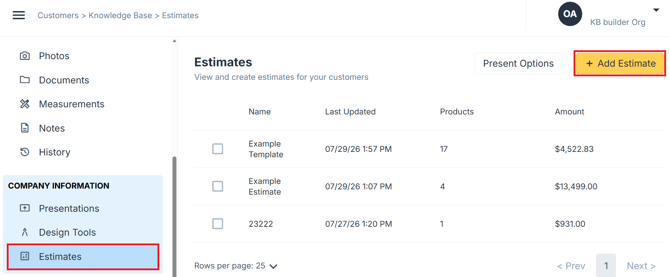
Step 1: Add a New Estimate

  • Click Add Estimate.

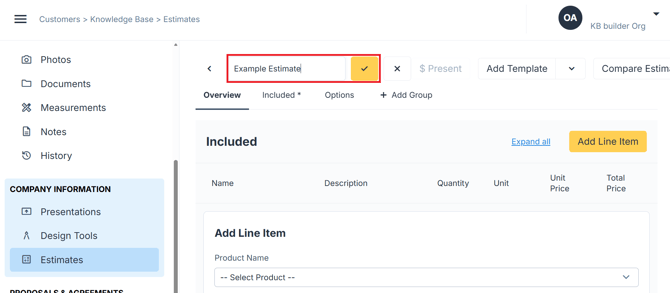
  • Rename and save the template. 

user_cropped_screenshot (18)

user_cropped_screenshot (18)-1

Step 2: Add Groups and Line Items

  • Add a group, rename and save (you can rename each tab according to your needs)

  • Click Add Line Item.

  • Select the products 

user_cropped_screenshot (19)


Adding Line Items (also applicable to existing templates)

Steps:

  1. Click on + Add Line Item

  2. Select the product from the dropdown menu. 
  3. Edit quantities as needed. 
  4. Save the changes made to the Line Item

user_cropped_screenshot (20)

user_cropped_screenshot (21)

user_cropped_screenshot (22)

Edit and Delete Line Items

  • Click the pencil icon to edit a line item. 
  • Click the trash bin icon to delete a line item. 
    • You will also find a delete button in the line item editor. 

Save the Estimate

  • Click Save Estimate.

  • Click Close to return to the Estimates list.