![Icon for Courses-1.png]](https://help.oneclickcontractor.com/hs-fs/hubfs/Icon%20for%20Courses-1.png?width=36&height=36&name=Icon%20for%20Courses-1.png)
Requirements
-
Access to the customer's Estimates page.
-
Permission to use Generate Product CSV.
Generate the Product CSV
Step 1: Open the three-dot menu for the estimate. From the customer's Estimates page, locate the estimate and select the three-dot menu at the end of its row.
Step 2: Select Generate Product CSV. OCC generates a CSV file for the selected estimate. Open the downloaded file in your preferred spreadsheet tool.
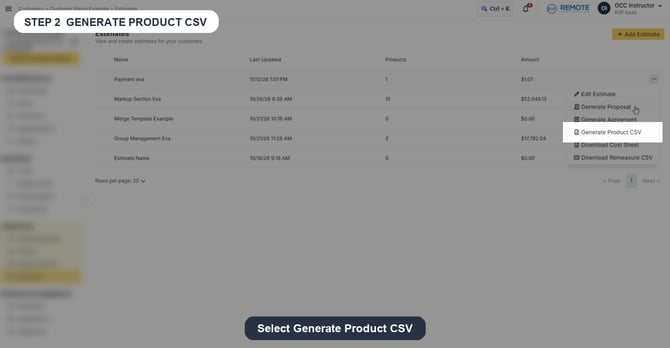
Image description: The supplied recording shows Generate Product CSV in the estimate actions menu.
What the Product CSV includes
The supplied Product CSV contains product identity, quantity, price, and cost fields.
|
Column |
What it identifies |
|
Group |
The estimate group for the line item. |
|
Included |
Whether the row is included. |
|
Type |
The line type, such as product or product_option. |
|
ID |
The product identifier. |
|
Product |
The product or option name. |
|
SKU and Description |
The SKU and description when present. |
|
Quantity and Unit |
The quantity and unit for the line. |
|
Product Price and Labor Price |
Product and labor price values. |
|
Unit Price and Unit Cost |
Per-unit price and cost values. |
|
Ext Price and Ext Cost |
Extended price and cost values. |
|
MSRP |
The MSRP value when present. |
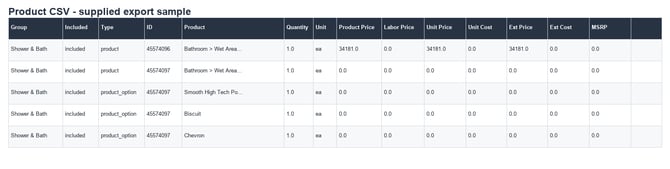
Image description: A faithful rendering of the header and first rows of the supplied Product CSV export sample.
💡Notes:
-
The export reflects the state of the estimate when you generate it.
-
A product can be followed by product_option rows that capture its selected options.
-
The Product CSV is intended for internal use because it can include pricing and cost-related values not shown in customer-facing documents.
Remember
What you see can differ depending on your organization's settings and your permission level. Tab names, headers, and available options are configurable. If you cannot see or do something described here, ask your manager first. They can contact support.