![Icon for Courses-1.png]](https://help.oneclickcontractor.com/hs-fs/hubfs/Icon%20for%20Courses-1.png?height=40&name=Icon%20for%20Courses-1.png)
Article Introduction
From the Estimator’s left panel, open the Inspection tab.
After reviewing the inspection information, use the Download or Email controls at the top of the tab to share the inspection.
Download an Inspection PDF
-
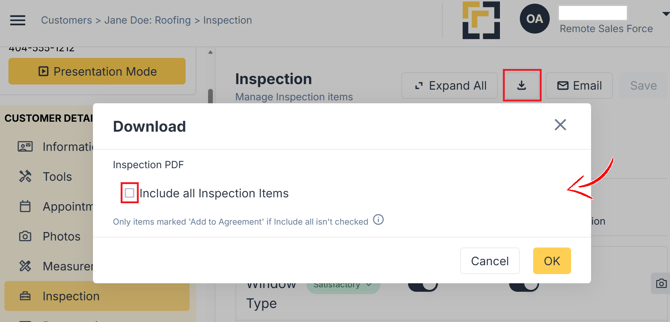
Select the Download icon at the top of the Inspection tab to open the Download window.
-
The Include all Inspection Items checkbox determines which items appear in the PDF.
Include Every Inspection Item
Select Include all Inspection Items when the PDF should contain all inspection items. This includes items regardless of whether Add to Agreement is turned on.
Include Only Items Added to the Agreement
Leave Include all Inspection Items unchecked when the PDF should contain only inspection items marked Add to Agreement.
Complete the Download
After choosing which items to include:
- Select OK to create the Inspection PDF.
- Select Cancel to close the window without downloading it.
Send the Inspection by Email
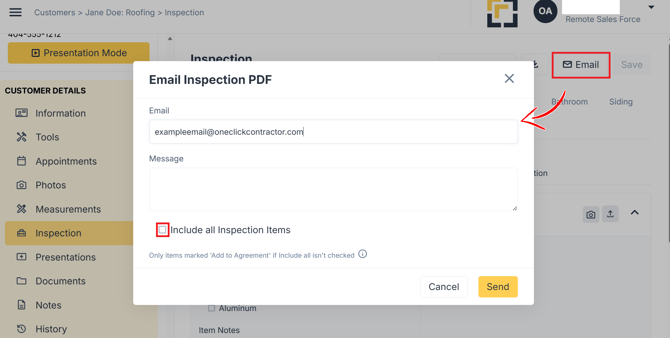
Select Email at the top of the Inspection tab to begin the email process.
Complete the information requested in the email window and review the inspection content before sending it.