![Icon for Courses-1.png]](https://help.oneclickcontractor.com/hs-fs/hubfs/Icon%20for%20Courses-1.png?width=36&height=36&name=Icon%20for%20Courses-1.png)
Requirements
-
Permission to edit the applicable Product Price List.
Edit a product
Step 1: Open the product list. In Products > Price List Editor, open the category level containing the product you need to update.
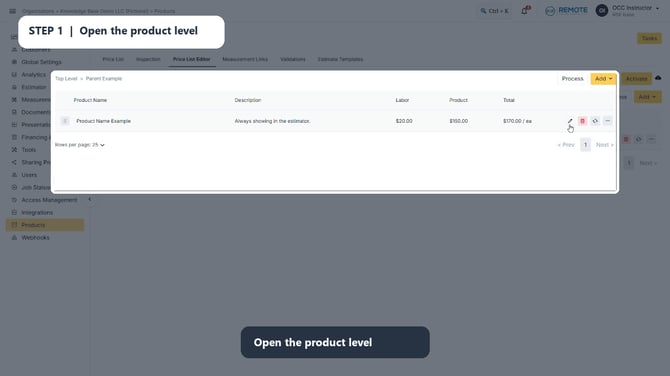
Image description: A product level in Price List Editor with an existing product row.
Step 2: Hover over the product and select the pencil. Move your pointer over the product row. Select the pencil icon that appears on the right side of the row to open the product for editing.
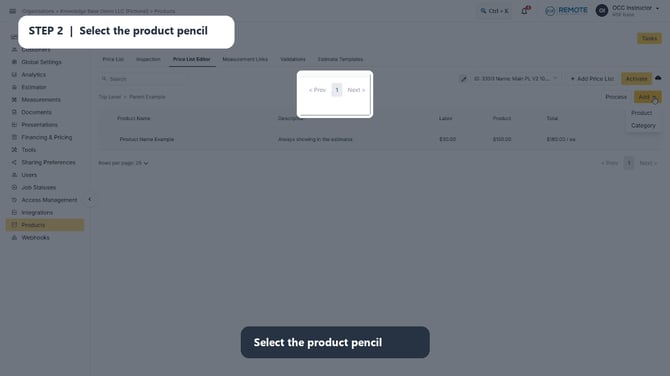
Image description: An existing product row with its edit pencil icon highlighted.
Step 3: Update the necessary product settings. On the Details tab, update fields such as the name, description, prices, units, visibility, discounts, markup, or SKU as needed. Review the product and labor amounts together before saving.
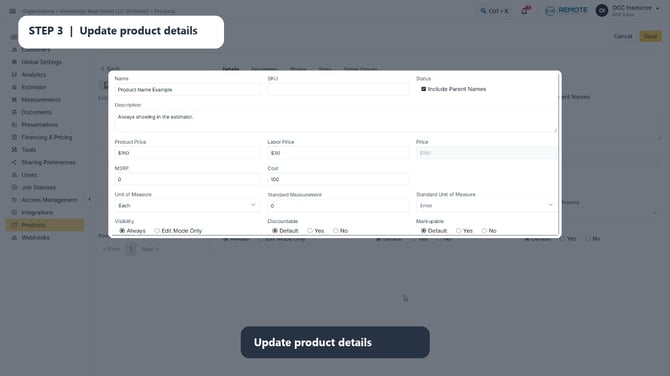
Image description: The Edit Product Details screen, where product information and pricing can be updated.
Step 4: Save and activate the price list. Select Save after your changes are complete. Then select Activate in the Price List Editor so the current version is available in the estimator.
💡Best practice
Make the required change, then save and activate the price list immediately. An edit is not available to the estimator until the updated price list has been activated.
Remember
What you see can differ depending on your organization's settings and your permission level. If you cannot see or do something described here, ask your manager first.