![Icon for Courses-1.png]](https://help.oneclickcontractor.com/hs-fs/hubfs/Icon%20for%20Courses-1.png?width=36&height=36&name=Icon%20for%20Courses-1.png)
Requirements
-
A valid customer email address and mobile phone number.
-
The customer’s first and last name, project type, and full project amount.
Send an Application by Email
Step 1: Enter the applicant and project details. Enter the customer’s first and last name, project type, full project amount, email address, and mobile phone number.
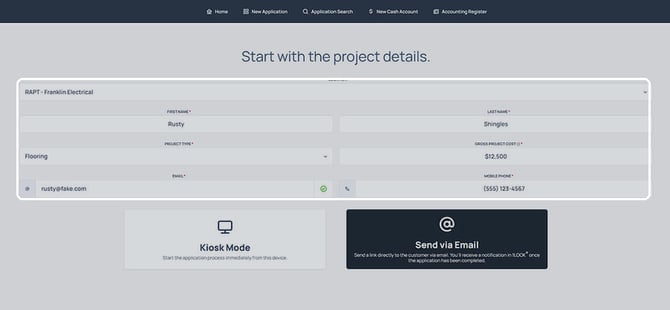
Image description: The project details form contains the applicant, project, email, and phone fields required before sending the application.
Step 2: Select Send via Email. This sends the application link to the email address provided.
👉 The customer has 48 hours to complete the application before the link expires and a new link must be requested.
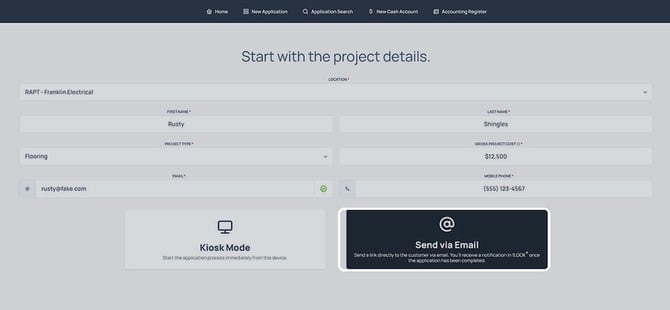
Image description: The Send via Email option starts a remote application from the customer’s own device.
Step 3: Review the Application Sent confirmation. Confirm the application ID and email address shown before continuing in 1LOOK.

Image description: The confirmation identifies the application and confirms that the email link was sent to the customer.
Step 4: Review the notification bell. 1LOOK notifies you when the customer completes the application.
Image description: The bell icon in the upper-right corner shows notifications after the customer completes the application.
Step 5: Review Application Progress. Open the application from the Home screen and use the progress tile to review the current status, offers, and any required stipulations.
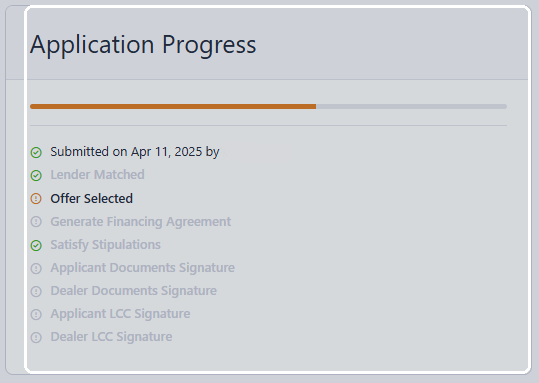
Image description: The Application Progress tile shows the application status and highlights the next required stage.
Remember
What you see can differ depending on your organization's settings and your permission level. Tab names, headers, and available options are configurable. If you cannot see or do something described here, ask your manager first. They can contact support.