![Icon for Courses-1.png]](https://help.oneclickcontractor.com/hs-fs/hubfs/Icon%20for%20Courses-1.png?height=40&name=Icon%20for%20Courses-1.png)
The Enhanced Price Presentation allows organizations to standardize how pricing, financing, and discounts are displayed during customer presentations. Configuration is completed in the Administration panel and applies to all price presentations within the organization.
Step 1: Enable Price Presentation
-
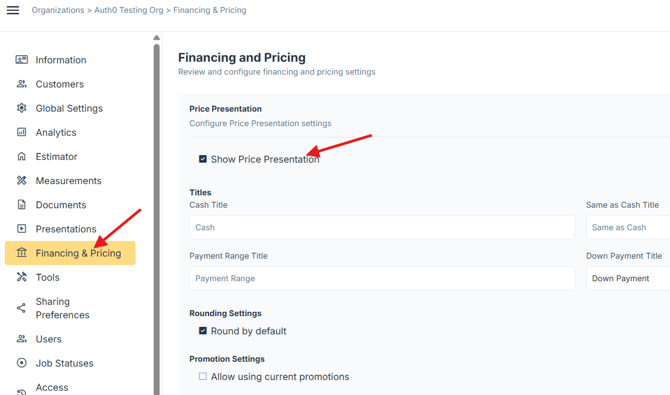
Go to Administration.
-
Navigate to Financing & Pricing.
-
Expand the Price Presentation section.
-
Check Show Price Presentation.
Titles and Options
Definitions:
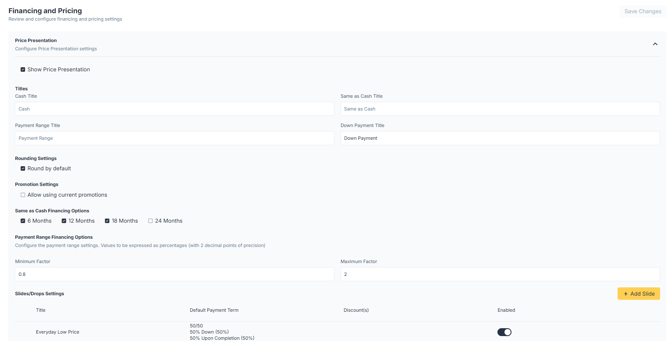
Titles: The configurable text for Cash, Same as Cash, Payment Range and Down Payment. For example: if an org would rather use “Money down”, they can change the “Down Payment” language here.
Rounding Settings: Configure whether the dollar amounts in the presentation are rounded or not. Note: If rounding is on, user will have the option during the presentation to toggle to exact values if desired.
Allow using Current Promotions: Configure whether the user will have the option to add org-configured discounts ad-hoc as they go through the Price Presentation.
Same as Cash Financing Options: Determines the options displayed on the Same as Cash card. If none are selected, the Same as Cash card will NOT appear in the presentation slides. Note: Cash and Financing cards will ALWAYS appear.
Payment Range Financing Settings: Determines the min and max payment range factors (%s). The range will take the total price after discounts and multiply by these factors to get the range.
Example:
$10,000 Total
$1,000 Discount
$9,000 Total (after discounts)
Min = $9,000 * min
Max = $9,000 * max
If min is set to 1 and max set to 2, in this example the range will appear as 90-180.
⚠️ Important:
All selections made in this section apply to every price presentation in the organization.
Slides
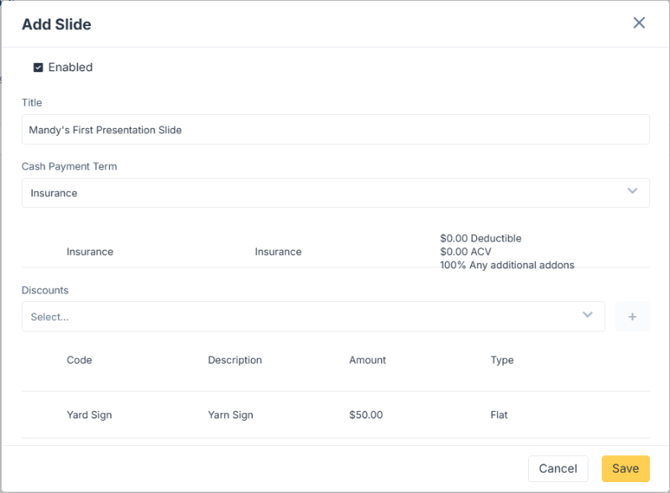
Configure:
-
Slide titles
-
Which payment terms apply to each slide
-
Which discounts are available per slide
-
Whether the slide is enabled for sales reps
These settings determine what appears in every price presentation across the organization.
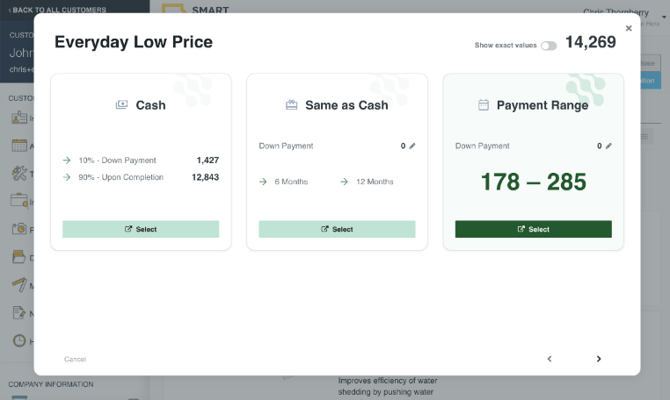
How it will be shown in the Estimator
The configuration selections on this screen will determine what appears on the Estimator's actual presentation slides: