![Icon for Courses-1.png]](https://help.oneclickcontractor.com/hs-fs/hubfs/Icon%20for%20Courses-1.png?height=40&name=Icon%20for%20Courses-1.png)
Estimate templates can be created directly within the estimator by building an estimate and saving it as a template. This allows you to reuse a predefined structure of line items for future estimates.
How Templates Are Created
Templates are created by first building an estimate and then saving that estimate as a template.
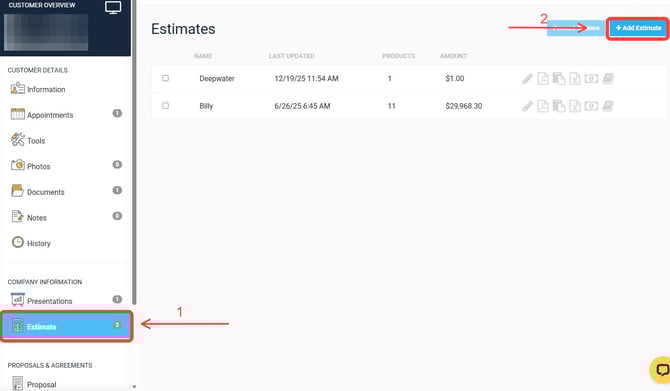
Step 1: Create a New Estimate
-
Go to the Estimates tab.
-
Click Add Estimate.
-
Enter a name for the estimate that reflects the type of work (for example, Roofing).
-
Click Save.
-webp-1.webp?width=670&height=387&name=user_cropped_screenshot%20(1)-webp-1.webp)
Step 2: Build the Estimate Structure
-
Click the Pen Icon in the first group tab to rename the tab and save it.
-
It may be useful to give it the same name as the type of work (for example, Roofing).
-
- Click on + Line Items to start editing.
-
Add all Line Items you would normally include when quoting that type of job.
- Save changes
-webp-1.webp?width=670&height=386&name=user_cropped_screenshot%20(2)-webp-1.webp)
-webp-1.webp?width=670&height=394&name=user_cropped_screenshot%20(4)-webp-1.webp)
⚠️ Note: Measurements are intentionally not finalized when building a template. Measurements are adjusted later when the template is applied to a real customer job.
Click on the Pen icon to Edit the line item, or the Trash Bin Icon to delete.
-webp-1.webp?width=670&height=382&name=user_cropped_screenshot%20(6)-webp-1.webp)
Step 3: Save the Estimate as a Template (if needed)
-
Open the Add Template dropdown Arrow
-
Select Save Template
-
Enter a clear, recognizable template name
-
Confirm the save action.
.webp?width=670&height=200&name=user_cropped_screenshot%20(17).webp)
.webp?width=670&height=326&name=user_cropped_screenshot%20(23).webp)