![Icon for Courses-1.png]](https://help.oneclickcontractor.com/hs-fs/hubfs/Icon%20for%20Courses-1.png?width=36&height=36&name=Icon%20for%20Courses-1.png)
Step by step
Step 1: Read the message
Red line items are missing a required choice. When you try to save, Cannot Save: Errors Detected lists each line item and exactly what is missing.
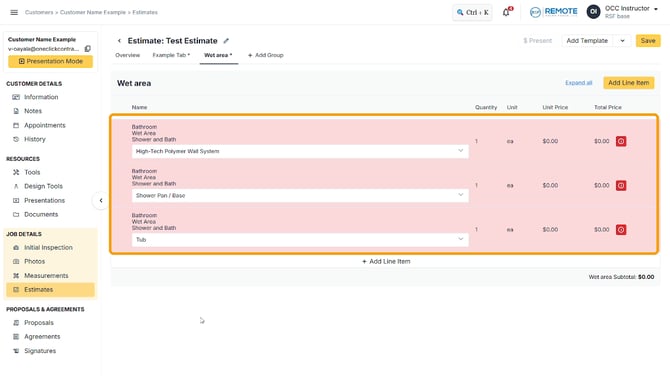
Image description: Line items shaded red contain validations in either the products or their options.
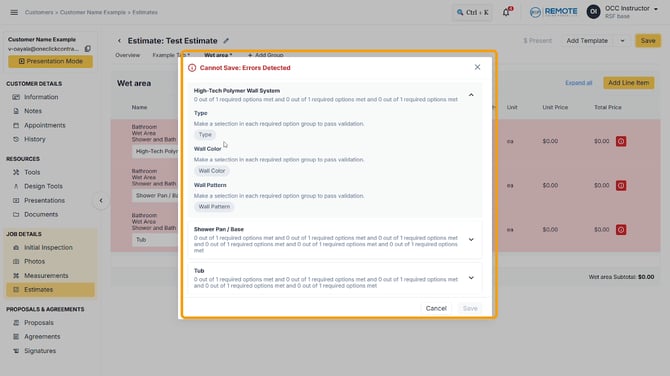
Image description: The Cannot Save message will pop up if validations aren't met.
Step 2: Fix each red line item
Click the pencil and select an option in every required group. Check each option tab.
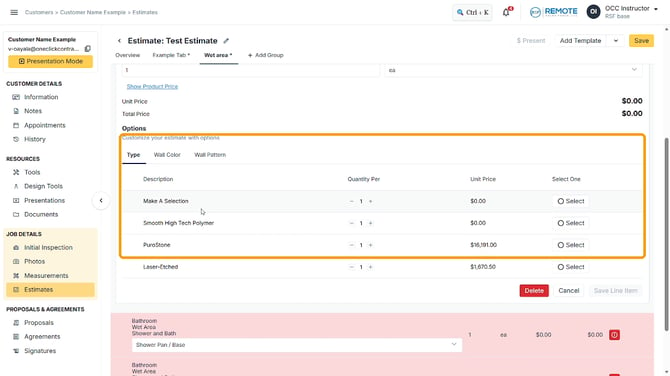
Image description: The options with a selection made.
Step 3: Save
Click Save Line Item. The row stops being red once all its requirements are met. Then click Save at the top right.
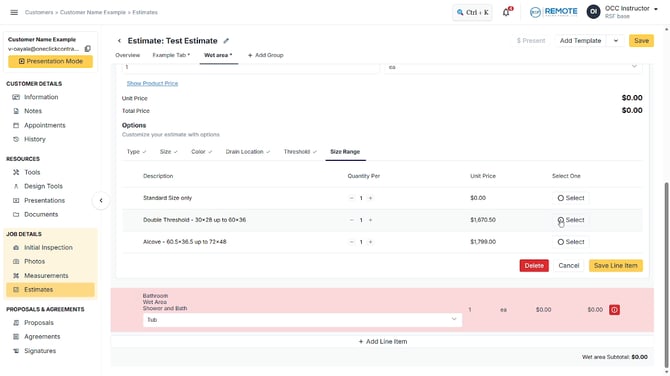
Image description: Rows no longer red after selecting an option.
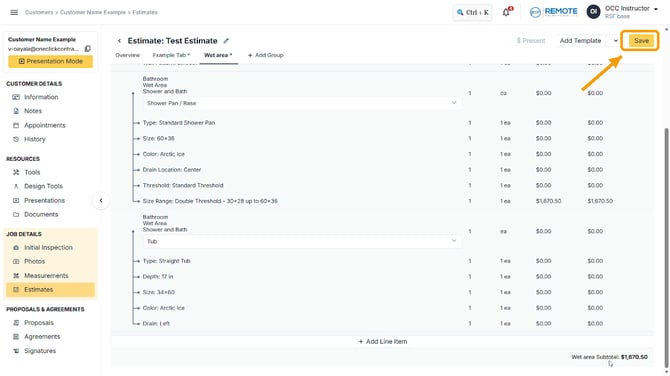
Image description: The Save button.
Note: If something is still missing, the message now points only to what is left.
💡 Pro tips
-
Validations are reminders built into your company's price list. They can apply to products or to options.
-
You can't edit validations in the estimator. If you need one changed, ask your manager to contact support.
-
Validations work well with templates: load a template for a whole job and every required detail is flagged until you choose it.
Remember
What you see can differ depending on your organization's settings and your permission level. Tab names, headers and available options are configurable. If you can't see or do something described here, ask your manager first. They can contact support.
Also read
-
How do I edit a line item on an estimate?
-
Why is my line item price $0, and how do options work?
-
How do I use or combine templates on a new estimate?