![Icon for Courses-1.png]](https://help.oneclickcontractor.com/hs-fs/hubfs/Icon%20for%20Courses-1.png?height=40&name=Icon%20for%20Courses-1.png)
Article Introduction
Estimate templates allow you to quickly create customer estimates by reusing a predefined set of product groups and line items. Using a template eliminates the need to build an estimate from scratch and helps ensure consistency across similar jobs.
Getting started
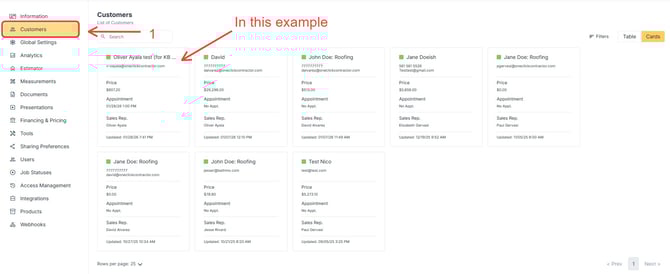
Step 1: Start a New Estimate
-
Go to the Estimates tab.
-
Click Add Estimate.
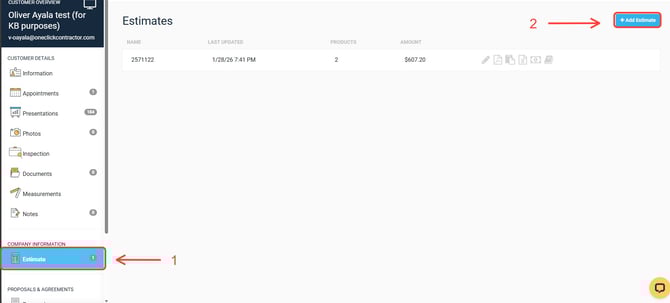
If an estimate is already open and you do not see the option, close the open estimate and return to the Estimates tab.
.webp?width=670&height=212&name=user_cropped_screenshot%20(12).webp)
Step 2: Apply an Estimate Template
-
Inside the new estimate, click Add Template.
-
Select the desired template from the list.
.webp?width=670&height=194&name=user_cropped_screenshot%20(13).webp)
.webp?width=670&height=325&name=user_cropped_screenshot%20(15).webp)
The template is applied immediately, and a confirmation message will indicate that the template was successfully added.
Step 3: Review the Estimate Structure
After applying the template:
-
All product groups included in the template are added to the estimate
-
Each group contains the standard line items defined in the template
This replaces the need to manually add groups and line items one at a time.
Step 4: Rename the Estimate
-
Click the pencil icon next to the estimate name.
-
Enter a name that reflects the customer, job, or location.
-
Save the change.
.webp?width=670&height=211&name=user_cropped_screenshot%20(16).webp)
Clear naming makes it easier to identify and reference the estimate later.
Optional Step
If you want to save the changes as a new usable template, follow these steps:
-
Click on the arrow right next to + Add template.
- Select the option Save template.
- Rename the template.
- Save changes.
.webp?width=670&height=200&name=user_cropped_screenshot%20(17).webp)
What Happens Next
Once the template has been applied, the estimate can be customized for the specific job by:
-
Updating measurements and quantities
-
Adding additional line items if needed
-
Removing line items that do not apply
These changes affect only the estimate and do not modify the original template.
Important Notes
-
Templates can be reused across multiple customers and jobs.
-
Applying a template does not lock the estimate; all items remain editable.
-
Changes made to an estimate do not impact the saved template.