![Icon for Courses-1.png]](https://help.oneclickcontractor.com/hs-fs/hubfs/Icon%20for%20Courses-1.png?width=36&height=36&name=Icon%20for%20Courses-1.png)
Requirements
-
An approved Foundation application with available offers.
-
Accurate project cost and down-payment details before sending financing documents.
Step 1: Review the Foundation offer tiles with the customer.
👉 Foundation may show one offer, especially below $7,500. It presents the lowest-cost plan with the longest available term; customers can pay early without a penalty.
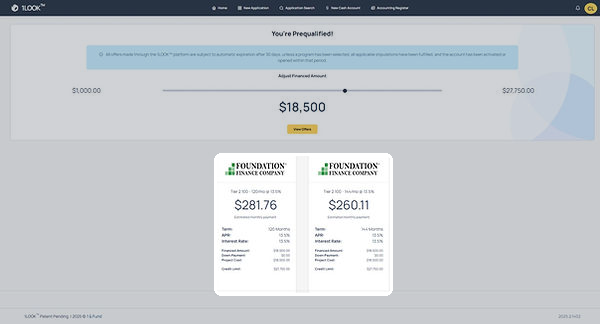
Image description: Foundation offer tiles display the available terms and monthly payments.
Step 2: Adjust the financed amount when a down payment is needed. Type an amount or use the slider and review the updated amount.
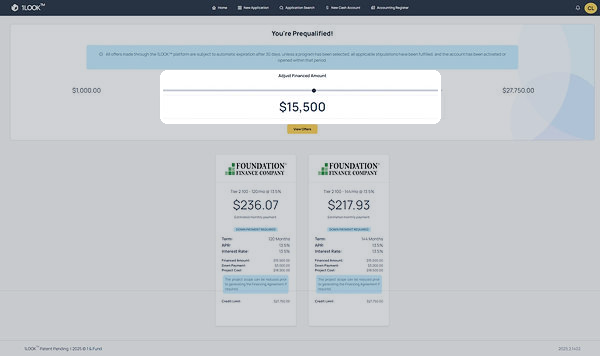
Image description: The Adjust Financed Amount slider and updated amount change before offer confirmation.
Step 3: Review the shaded down-payment fields in the offer tile.
👉 A shaded box indicates that a down payment is required.
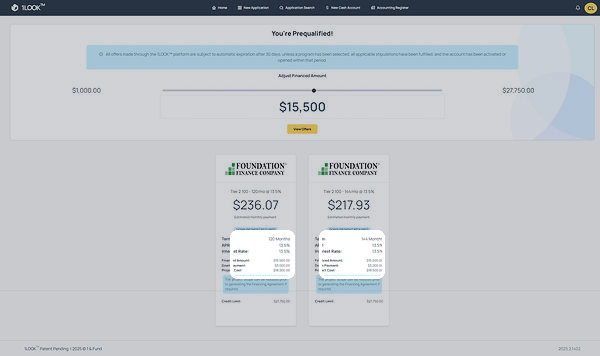
Image description: Foundation offer tiles display the down-payment-related shaded fields.
Step 4: Select Confirm Offer. Continue after reviewing the plan and payment details with the customer.
Send the Financing Agreement
Step 5: Review the Financing Agreement. Confirm the loan terms, project details, and Total Project Cost. Use the edit pencil to update the total project cost when needed.
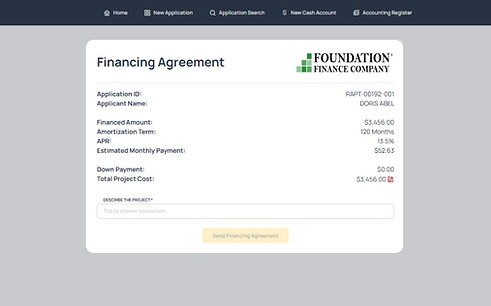
Image description: The Foundation Financing Agreement shows loan terms, editable project cost, and project-description details.
Step 6: Select Send Financing Agreement. Foundation sends the loan documents to the customer email already entered.
👉 Foundation sends DocuSign directly. A co-borrower receives it after the primary borrower, and the dealer signs after the borrower or borrowers. All parties must sign. The customer needs the authorization number in their loan-document email to access the documents.
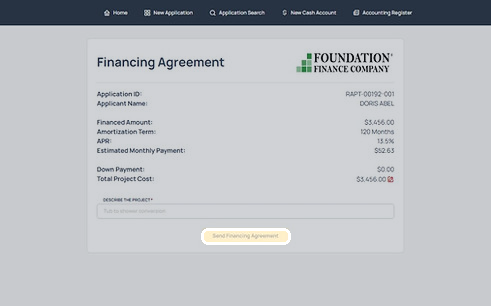
Image description: The Send Financing Agreement action sends Foundation loan documents for signature.
Complete the Foundation LCC
Step 7: Enter the Final Project Price and select Complete Project. Do this when the Final Project Price equals the Original Project Total to send LCC documentation automatically.
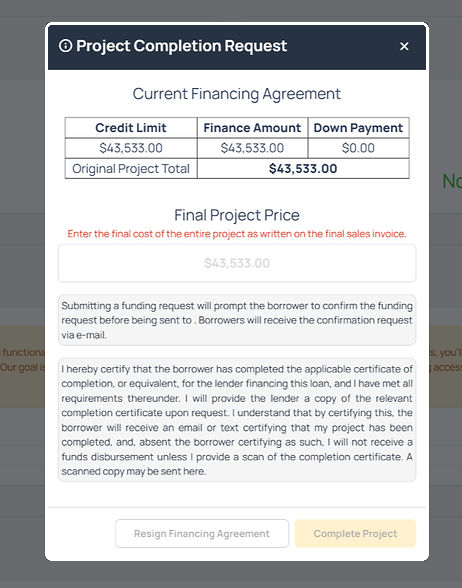
Image description: The Project Completion Request displays the final-project-price field and Complete Project action.
Step 8: Select Resign Financing Agreement when financing, down payment, or project details change. New documents must be generated in 1LOOK and signed by every party.
Step 9: Review the LCC signature statuses in Application Progress.
👉 Foundation emails the electronic LCC link to the customer when Final Funding is requested. Status becomes COMPLETED automatically after the digital LCC is signed. Contact LiveChat Support to resend it.
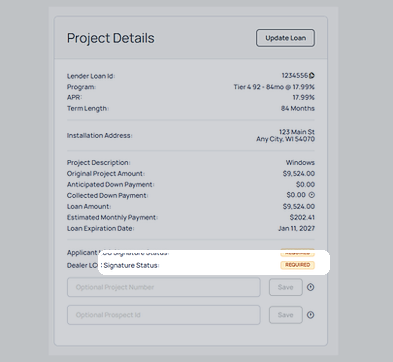
Image description: Project Details shows the Foundation borrower and dealer LCC signature statuses.
Understand Foundation Statuses
-
Declined: the customer was declined by Foundation.
-
Pending: Foundation is manually underwriting the application; a decision can take up to 15 minutes.
-
Auto Approved or Approved: select an offer to continue.
-
Pending Signed Contract: documents were sent and all parties must sign before the account is ready for funding.
Foundation Verification and Stipulations
-
Foundation verifies the applicant email address and usually calls the applicant within a few hours after you leave the home to confirm the loan terms are understood.
-
Check the Foundation Merchant Portal to verify that the customer call was completed.
Acceptable stipulation documents
-
Proof of homeownership: property tax bill, closing disclosure, title, or warranty deed.
-
Proof of income: three months of bank statements or a tax return.
-
Identification: government-issued photo ID.
Remember
What you see can differ depending on your organization's settings and your permission level. Tab names, headers, and available options are configurable. If you cannot see or do something described here, ask your manager first. They can contact support.