Skip to content
English
  • There are no suggestions because the search field is empty.

Generating a Customer Proposal 

Learn how to generate, review, and send a customer proposal from an estimate in One Click Contractor, including managing cover photos and regenerating proposals after changes.

Article Introduction

In One Click Contractor, a Customer Proposal is generated directly from an existing estimate. The proposal pulls together pricing, descriptions, options, photos, discounts, payment terms, and product brochures into a single professional document for the customer.

Proposals always reflect the current state of the estimate. If changes are made to the estimate after a proposal is created, the proposal must be regenerated to ensure accuracy.


How to Generate a Customer Proposal from an Estimate

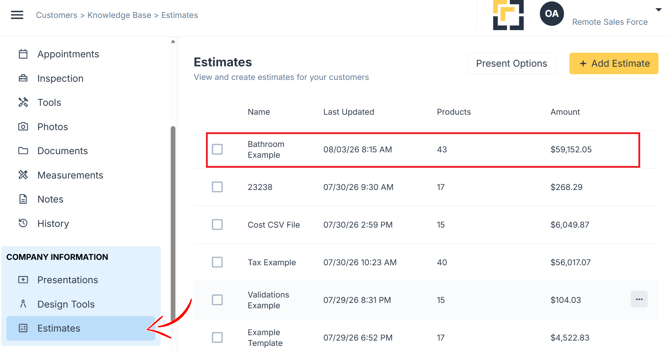
  1. Open the customer file.

  2. Select the Estimates tab.

  3. Click on the generate proposal icon to download the estimate to your device. 

user_cropped_screenshot (6)-2

user_cropped_screenshot (7)-1


Sending the Customer Proposal by Email

From the Customer Proposal view, click Show


user_cropped_screenshot (8)-1

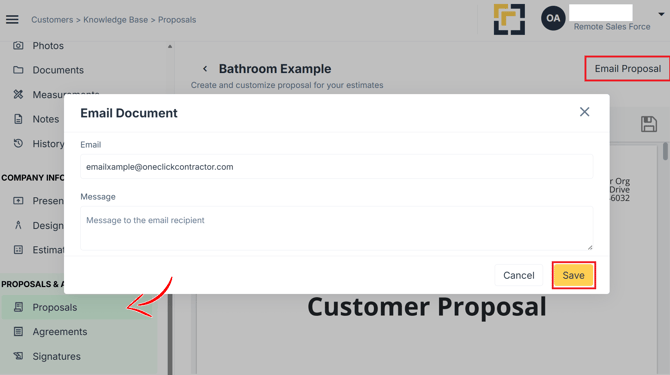
Click Email Customer Proposal.

user_cropped_screenshot (9)-1

Confirm the customer email address (auto-filled from the customer file).}

  • Add additional recipients if needed (comma-separated)

  • Enter an optional message

Click Send.

user_cropped_screenshot (10)-1


The customer will receive an email with a download link to the proposal PDF.


Other Ways to Generate a Proposal

  • From the Estimates tab:
    Use the proposal icon next to an estimate to generate a PDF and save it locally.

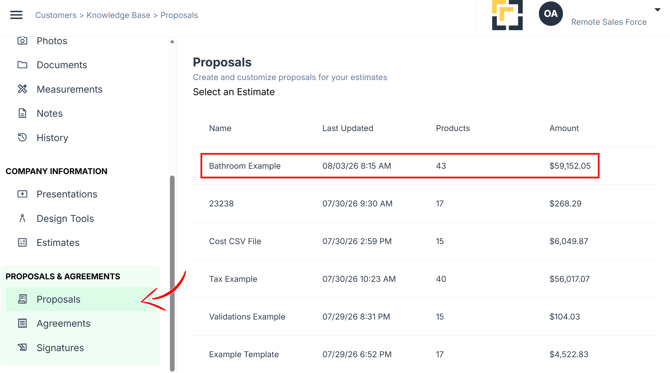
  • From the Customer Proposal tab:
    Select an estimate and click Show to view or regenerate the proposal.


Updating a Proposal After Changes

If the proposal does not reflect what you want:

  1. Return to the Estimates tab.

  2. Make the necessary changes.

  3. Save the estimate.

  4. Regenerate the customer proposal.