![Icon for Courses-1.png]](https://help.oneclickcontractor.com/hs-fs/hubfs/Icon%20for%20Courses-1.png?width=36&height=36&name=Icon%20for%20Courses-1.png)
The terms you can select must already be configured for your organization. If the section or a needed term is missing, ask your manager to check your access or the system setup.
Step 1: Choose configured terms
On the estimate's Overview, open --Payment Term Templates-- and select the configured terms you need. The menu shows the options available to your organization.
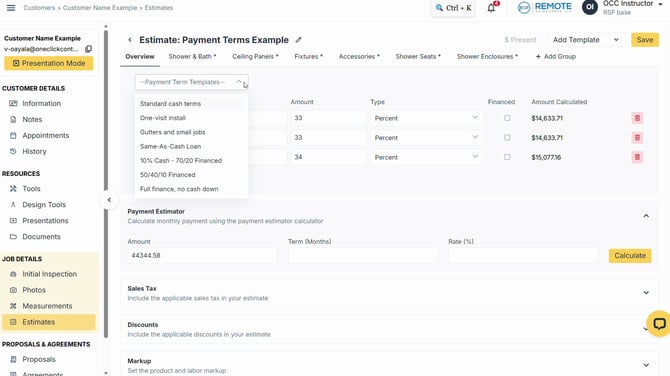
Image description: The Payment Term Templates menu showing terms configured for this organization.
Step 2: Review the terms and financing
Review each row's Description, Amount, Type, Amount Calculated, and Financed box. Some templates leave Financed unchecked; others pre-check one or more terms. Always verify every finance term before using financing in the price presentation.
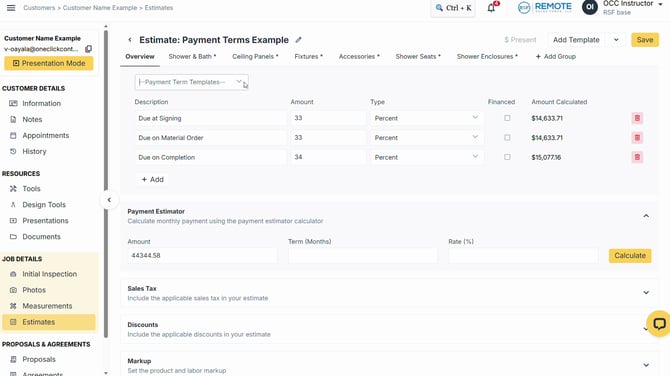
Image description: Payment terms with all Financed boxes unchecked.
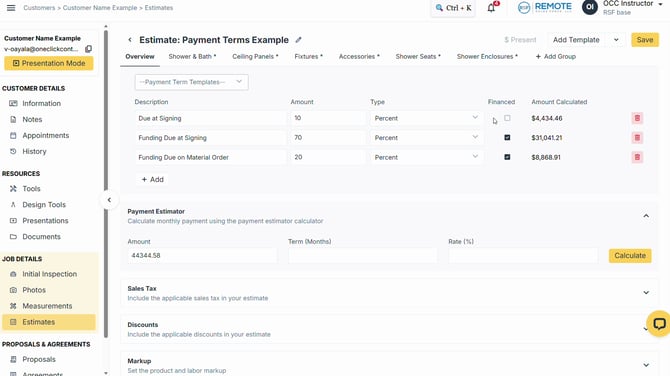
Image description: A financing example with one unchecked and two checked Financed boxes.
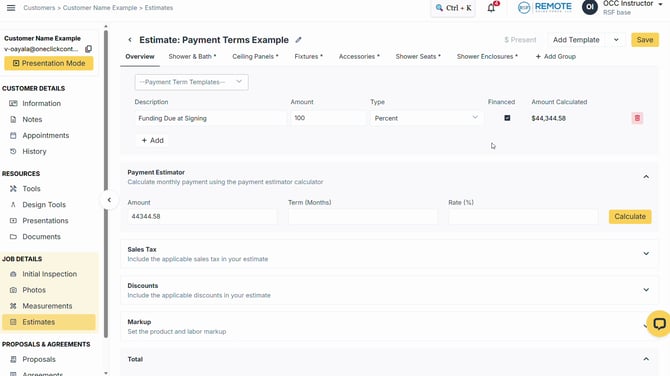
Image description: A fully financed term with Financed checked.
Keep the intended terms selected and save the estimate as usual. The standard estimate-saving steps are covered in the create-and-save article.
💡Pro tips
-
Depending on your permissions, you may be able to modify or delete a term on this estimate. A manager with the appropriate permission may use + Add to add another payment term. These controls are not available to every user.
-
Payment terms may arrive with Financed already checked or unchecked. If a finance term is not marked as expected and you cannot change it, ask your manager to review the setting.
Remember
What you see can differ depending on your organization's settings and your permission level. Tab names, headers and available options are configurable. If you can't see or do something described here, ask your manager first. They can contact support.