![Icon for Courses-1.png]](https://help.oneclickcontractor.com/hs-fs/hubfs/Icon%20for%20Courses-1.png?width=36&height=36&name=Icon%20for%20Courses-1.png)
Step 1: Locate Discounts
On the estimate's Overview, find and expand the Discounts section.
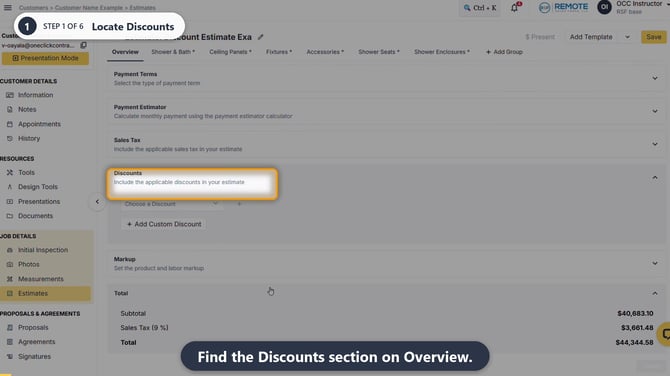
Image description: Discounts section expanded on the estimate Overview.
Step 2: Choose a discount
Open Choose a Discount and select an available, configured discount. The options depend on your organization's setup.
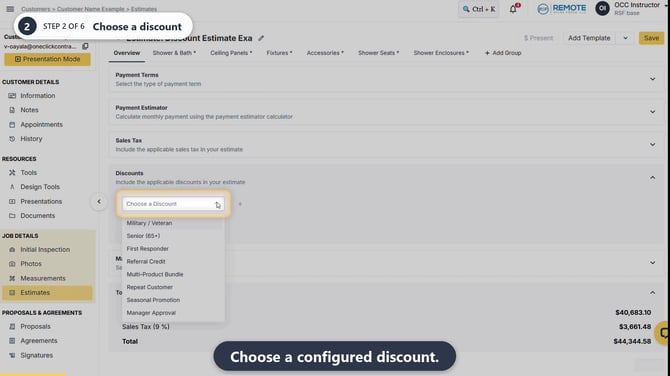
Image description: Discount selected in the Choose a Discount control.
Step 3: Apply it
Click the + next to the selection. The discount is not applied until you click + and it appears in the list below.
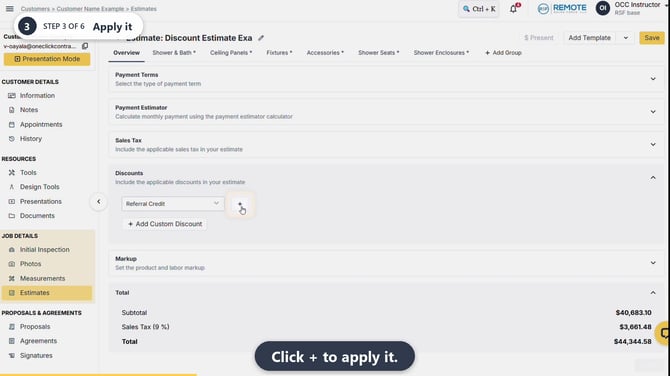
Image description: Plus sign used to add the selected discount to the applied list.
Step 4: Add another discount
To use more than one discount, choose another available discount and click + again. Check that both appear in the applied list.
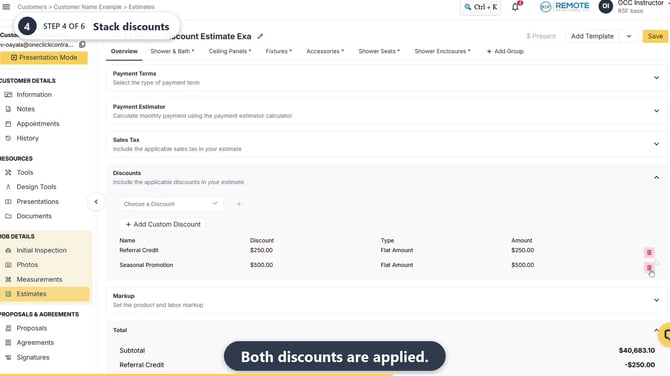
Image description: Two discounts visible in the applied list.
Step 5: Remove an unwanted discount
Click the trash icon on the discount you do not want, then confirm Delete. Check that the intended discount remains.
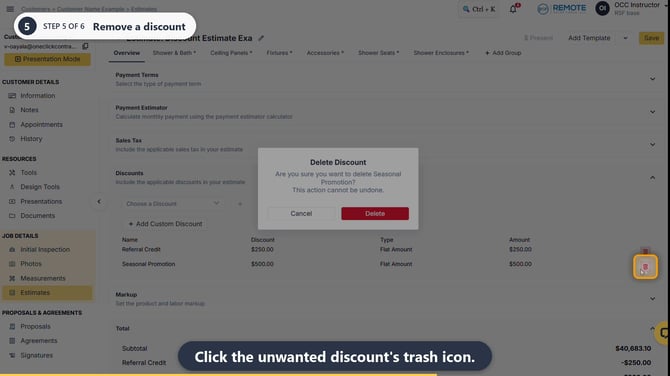
Image description: Delete Discount confirmation for the unwanted discount.
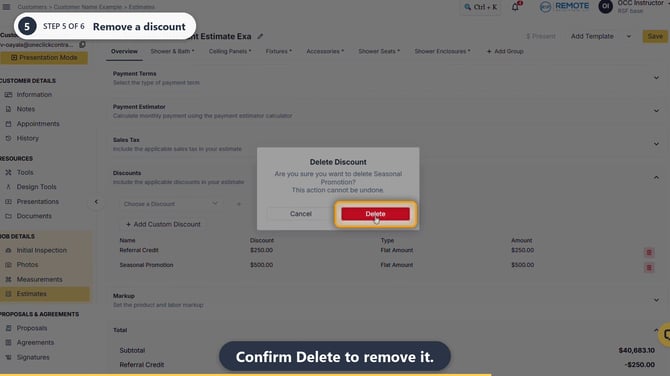
Image description: Only the intended discount remains after deletion.
Step 6: Review the updated total
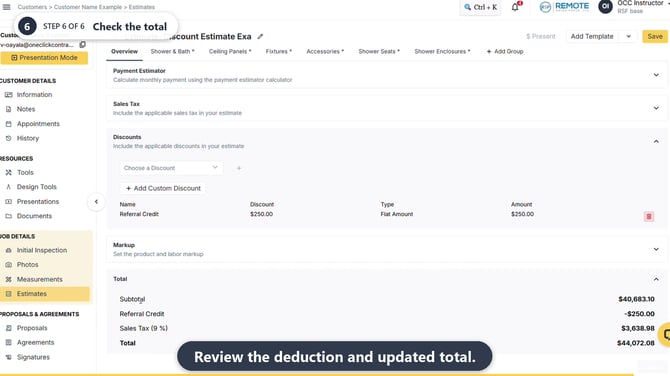
Check the discount deduction and the resulting total before you finish the estimate.
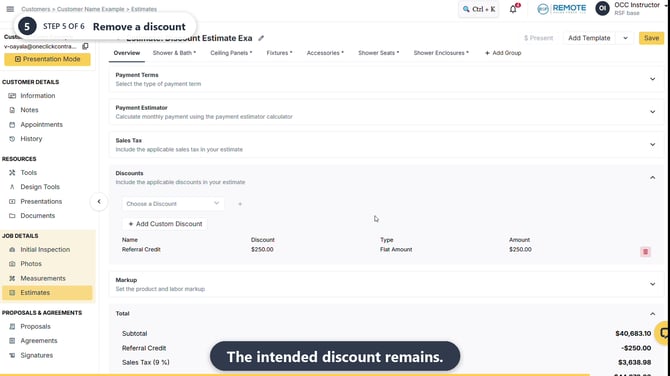
Image description: Discount deduction and updated estimate total shown on Overview.
When the discount and total are correct, clear any estimate validations and save the estimate using the standard save flow.
💡 Pro tips
-
Available discounts are configured for your organization. A manager may be able to add or change them, depending on permissions.
-
Add Custom Discount is permission-dependent; it may not appear for every user.
-
Some items may be non-discountable. A percentage or amount discount may therefore not match a calculation against the full subtotal.
Remember
-
What you see can differ depending on your organization's settings and your permission level.
-
Tab names, headers and available options are configurable.
-
If you can't see or do something described here, ask your manager first. They can contact support.