![Icon for Courses-1.png]](https://help.oneclickcontractor.com/hs-fs/hubfs/Icon%20for%20Courses-1.png?height=40&name=Icon%20for%20Courses-1.png)
Step 1: Open the estimate
Open the job, click Estimates, then open the estimate.
Step 2: Click the pencil
Click the pencil icon at the end of the line item row. The Edit Line Item form opens.
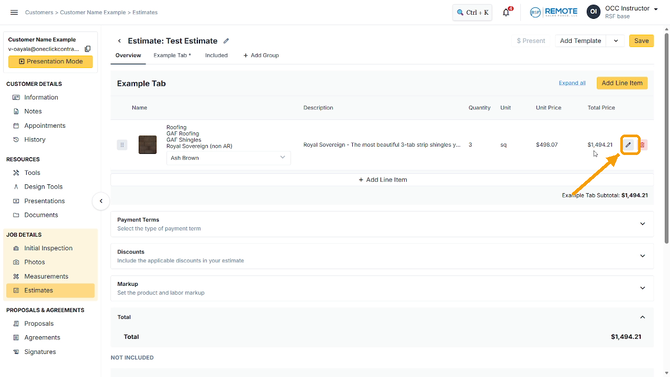
Image description: The line item row with the pencil icon highlighted.
Step 3: Make your changes
Change the Quantity, add or edit notes in the Description, or change the selected options.
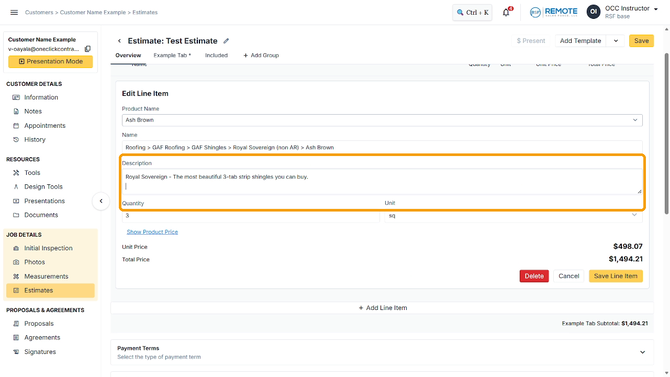
Image description: The Edit Line Item form with the Description field.
Step 4: Click Save Line Item
Cancel closes the form without saving your changes.
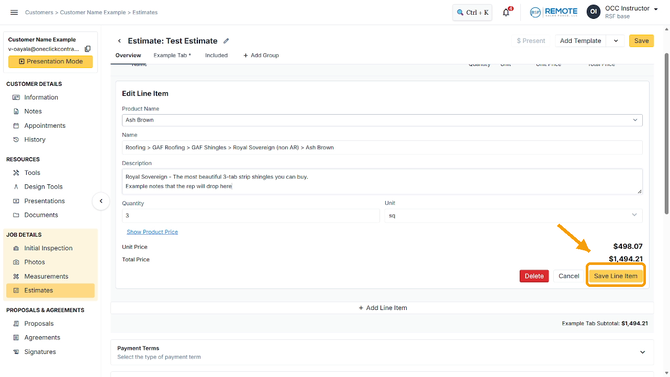
Image description: The Save Line Item button.
Step 5: Click Save
Click Save at the top right to save the estimate. Without this, the change will not stick.
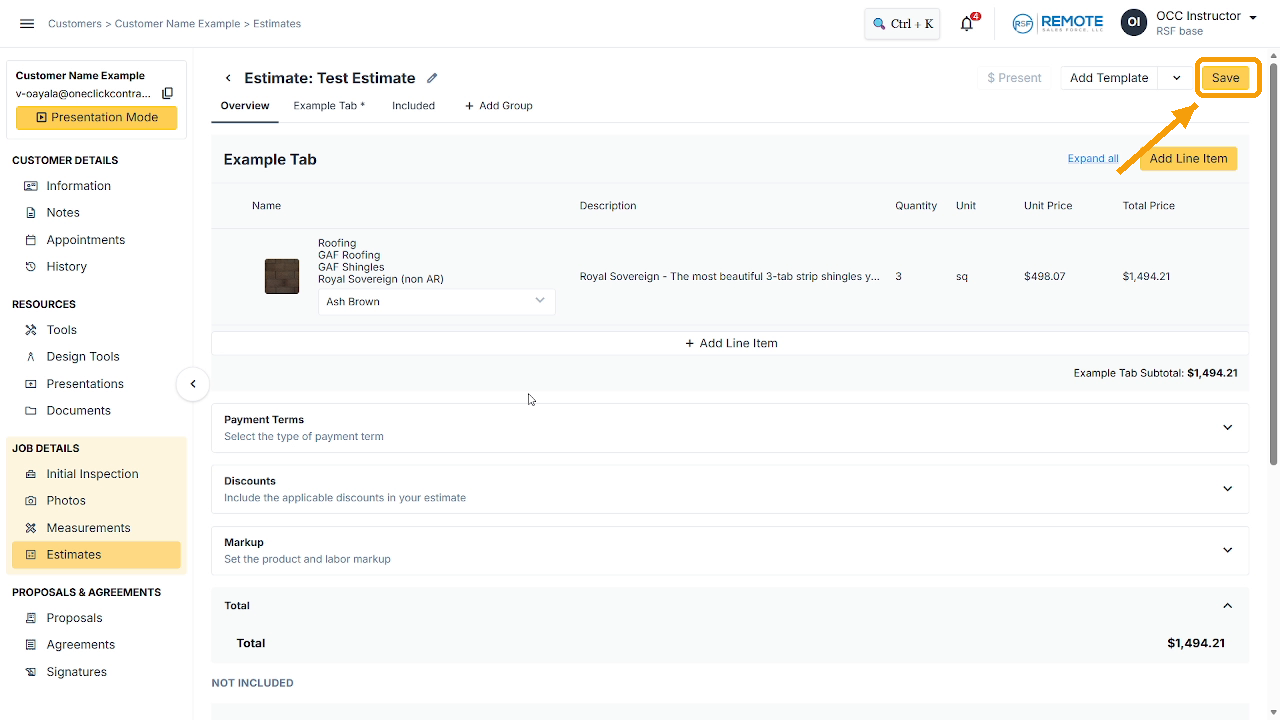
Image description: The estimate with the Save button highlighted at the top right.
Every change needs both saves: the line item, then the estimate.
Remember
What you see can differ depending on your organization's settings and your permission level. Tab names, headers and available options are configurable. If you can't see or do something described here, ask your manager first. They can contact support.
Also read- How do I add a line item to an estimate?
- Why is my line item price $0, and how do options work?
- Why can't I save my line item, and why is it red?