![Icon for Courses-1.png]](https://help.oneclickcontractor.com/hs-fs/hubfs/Icon%20for%20Courses-1.png?width=36&height=36&name=Icon%20for%20Courses-1.png)
Templates can't be edited directly in the template list. Add one to an estimate, change its content there, and save the result as a template again.
Step 1: Open the template picker
On a new estimate, click Add Template.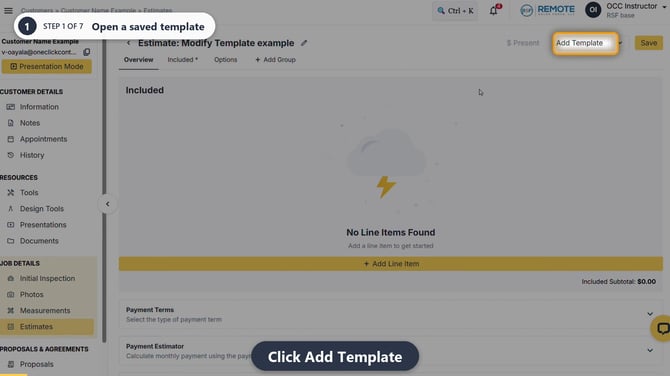
Image description: Add Template highlighted on the estimate.
Step 2: Load the existing template
Select the template you want to change. Its content appears on the estimate.
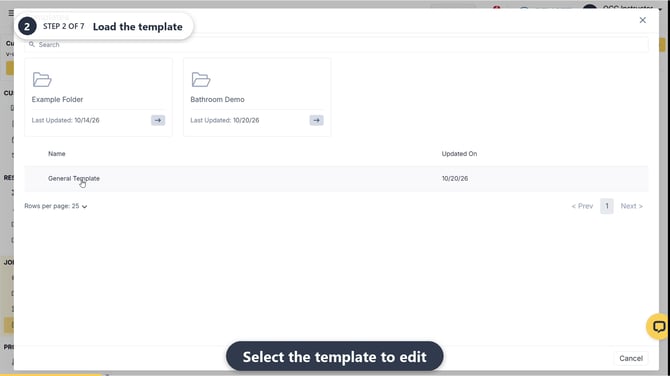
Image description: General Template in the template picker.
Step 3: Make the relevant changes
Add, edit, or delete line items and adjust groups as needed. If you delete a line item, review the confirmation before clicking Delete; that action can't be undone.
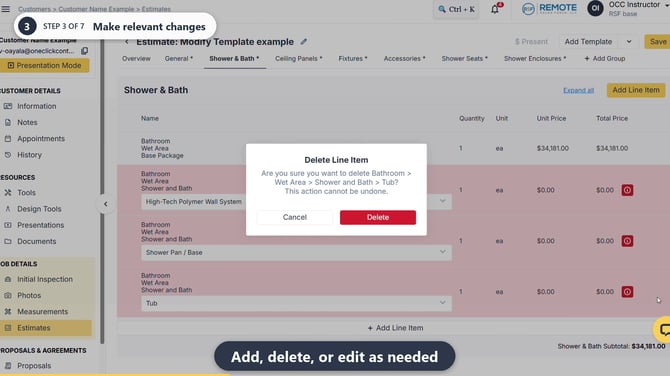
Image description: The Delete Line Item confirmation while changing the loaded template.
Step 4: Save any line-item changes
When you add or edit a line item, use Save Line Item. Check that the revised item appears on the estimate before continuing.
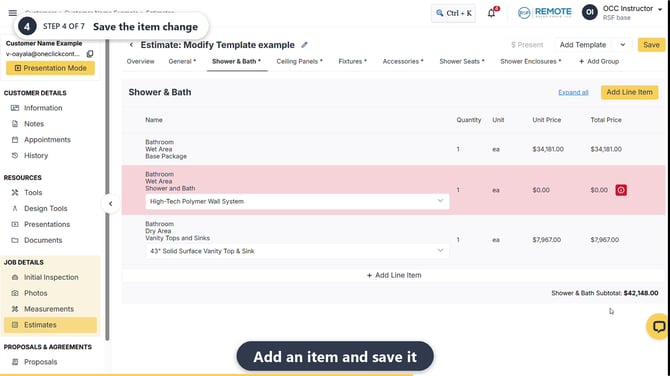
Image description: The newly added line item visible on the estimate after saving it.
Step 5: Open Save as Template
Click the small arrow next to Add Template, then choose Save as Template.
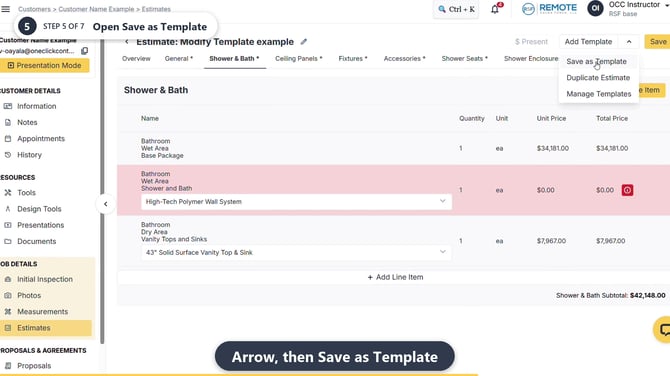
Image description: Save as Template in the Add Template arrow menu.
Step 6: Choose whether to replace or keep the original
To save over the existing template, find its row and click its diskette Save As action. To keep the original and create a separate template, leave that row untouched and type a distinct Template name.
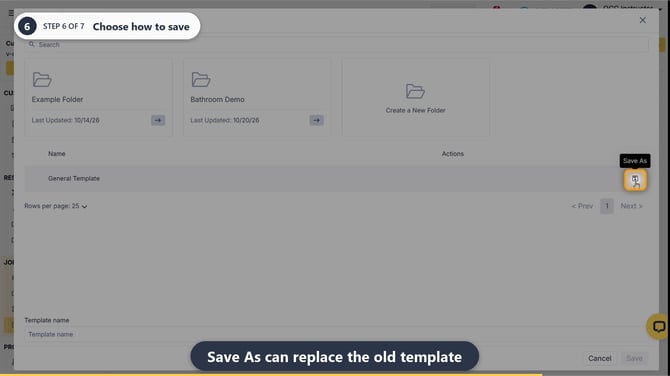
Image description: Save As on an existing template row, the replacement option.
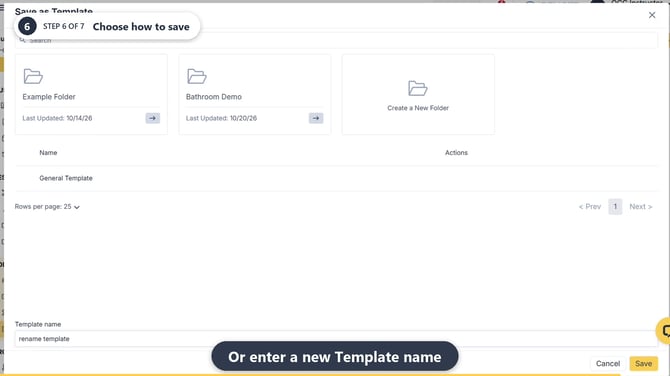
Image description: A distinct name entered for the new-template option.
Step 7: Finish saving
For a new template, click Save. For a replacement, complete any confirmation the app presents. Wait for the save-success message. The video shows the new-template option being completed.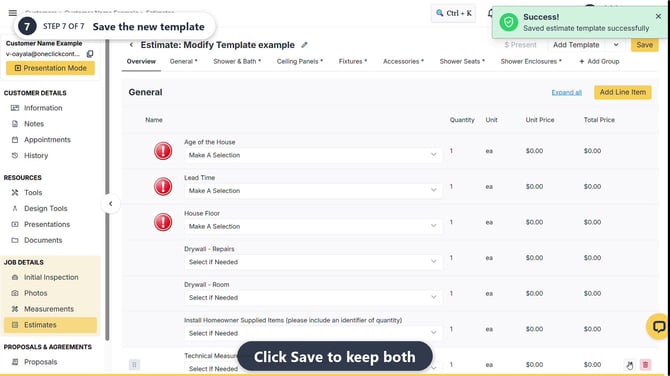
Image description: Saved estimate template successfully message after saving the new copy.
💡 Pro tips
-
Saving over the existing template avoids accumulating near-copies. Use a new name when you want to preserve the original as a separate choice.
-
If the price list changed, an outdated estimate can't be saved as a template. Start a new estimate first.
-
You can Rename the folder through template edit options.
Remember
What you see can differ depending on your organization's settings and your permission level. Tab names, headers and available options are configurable. If you can't see or do something described here, ask your manager first. They can contact support.
Also read
-
How to create and save an estimate template
-
How do I manage created templates and template folders
-
How do I use or combine templates on a new estimate?
-
Why does my estimate say the price list is not current, and why can't I save it as a template?