![Icon for Courses-1.png]](https://help.oneclickcontractor.com/hs-fs/hubfs/Icon%20for%20Courses-1.png?width=36&height=36&name=Icon%20for%20Courses-1.png)
The Notifications tab has separate Email Notifications and Number Notifications sections. Each offers Select All and individual event switches.
Step by step
1. Review email notifications. Open Notifications. Check the email address and choose the event switches you want for email; Select All controls the whole email section.
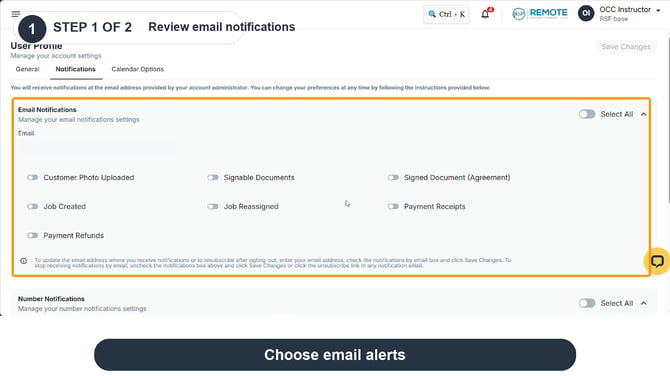
Review email notifications
2. Review number notifications. Scroll to Number Notifications. Enter the mobile number you want to use and choose the text event switches, or Select All. Click Save Changes after setting your preferences.
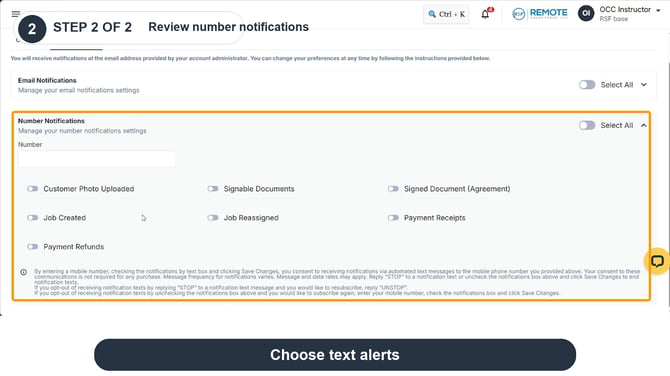
Review number notifications
What can I configure?
|
Configuration |
Email Notifications |
Number Notifications |
|
Contact destination |
Email address |
Mobile number |
|
Notification events |
Customer Photo Uploaded; Job Created; Payment Refunds; Signable Documents; Job Reassigned; Signed Document (Agreement); Payment Receipts |
Same event options |
|
All events at once |
Select All |
Select All |
|
Save |
Save Changes |
Save Changes |
Special note: Email Notifications
To update the email address where you receive notifications or to resubscribe after opting out, enter the email address, select the email notification options, and select Save Changes. To stop receiving email notifications, clear the email notification options and save, or use the unsubscribe link in a notification email.
Remember
-
What you see can differ depending on your organization's settings and your permission level. Tab names, headers and available options are configurable. If you can't see or do something described here, ask your manager first. They can contact support.
-
You can change the email address for notifications by entering the address, selecting email notifications, and saving.
-
For text notifications, review the consent notice, including the STOP and UNSTOP reply instructions, before enabling text messages.
-
The available events include customer photos, documents, jobs, payment receipts, and refunds.