![Icon for Courses-1.png]](https://help.oneclickcontractor.com/hs-fs/hubfs/Icon%20for%20Courses-1.png?width=36&height=36&name=Icon%20for%20Courses-1.png)
- Login to Improveit360 as an Admin
- Click on Setup in the User dropdown

- Click on Create in the App Setup Section
- Click on Manage your custom apps
- Click on New on the Apps page
- Enter in the information exactly as shown below.
- Name the App OCC
- Contact Email: kail@remotesf.com
- Check "Enable OAuth Settings"
- Callback URL https://api.remotesf.com/auth/improveit360/callback
- OAuth Scopes
- Full access (full)
- Perform requests on your behalf at any time (refresh_token, offline_access)
- Check "Require Secret for Web Server Flow"
- Click on Save
- It will take between 2-10 minutes for the changes to take effect
- Click on Continue
- Copy and save off the Consumer Key and the Consumer Secret - you will need these to setup the integration in One Click Contractor
-png.png?width=688&height=462&name=CleanShot%202024-01-30%20at%2014-32-03%20(1)-png.png)
- Login to One Click Contractor as an Admin
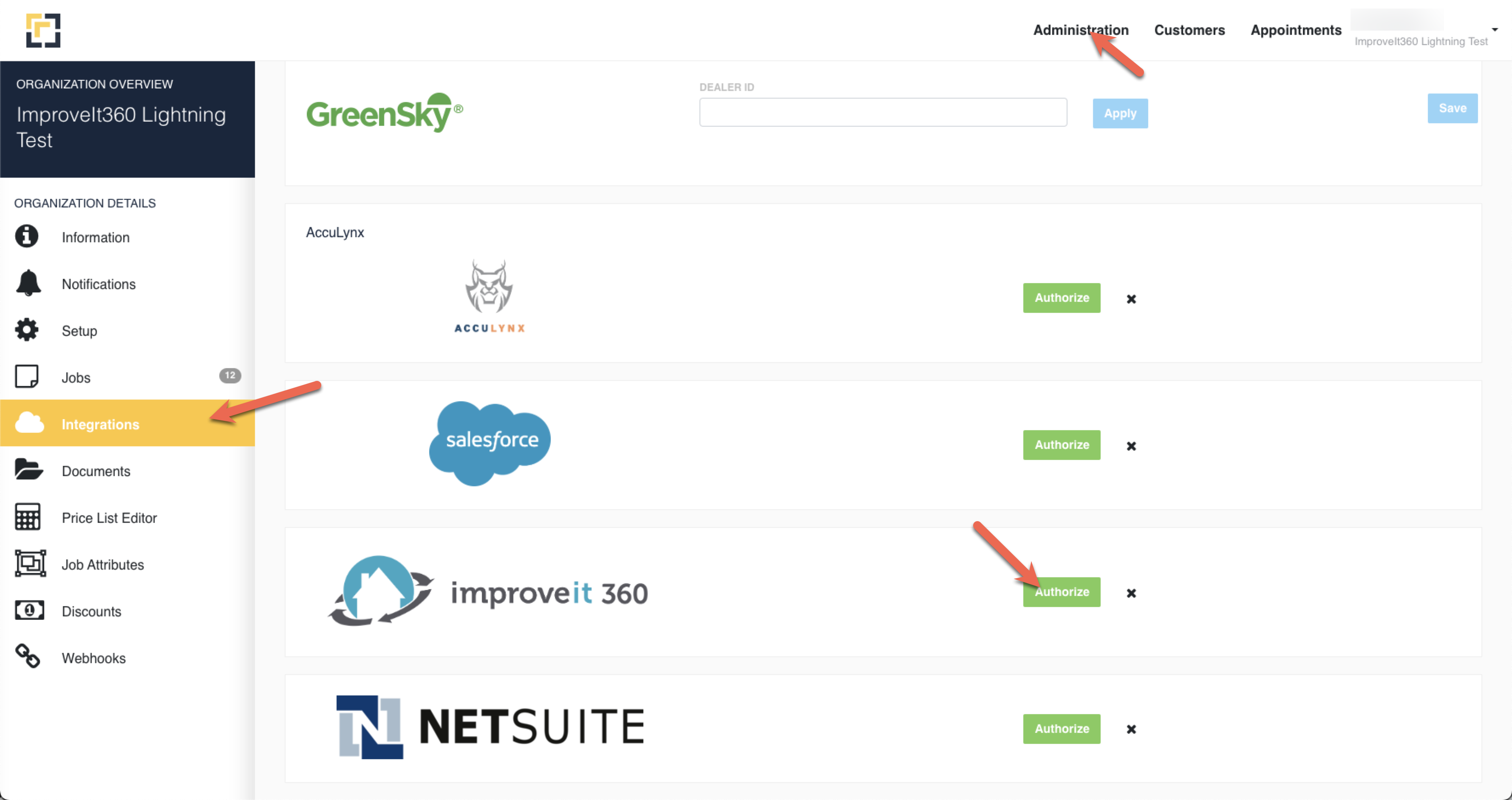
- Click on the Administration Tab on the top right
- Click on the Integrations Tab
- Scroll down until you see the option for "Improveit360" and then click the "Authorize" Button for Improveit360
- Enter in your Consumer Key and Consumer Secret
- You will be redirected to the Improveit360 site, click Allow for OCC to have access to your Improveit360 account
- You will be redirected back to One Click Contractor and the Improveit360 users will be shown. The first sync will take up to 5 minutes. Start by refreshing if you don't see the users.