![Icon for Courses-1.png]](https://help.oneclickcontractor.com/hs-fs/hubfs/Icon%20for%20Courses-1.png?width=36&height=36&name=Icon%20for%20Courses-1.png)
Steps
Step 1: Open the account menu and select Show support chat bubble or Hide support chat bubble, depending on the option displayed.
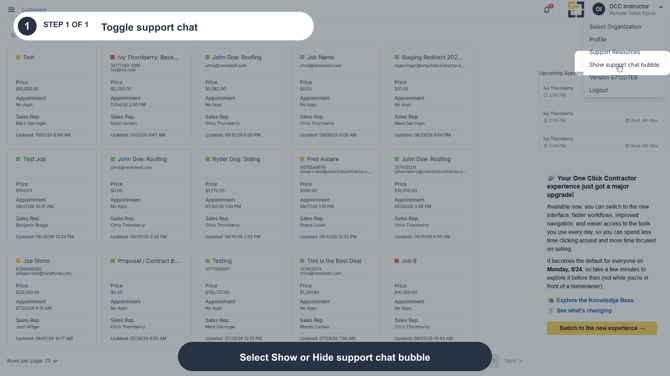
Image description: Select Show or Hide support chat bubble from the account menu.
How the option works
|
Option displayed |
What it means |
|
Show support chat bubble |
The bubble is currently hidden. Select this option to make it available. |
|
Hide support chat bubble |
The bubble is currently visible. Select this option to remove it from view. |
Remember
The account menu displays the action you can take next. If the bubble is hidden, the menu shows Show support chat bubble. If the bubble is visible, the menu shows Hide support chat bubble.