![Icon for Courses-1.png]](https://help.oneclickcontractor.com/hs-fs/hubfs/Icon%20for%20Courses-1.png?width=36&height=36&name=Icon%20for%20Courses-1.png)
Step 1: Open the template picker
On a new or existing estimate, click Add Template.
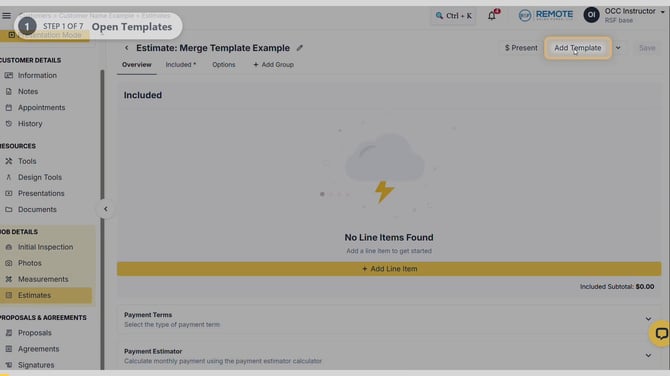
Image description: Add Template highlighted on the estimate.
Step 2: Add the first template
Select General Information from the Templates list. Its content appears on the estimate.
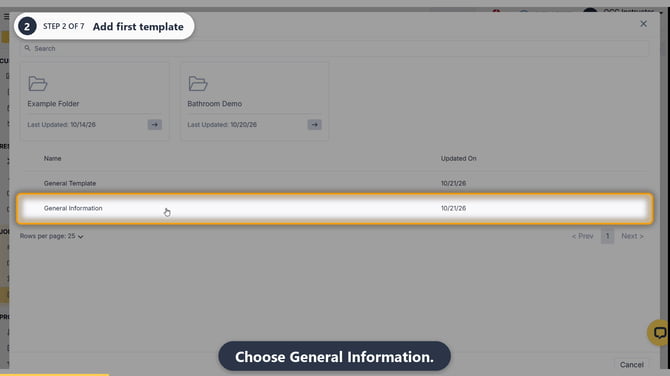
Image description: General Information selected in the Templates list.
Step 3: Open the picker again
Click Add Template again to combine another template with the first.
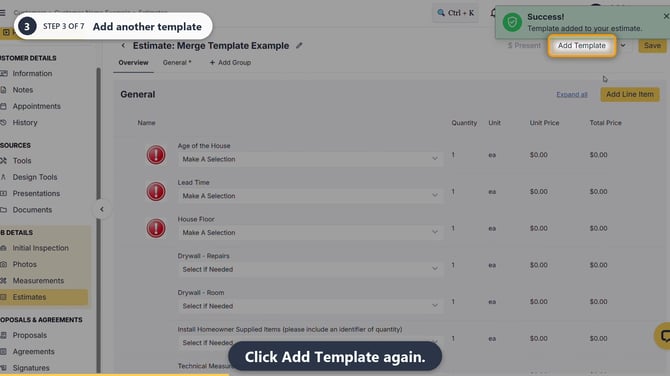
Image description: Add Template highlighted after the first template has been added.
Step 4: Choose another template
Select General Template. If the template you need is inside a folder, open that folder first.
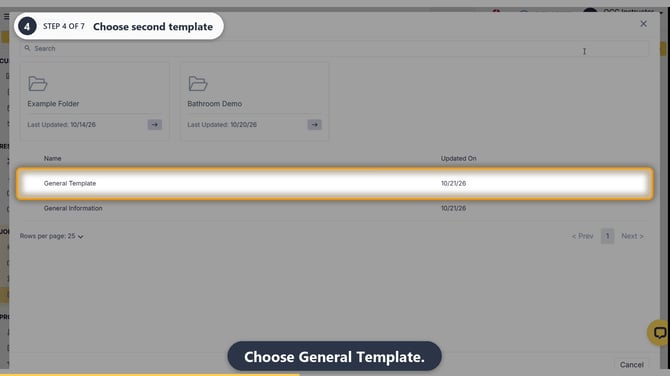
Image description: General Template selected as the second template.
Step 5: Compare Replace and Merge
In Add this template, Replace removes the estimate's current products first. Merge adds the new template's products to what is already there.
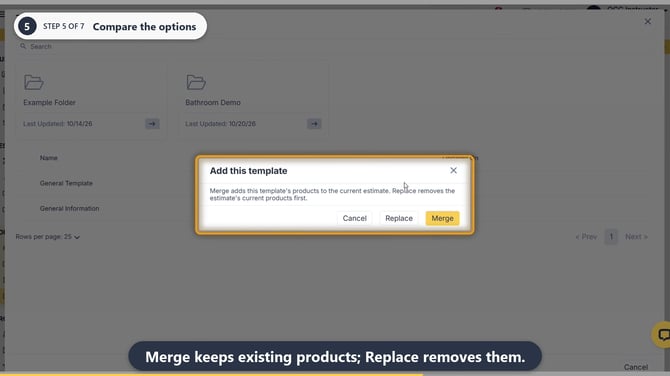
Image description: The Add this template dialog explains Replace and Merge.
Step 6: Merge the templates
Click Merge to keep the first template's content and add the second template's content.
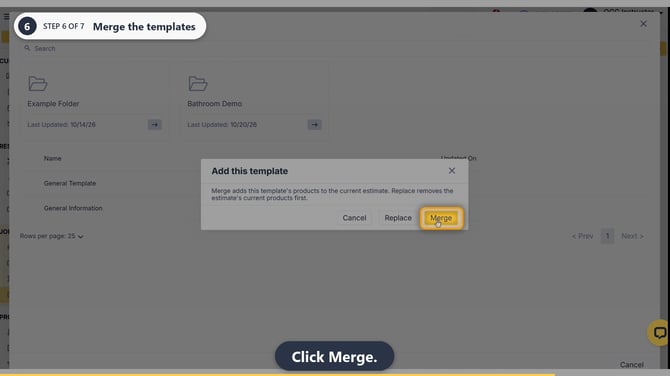
Image description: Merge highlighted in the Add this template dialog.
Step 7: Review the combined result
Check that tabs and groups from both templates appear. The asterisk (*) beside an included tab lets you recognize it at a glance. You can still rename, include, exclude, or delete groups, and edit or add line items.
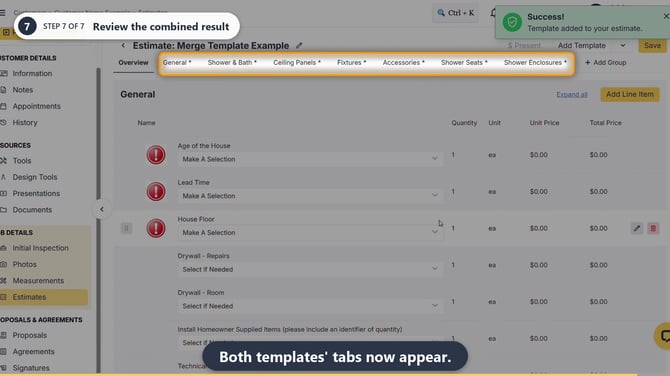
Image description: General and job-specific tabs shown together after Merge, with asterisks on included tabs.
💡Pro tips
-
Add as many templates as you need to get all the groups for the job, for example one for project information and one for the specific type of job.
-
You can't undo a template by clicking back. To remove what it added, delete the groups yourself, or start a new estimate.
-
Adding templates is separate from saving the estimate. Complete all required selections and clear every validation before clicking Save when you are ready.
Remember
What you see can differ depending on your organization's settings and your permission level. Tab names, headers and available options are configurable. If you can't see or do something described here, ask your manager first. They can contact support.
Also read
-
How to create and save an estimate template
-
How do I manage created templates and template folders
-
How do I edit an existing template?
-
Why does my estimate say the price list is not current, and why can't I save it as a template?