![Icon for Courses-1.png]](https://help.oneclickcontractor.com/hs-fs/hubfs/Icon%20for%20Courses-1.png?width=36&height=36&name=Icon%20for%20Courses-1.png)
Step 1: Add a group
On an open estimate, click Add Group next to the tabs.
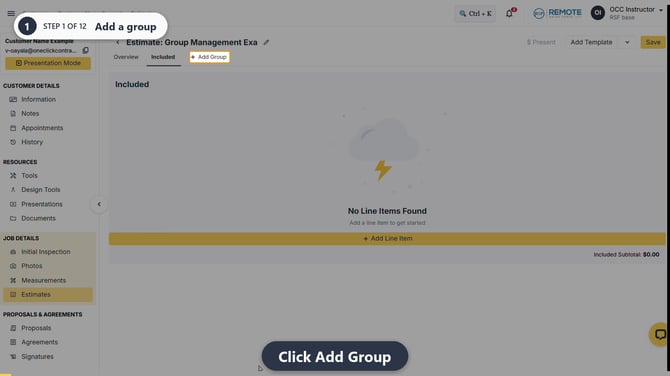
Image description: The Add Group control next to the existing tabs.
Step 2: Enter the group name
Open the new group tab's three-dot menu and choose Rename. Type a descriptive name, such as Kitchen Project, in the name field.
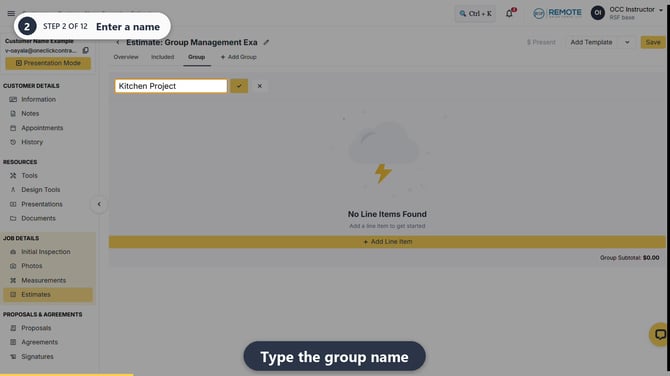
Image description: Kitchen Project entered in the group name field.
Step 3: Save the group name
Click the check mark next to the field. This saves the name; it is separate from saving the estimate.
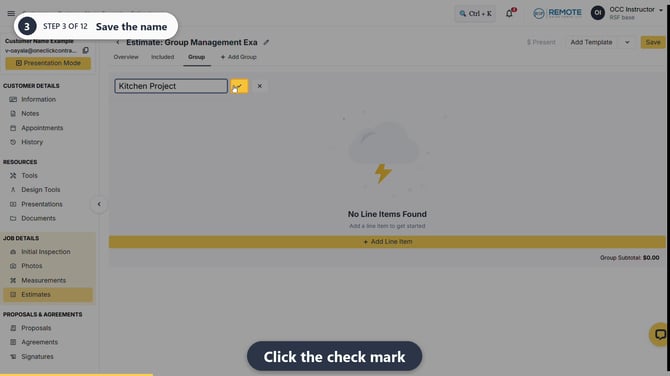
Image description: The check mark beside the completed group name.
Step 4: Include the group
Open the three-dot menu on the group tab and choose Include Item.
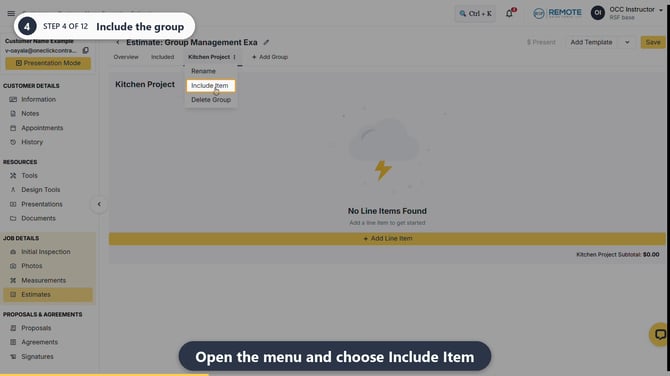
Image description: Include Item in the group menu.
Step 5: Check the inclusion marker
An asterisk (*) beside the group tab means the group is included. The included group is shown in Overview.
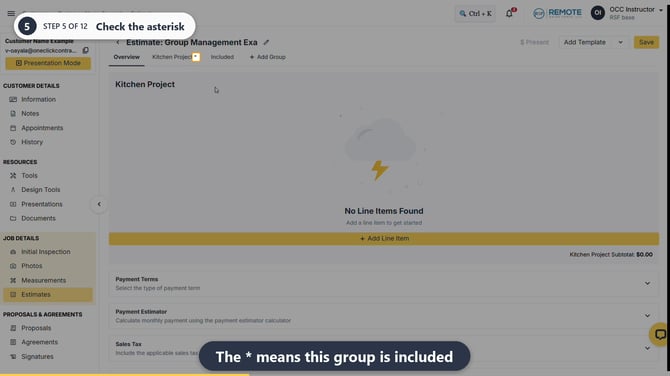
Image description: Kitchen Project with an asterisk beside its tab name.
Step 6: Rename the group if needed
Open the three-dot menu and choose Rename. Enter the new name, then click the check mark to save it.
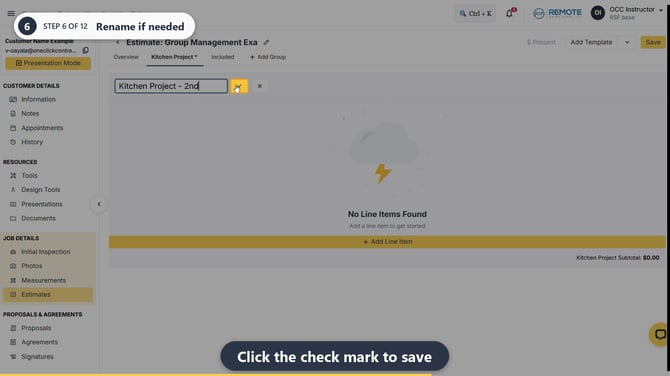
Image description: The new name Kitchen Project - 2nd and its save check mark.
Step 7: Exclude the group if needed
Open the three-dot menu and choose Exclude Item. This changes inclusion without deleting the group.
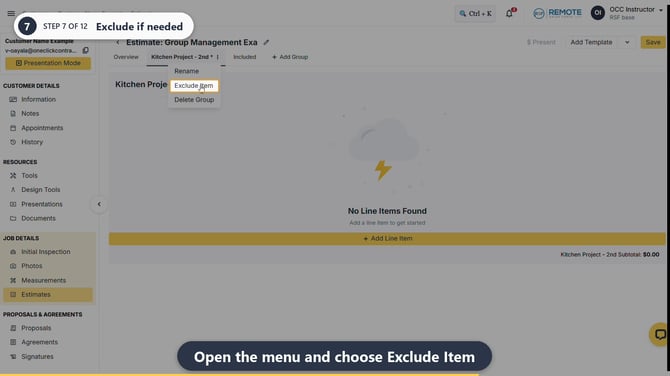
Image description: Exclude Item in the group menu.
Step 8: Check the excluded group
The asterisk disappears. In Overview, the group is listed under NOT INCLUDED. To include it again, use Include Item in its three-dot menu.
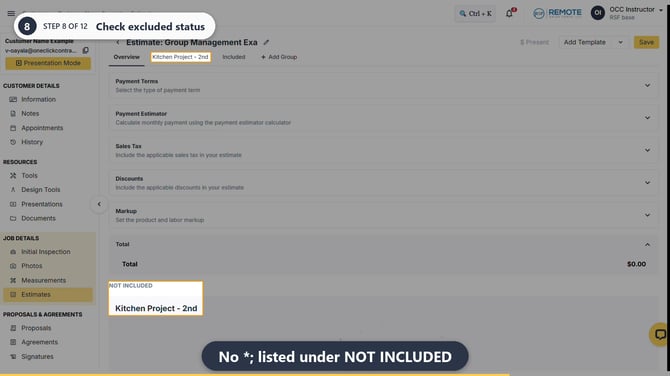
Image description: Kitchen Project - 2nd has no asterisk and appears under NOT INCLUDED.
Step 9: Delete a group only if needed
Open the three-dot menu and choose Delete Group. Warning: deleting a group removes all its line items. Click OK only if you want to delete it; otherwise click Cancel.
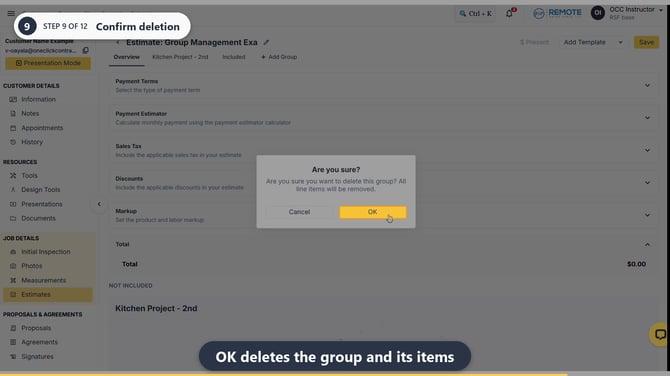
Image description: The deletion warning with OK and Cancel.
Step 10: Review the remaining groups
Use Overview to review the groups that remain. After deletion, the deleted group is no longer listed.
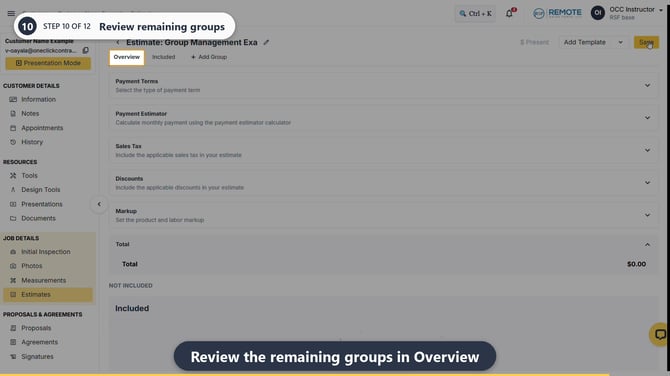
Image description: Overview after Kitchen Project - 2nd has been deleted.
Step 11: Save the estimate
Click Save at the top right to save the estimate changes. Saving the group name with the check mark does not replace this step.
Image description: The estimate-level Save button.
Step 12: Confirm the save
Wait for the message Estimate saved successfully. The task is complete; there is no need to reopen the estimate.
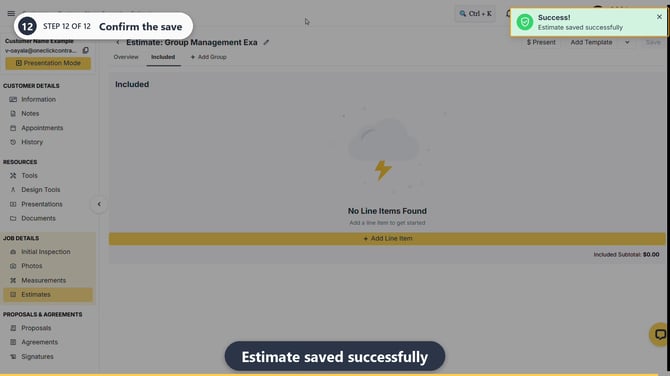
Image description: The success message confirming that the estimate was saved.
💡Pro tips
- Use one group per area of the job, for example a bathroom or a roof, so you can focus on one set of line items at a time.
- Tab names and their order are configurable, so yours may differ from the examples.
- Save group names with the check mark, then click Save to save the estimate changes.
Remember
What you see can differ depending on your organization's settings and your permission level. Tab names, headers and available options are configurable. If you can't see or do something described here, ask your manager first. They can contact support.
Also read
- How do I add a line item to an estimate?
- How do I edit a line item on an estimate?
- How do I use or combine templates on a new estimate?
- What are the best practices for building estimates?