![Icon for Courses-1.png]](https://help.oneclickcontractor.com/hs-fs/hubfs/Icon%20for%20Courses-1.png?height=40&name=Icon%20for%20Courses-1.png)
Article Introduction
Payment terms are managed from the Payment Terms section of an estimate.
The available payment terms templates are preconfigured on the back end for your organization. Each template already includes all associated payment steps, allowing them to be added to an estimate without entering each item individually.
How to Apply a Payment Terms Template
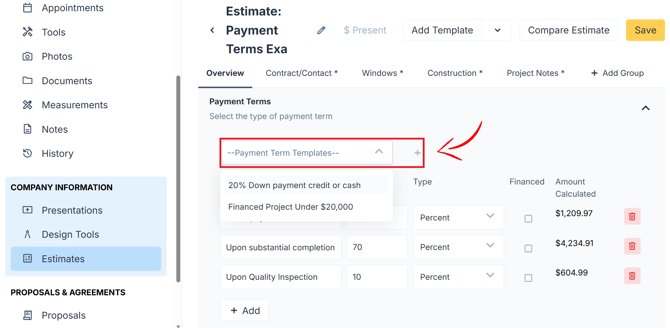
- Open the Payment Terms section within the estimate.
- Select the payment terms template you want to use.
- Select the + button to apply the template.
All payment steps included in the selected template will automatically populate in the estimate.
How to Change the Payment Terms Template
Use the same process to replace the current payment terms:
- Return to the Payment Terms section.
- Select a different preconfigured template.
- Select the + button to apply it.
The payment terms will update with the steps included in the newly selected template.
How to Add a Custom Payment Term
Depending on your permissions, you may also be able to add an individual custom payment term directly to the estimate.
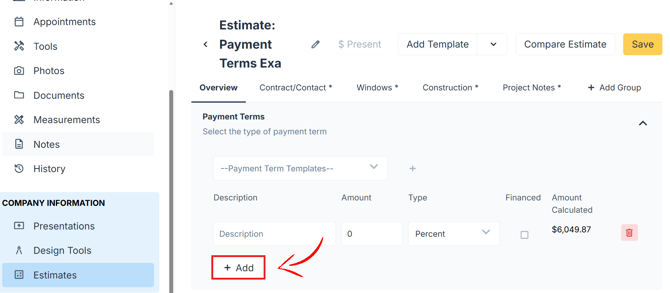
- Go to the lower area of the Payment Terms section.
- Select + Add.
- Enter a description for the payment term.
- Enter the amount.
- Choose whether the amount is:
- A set flat amount
- A percentage
- Turn on the financing toggle when the payment term will be financed.
- Complete any remaining information and save the payment term.
Important Notes
- Payment terms templates are preconfigured on the back end for your organization.
- The ability to add custom payment terms depends on your permissions.
- If a required template is missing or you cannot add a custom term, contact your Organization Manager or Support.