![Icon for Courses-1.png]](https://help.oneclickcontractor.com/hs-fs/hubfs/Icon%20for%20Courses-1.png?height=40&name=Icon%20for%20Courses-1.png)
One Click Contractor allows you to apply pricing updates to individual products or specific categories and sub-categories without modifying the entire price list. This is useful for targeted price adjustments, product-specific increases, or selective margin updates.
Step 1: Open the Price List Editor
-
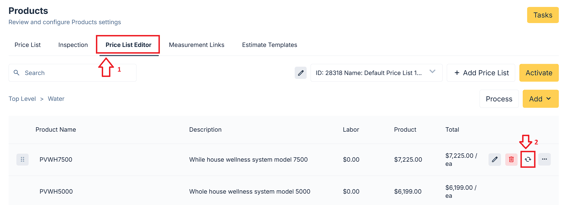
From the main menu, go to Products.
-
Select the Price List Editor tab.
-
Choose the price list you want to update.
-
Navigate to the specific category, sub-category, or product you want to modify.
Step 2: Open Pricing Formulas for the Selected Item
-
Locate the product or category row.
-
Click the circle arrow icon (next to the delete icon).
-
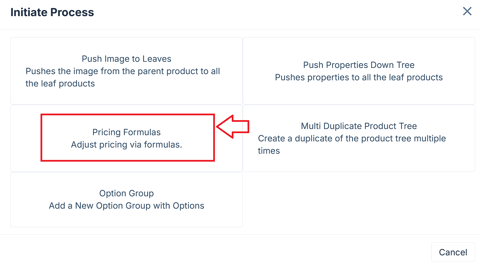
Select Pricing Formulas.
This opens the pricing formula window for only the selected item or category.
Step 3: Apply the Pricing Formula
-
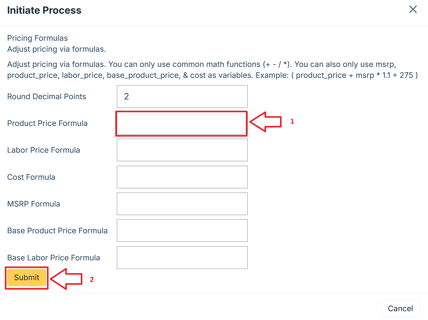
Enter the formula you want to apply.
-
Supported math operators:
-
Addition (+)
-
Subtraction (-)
-
Multiplication (*)
-
Division (/)
-
-
Supported variables:
-
product_price -
labor_price -
base_product_price -
base_labor_price -
msrp -
cost
-
Example Formula
(product_price + msrp * 1.1 + 275)
-
Set Round Decimal Points if needed.
-
Click Submit to apply the update.
Important Notes
-
Changes apply only to the selected product or category.
-
Updates take effect immediately.
-
There is no undo option.
-
For larger updates, request a Price List backup CSV from One Click Contractor Support before applying changes.
This workflow allows precise pricing control without impacting the rest of your price list.