![Icon for Courses-1.png]](https://help.oneclickcontractor.com/hs-fs/hubfs/Icon%20for%20Courses-1.png?height=40&name=Icon%20for%20Courses-1.png)
By the end, you’ll understand:
-
How the hierarchy levels work
-
What parent/child relationships mean
-
Where products go
-
How pricing works
-
How options connect to products
1. What Is an OCC CSV?
An OCC CSV file is a spreadsheet that tells One Click Contractor how your catalog is organized.
Think of it like a family tree for your products.
Instead of parents and children, you have:
-
Categories
-
Subcategories
-
Products
-
Options
Each row builds part of that tree.
2. Understanding Hierarchy Levels (1_name, 2_name, 3_name…)
In your CSV, you’ll see columns like:
- 1_name
- 2_name
- 3_name
- 4_name
These represent levels in your catalog.
Think of it like folders inside folders:
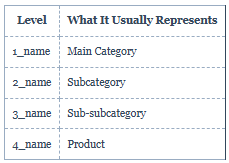
You can go deeper if needed, but most catalogs stay between 3–5 levels.
Example: Roofing Catalog
Here’s how that reads:
-
Roofing (main category)
-
Shingles (subcategory)
-
Asphalt (sub-subcategory)
-
GAF Timberline (product)
-
-
-
Each level is a child of the level before it.
3. Parent and Child Relationships (Very Important)
A parent name is written once, then left blank until it changes.
You do not repeat parent names on every row.
Correct Example
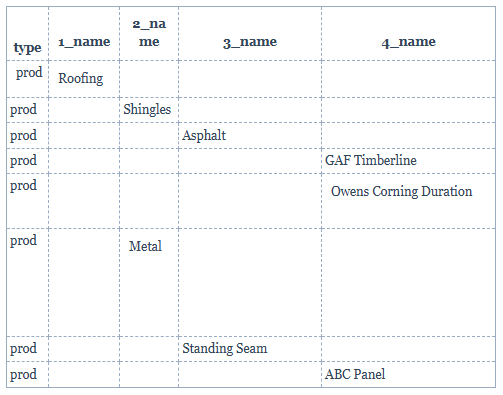
Notice:
-
"Roofing" is written once.
-
It stays blank until we change categories.
-
"Shingles" stays blank until it changes to "Metal".
This keeps the structure clean.
Why This Matters
OCC reads this like a tree:
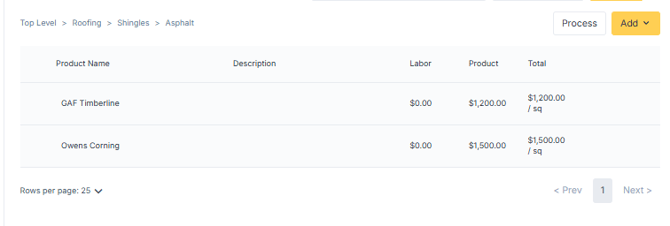
If you repeat parent names incorrectly, the tree breaks.
4. Where Products Go
Products always live at the deepest level of their own branch.
Do NOT push products deeper just because another category goes deeper.
Each product sits at its natural depth.
Product Row Requirements
Products must include:
-
type = prod
-
import_id (i1, i2, i3…) (If options apply)
-
Pricing (if provided)
-
SKU (if provided)
-
UOM (Unit of Measure, like each, sq ft, lf)
Example Product Row
If the product is in 4_name: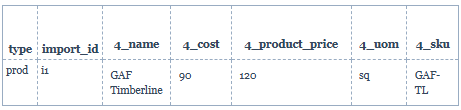
Important:
Pricing, SKU, and UOM must be on the SAME level number as the product name.
If the product is in 3_name, then pricing must be in 3_cost, 3_product_price, etc.
5. Understanding the Type Column
There are only two allowed values: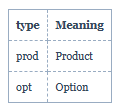
Nothing else is allowed.
6. What Is an import_id?
Every product must have a unique import_id:
- i1
- i2
- i3
- i4
Rules:
-
Only products get import_id
-
Options NEVER get import_id
-
IDs must be continuous (no skipping numbers)
- Correct:
i1, i2, i3, i4 - Wrong:
i1, i2, i4 (missing i3)
- Correct:
7. Understanding Options (Very Simple Version)
Options are not products.
Options are choices that attach to products.
For example:
Step 1: Product: Roof Replacement
Options:
-
Upgrade to Architectural Shingles
-
Add Ice & Water Shield
-
Add Ridge Vent
How Options Are Structured
Options use their own hierarchy: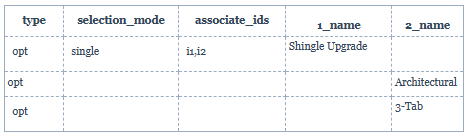
Explanation:
-
1_name = Option Group
-
2_name = Option Value
-
type = opt
-
selection_mode = single or multi
-
associate_ids = which product import_ids this option connects to
Selection Mode
Example:
Color choices → single
Add-ons → multi
8. Where Pricing Goes
Pricing is only allowed on product rows (unless explicitly instructed).
You may see:
-
*_cost
-
*_product_price
-
*_labor_price
Labor must go in *_labor_price — never inside descriptions.
9. Unit of Measure (UOM)
This tells OCC how the product is sold.
Examples:
-
each
-
sq ft
-
lf
-
bundle
UOM must be on the same level number as the product.
10. Common Beginner Mistakes
-
Repeating parent category names on every row
-
Giving options an import_id
-
Skipping import_id numbers
-
Putting pricing on category rows
-
Putting pricing at the wrong level number
11. Simple Visual Summary
Think of your CSV like building this:
Main Category → Subcategory → Sub-subcategory → Product
And separately:
Option Group → Option Values → Linked to Products
Final Tip for Beginners
If you're unsure, remember:
-
Categories build the tree
-
Products sit at the bottom of branches
-
Options are separate and attach using import_id
-
Pricing only lives with products
-
Parent names are written once — not repeated
Whenever you have your OCC CSV ready to go, contact support at Support@OneClickContractor so we can review and upload your completed CSV!