![Icon for Courses-1.png]](https://help.oneclickcontractor.com/hs-fs/hubfs/Icon%20for%20Courses-1.png?height=40&name=Icon%20for%20Courses-1.png)
Payment Terms control how pricing and payment breakdowns appear on estimates. These settings are configured in the Administration panel and apply globally across the organization.
Step 1: Access Payment Terms
-
Navigate to Payment Terms
-
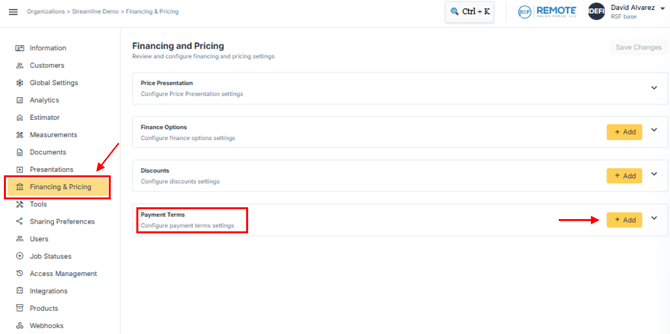
Go to Administration Settings.
-
Click on Financing & Pricing.
-
Under Payment Terms, you can manage the list of terms that appear on all estimates.
-
-
Add a New Payment Term
-
Click Add to create a new payment term.
-
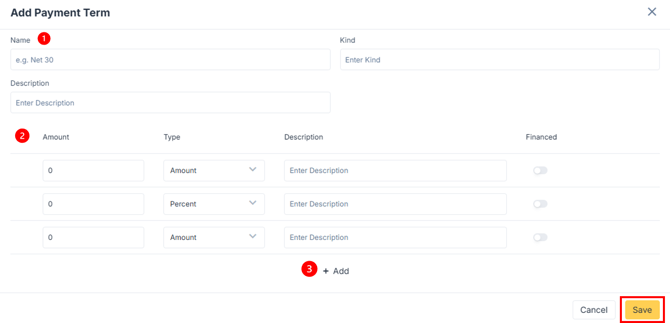
When creating a new payment term, the following fields are required:
Step 2: Name Your Payment Term
-
Name – Enter a clear name for the term.
-
Kind – Select the type or category.
-
Description – Provide a brief explanation of the term.
2. Set the Amount and Type
-
Amount – Specify the value.
-
Type – Choose whether the amount is a fixed value or a percentage.
-
Description of Set Term – Add details about this payment setup.
-
Financing Toggle – Enable or disable financing if applicable.
Step 3: Add More Breakdown Sets (Optional)
-
Click Add to include additional breakdowns within the payment term.
-
Once complete, click Save to store your new payment term.
Managing Existing Payment Terms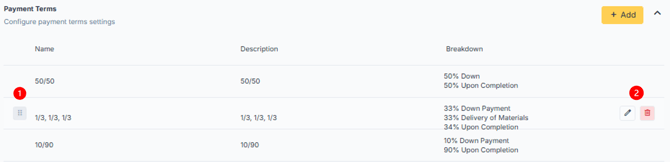
-
Reorder Payment Terms
-
Drag the reorder icon up or down to arrange your list as needed.
-
-
Edit or Delete Terms
-
Hover over a payment term to reveal the icons on the right-hand side.
-
Use these icons to update or delete the selected payment term.
-