![Icon for Courses-1.png]](https://help.oneclickcontractor.com/hs-fs/hubfs/Icon%20for%20Courses-1.png?width=36&height=36&name=Icon%20for%20Courses-1.png)
Access required
You need access to Administration and Financing & Pricing & Discounts. Open the Discounts section. If Financing & Pricing is not visible, contact a manager or administrator who manages user access.
Step 1: In Discounts, select + Add.
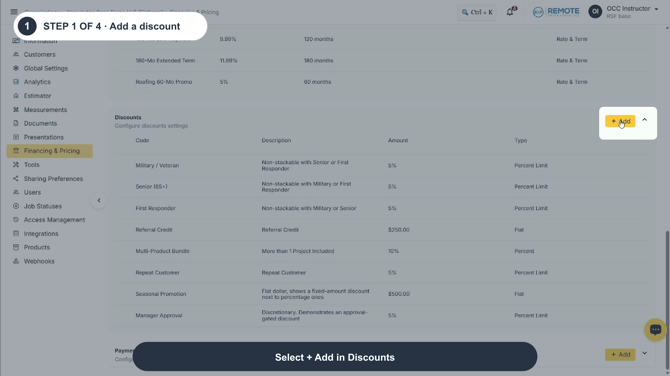
Image description: Select + Add in Discounts.
Step 2: Enter the Discount Code and Description. Use a clear code that users can recognize, and include any approval or stacking guidance in the description.
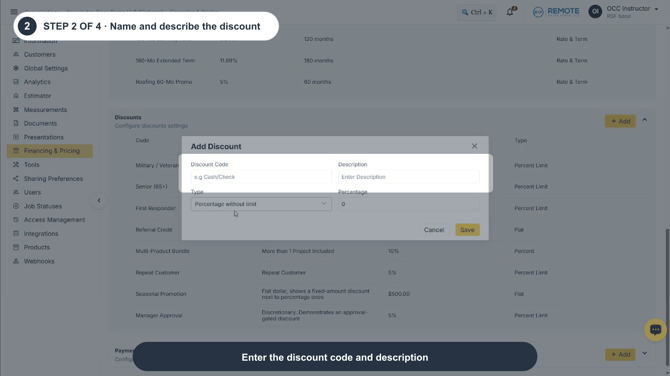
Image description: Enter the discount code and description.
Step 3: Choose the discount Type, then enter the percentage or amount required for that type. If you choose Percentage with limit, also enter the maximum discount allowed. Select Save when the discount is complete.
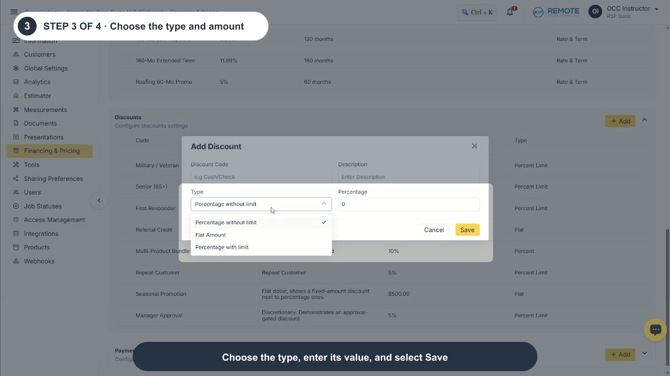
Image description: Choose the type, enter its value, and select Save.
Step 4: Manage existing discounts from the Discounts list. Hover over a row to reveal the drag handle, pencil, and trash icons. Use them to reorder, edit, or delete the discount.
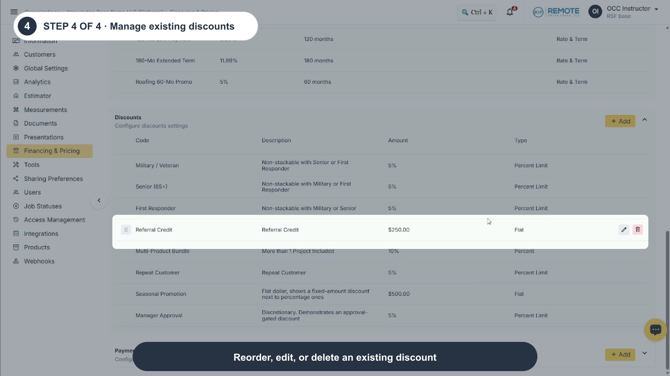
Image description: Reorder, edit, or delete an existing discount.
Discount types
|
Type |
How it works |
Example |
|
Percentage without limit |
Applies the configured percentage to the eligible discountable amount without a maximum cap. |
If the eligible amount is $20,000 and the discount is 10%, the deduction is $2,000. |
|
Flat Amount |
Applies a fixed dollar deduction. |
A $1,500 flat discount deducts $1,500 when the discount applies. |
|
Percentage with limit |
Applies the configured percentage to the eligible discountable amount, up to the maximum limit. |
If 10% equals $2,000 but the limit is $1,000, the deduction is capped at $1,000. |
What each field controls
|
Field |
What it controls |
Guidance |
|
Discount Code |
The name used to identify the discount in OCC. |
Keep it short and easy for users to distinguish from similar discounts. |
|
Description |
Explains the discount's purpose or usage requirements. |
Include approval, eligibility, or stacking guidance when needed. |
|
Type |
Determines whether OCC calculates a percentage or fixed amount and whether a percentage has a cap. |
Choose the type before entering its value. |
|
Percentage or Amount |
Sets the value OCC applies to eligible products. |
Enter the approved value for the promotion or program. |
|
Limit |
Sets the maximum deduction for a percentage-with-limit discount. |
Confirm the cap before saving. |
Remember
-
Discounts apply only to eligible discountable products. A percentage discount may therefore be smaller than the same percentage of the full estimate subtotal.
-
Confirm the code, description, type, value, and any limit before making the discount available to users.
-
What you see can differ depending on your organization's settings and your permission level. Tab names, headers and available options are configurable. If you can't see or do something described here, ask your manager first. They can contact support.