![Icon for Courses-1.png]](https://help.oneclickcontractor.com/hs-fs/hubfs/Icon%20for%20Courses-1.png?width=36&height=36&name=Icon%20for%20Courses-1.png)
Access required
You need access to Administration > Financing & Pricing. Open the Payment Terms section. If Financing & Pricing is not visible, contact a manager or administrator who manages user access.
Step 1: In Payment Terms, select + Add.
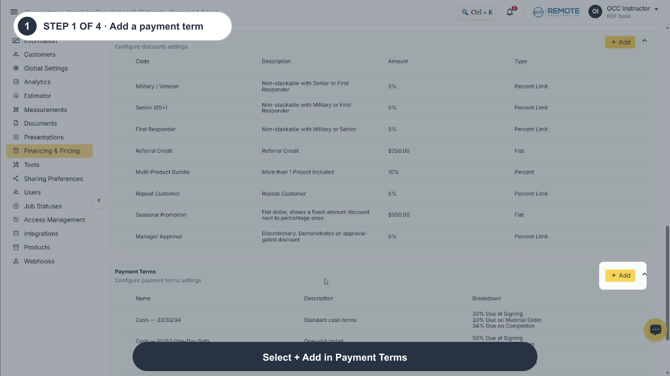
Image description: Select + Add in Payment Terms.
Step 2: In the Payment Term dialog, enter Name, Kind, and Description. Use a clear name and description so users can distinguish the term from similar options.
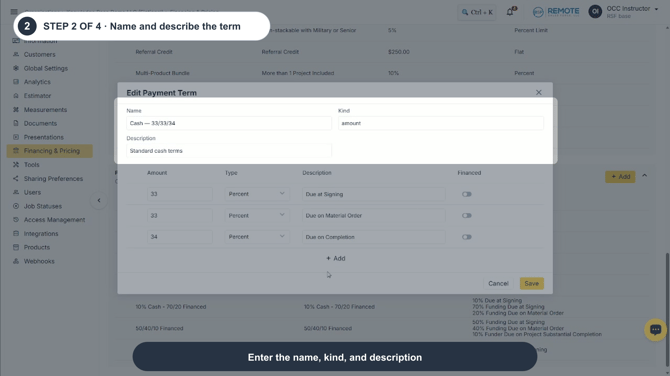
Image description: Enter the name, kind, and description.
Step 3: Under the payment breakdown, enter the Amount, choose the Type, add a Description, and confirm the Financed setting for every row.
Select + Add to add another row, or use the trash icon to remove a row. Review every row, then select Save.
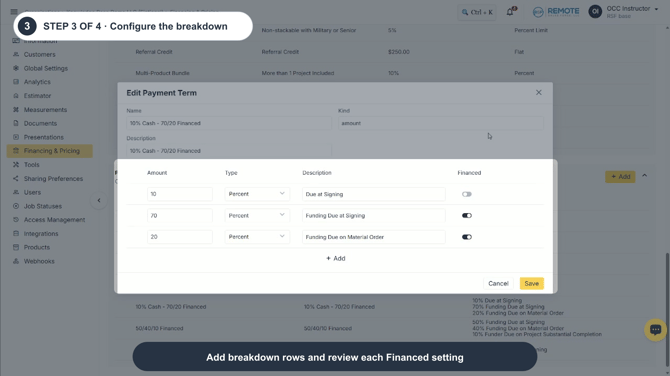
Image description: Add breakdown rows and review each Financed setting.
Step 4: From the Payment Terms list, hover over a row to reveal the drag handle, pencil, and trash icons. Use them to reorder, edit, or delete the term.
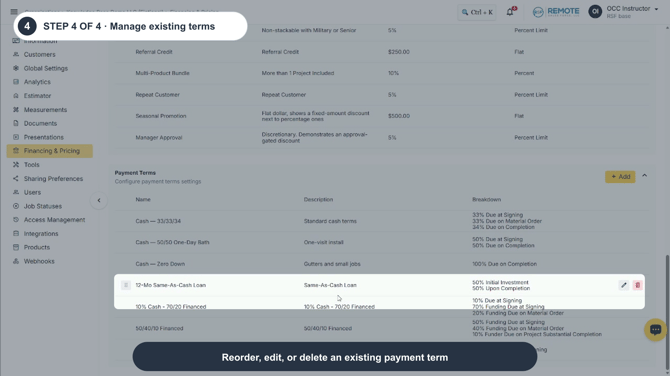
Image description: Reorder, edit, or delete an existing payment term.
Payment term fields
|
Field |
What it controls |
Guidance |
|
Name |
The label users see when choosing a payment term. |
Use a concise name that identifies the payment structure. |
|
Kind |
The term's configured kind. |
Use the organization-approved value. The demonstrated examples use amount. |
|
Description |
Explains the purpose or scenario for the payment term. |
Keep it brief and specific enough to distinguish similar terms. |
Breakdown row fields
|
Field |
What it controls |
Guidance |
|
Amount |
The value assigned to the breakdown row. |
Check that all rows produce the intended payment structure. |
|
Type |
How OCC interprets the amount. |
Select the approved calculation type for the row. The demonstrated examples use Percent. |
|
Description |
The customer-facing explanation for when the amount is due. |
Use clear language such as Due at Signing or Due on Completion. |
|
Financed |
Whether the breakdown row is treated as financed. |
Review this toggle on every row. It can be on or off within the same payment term. |
Remember
-
Payment terms are available across the organization and can affect estimates and Price Presentation. Review every breakdown row before saving, especially the Amount, Type, Description, and Financed setting.
-
The Financed toggle is set per row and should match the intended payment structure.
-
What you see can differ depending on your organization's settings and your permission level. Tab names, headers and available options are configurable. If you can't see or do something described here, ask your manager first. They can contact support.