![Icon for Courses-1.png]](https://help.oneclickcontractor.com/hs-fs/hubfs/Icon%20for%20Courses-1.png?width=36&height=36&name=Icon%20for%20Courses-1.png)
Steps
Step 1: In Slides/Drops Settings, select + Add Slide.
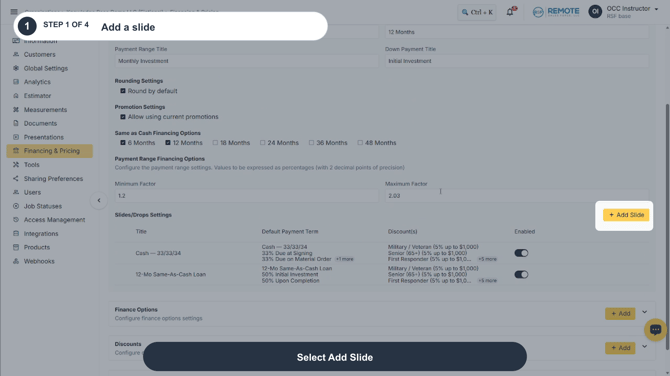
Image description: Select Add Slide in Slides/Drops Settings.
Step 2: Choose whether the slide is Enabled, enter its customer-facing Title, and select the Default Payment Term. Keep Enabled selected when the slide should be available to sales representatives.
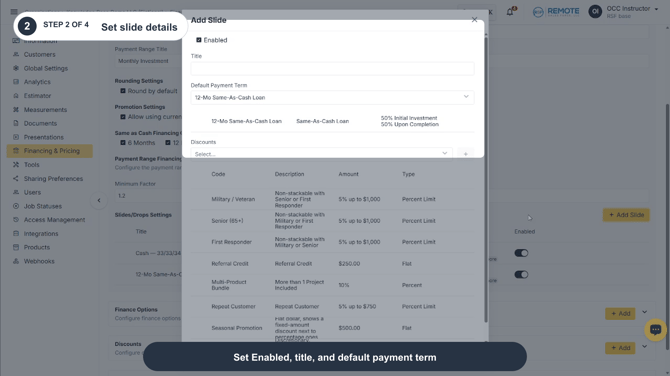
Image description: Set Enabled, enter the title, and choose the default payment term.
Step 3: Under Discounts, select each approved discount that should be available on this slide and select the + icon to add it. Use the trash icon to remove an added discount, then select Save.
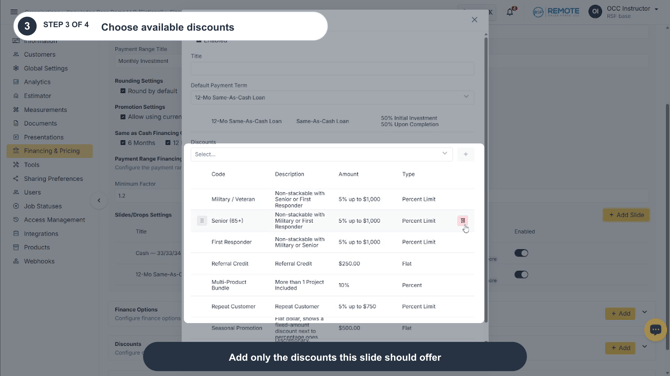
Image description: Add only the approved discounts the slide should offer.
Step 4: Manage existing slides from the Slides/Drops Settings list. Use the pencil icon to edit a slide, the trash icon to delete it, or the Enabled toggle to control whether sales representatives can use it.
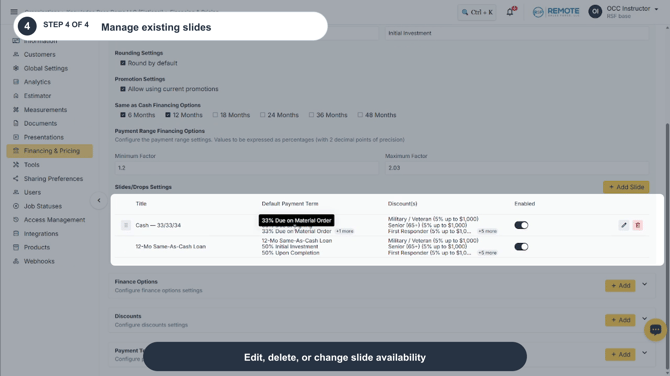
Image description: Edit, delete, or change the availability of an existing slide.
What each setting controls
|
Setting |
What it controls |
What the sales representative sees |
|
Enabled |
Whether the slide is available for use. |
Disabled slides do not appear as an available Price Presentation option. |
|
Title |
The customer-facing name of the slide. |
The title appears at the top of the corresponding presentation option. |
|
Default Payment Term |
The payment structure associated with the slide by default. |
The term's payment schedule appears within the slide. |
|
Discounts |
Which configured discounts can be used with the slide. |
Only the discounts added to the slide are available from that slide. |
Naming recommendation
The slide title does not have to match the organization-wide Price Presentation labels. Use consistent, customer-friendly names so the option is easy for sales representatives and customers to understand.
Remember
-
Slides apply across the organization. Confirm the title, default payment term, available discounts, and Enabled setting before saving.
-
What you see can differ depending on your organization's settings and your permission level. Tab names, headers and available options are configurable. If you can't see or do something described here, ask your manager first. They can contact support.