![Icon for Courses-1.png]](https://help.oneclickcontractor.com/hs-fs/hubfs/Icon%20for%20Courses-1.png?width=36&height=36&name=Icon%20for%20Courses-1.png)
Step 1: Click Add Estimate
Use the button at the top right, or the one in the middle of the page when the job has no estimates yet. Both work the same way.
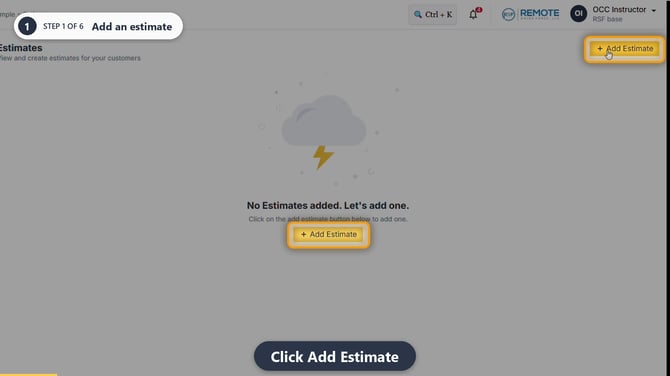
Image description: The Estimates page with Add Estimate highlighted.
Step 2: Enter an estimate name
Click the name field at the top and type a name for the estimate.
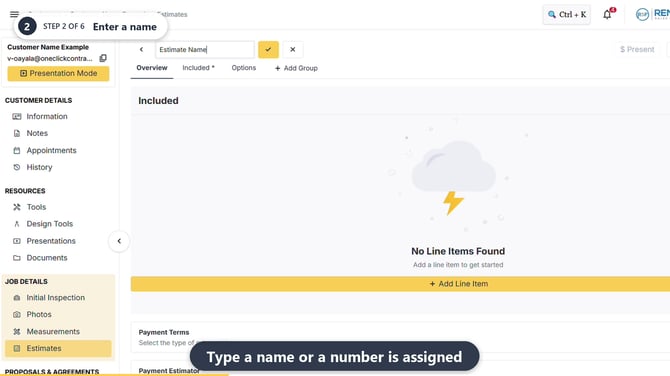
Image description: The estimate name field with a generic name entered.
Note: If you skip the name, the system assigns a number automatically.
Step 3: Save the name
Click the check mark next to the name field. This saves the name only.
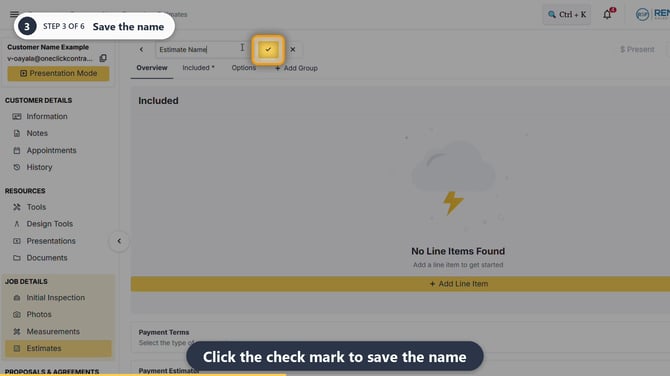
Image description: The check mark used to save the estimate name.
Step 4: Save the estimate
Click Save at the top right to save the estimate.
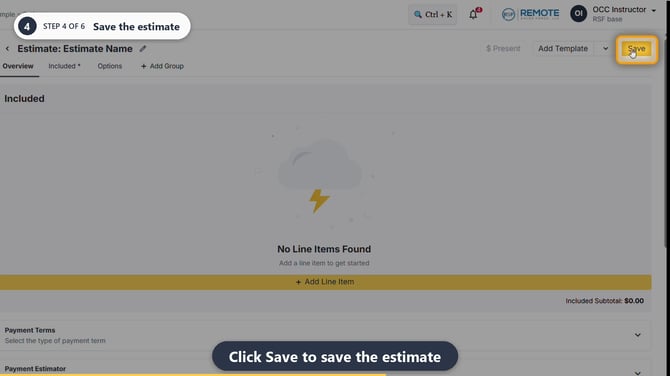
Image description: The Save button used to save the estimate.
Important: Saving the name and saving the estimate are separate steps. Click the check mark first, then click Save.
Step 5: Return to Estimates
After the estimate is saved, click the back arrow next to the estimate name.
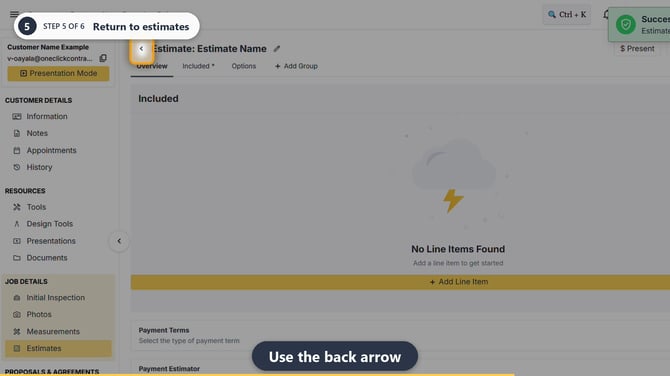
Image description: The back arrow used to return to the Estimates list.
Step 6: Confirm the estimate
Confirm that the saved estimate appears in the Estimates list.
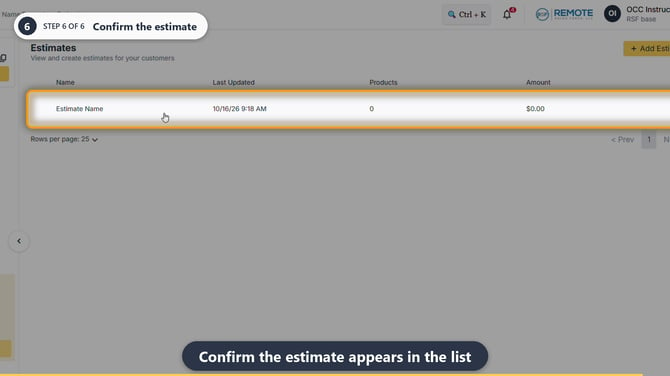
Image description: The saved estimate in the Estimates list.
💡Pro tips
- To rename an estimate later, click the pencil, enter the new name, click the check mark, and then click Save.
- You can create as many estimates on a job as you need.
- Use clear names when a job has more than one estimate.
- Save the estimate after every change.
Remember
What you see can differ depending on your organization's settings and your permission level. Tab names, headers and available options are configurable. If you can't see or do something described here, ask your manager first. They can contact support.
Also read
- How do I add a line item to an estimate?
- How do I use tabs and groups to organize an estimate?
- How to create and save an estimate template
- How do I use or combine templates on a new estimate?