![Icon for Courses-1.png]](https://help.oneclickcontractor.com/hs-fs/hubfs/Icon%20for%20Courses-1.png?width=36&height=36&name=Icon%20for%20Courses-1.png)
Logging in with SSO (Auth0)
In the 7/30/2025 release, we wrapped up the migration to Auth0. Users will now be able to use their 1LOOK and OCC credentials interchangeably, allowing for a more seamless experience.
In the short term, orgs will be moved to Auth0 one by one. When the decision is made to migrate an org:
- A Dev ticket must be opened to “flip the flag” for them.
- A new URL must be provided to the org users, and the login screen will look different:
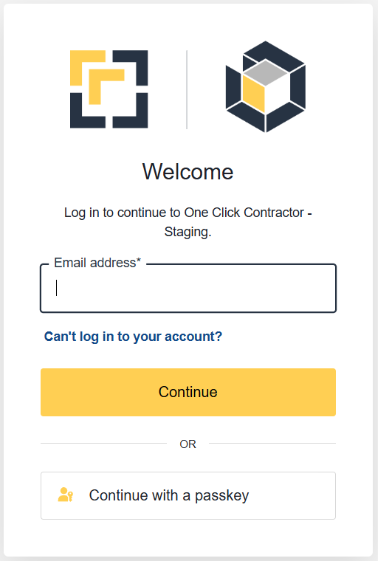
- Existing users should log in via the new URL with their existing credentials, at which point they will “trickle migrate” and become an Auth0 user.
- NOTE: Is the org already a 1LOOK user? If so, they can and should use those credentials to log in to the new URL.
- NOTE: If the user utilizes a Password Manager for OCC, the Password Manager will NOT recognize the new URL. The user will need to access their Password Manager and pull out their username and password to use to login.
- NEW users must be added via the new UI/UX, and it will look a little different:
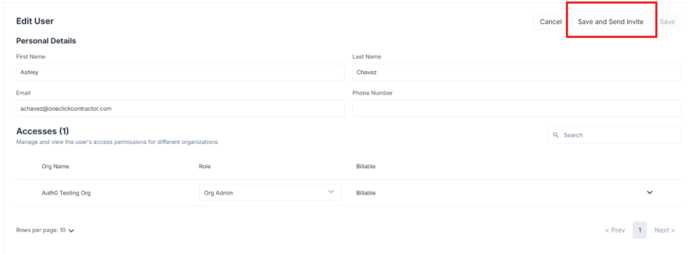
Note that there is not a field for password – new users must be sent an invite. Also, if user will be using OCC and 1LOOK, the emails MUST match.
The invitation email will look like this:
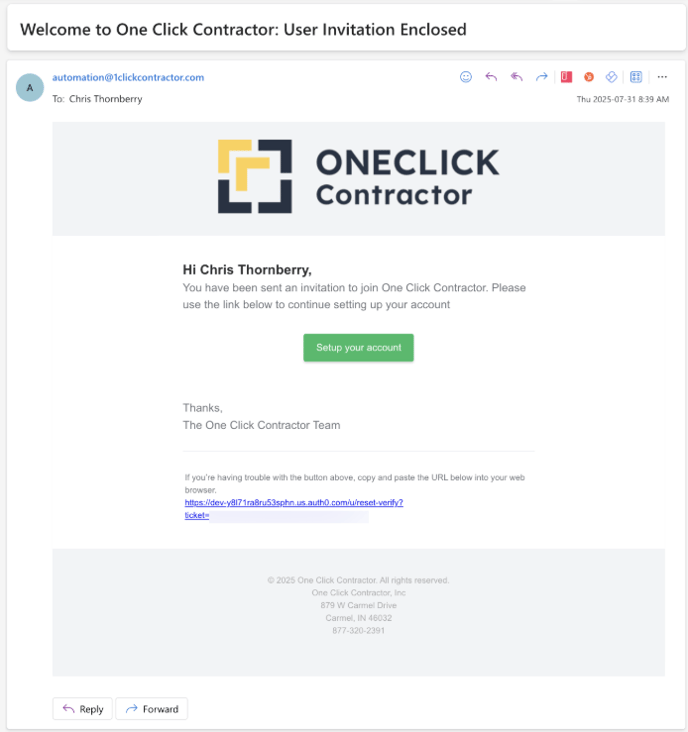
If a user uses the “Can't log in to your account?” button, the screen and email will look like this – please NOTE that the email will come from "1LOOK <noreply@1look.1andfund.com>":
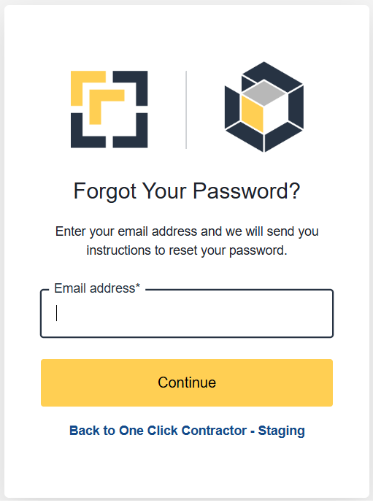
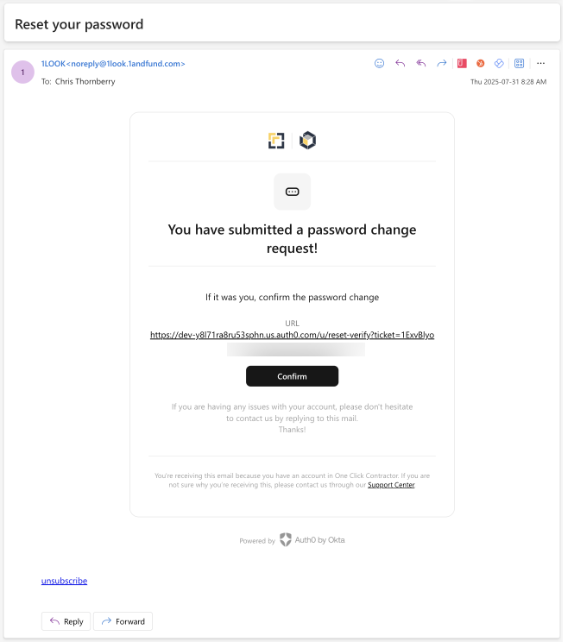
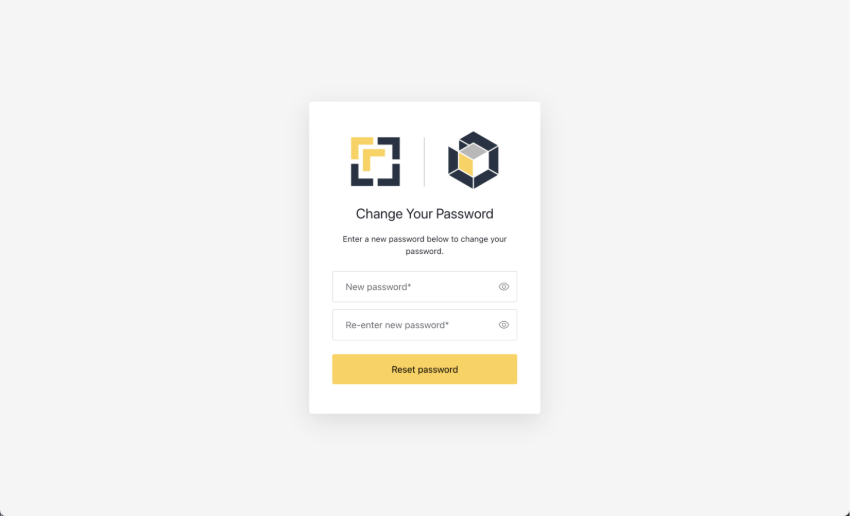
Change Password Screen
Note: This screen is the same screen a user receives whether they click the link in the “Can’t log in to your account?” from the login screen OR the ”Setup” button in the user invitation email.