![Icon for Courses-1.png]](https://help.oneclickcontractor.com/hs-fs/hubfs/Icon%20for%20Courses-1.png?height=40&name=Icon%20for%20Courses-1.png)
Step 1: Add a User
-
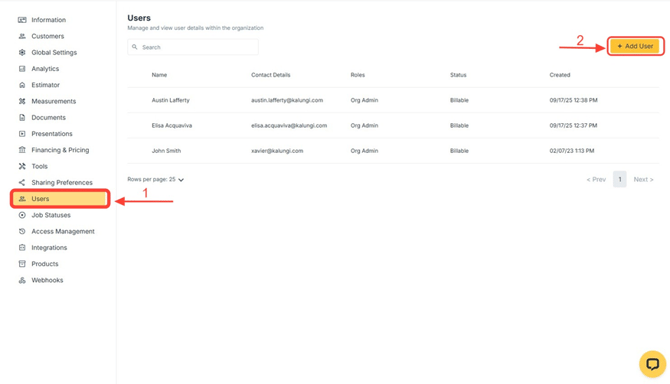
Locate and click the Users button.
-
Click Add a User.
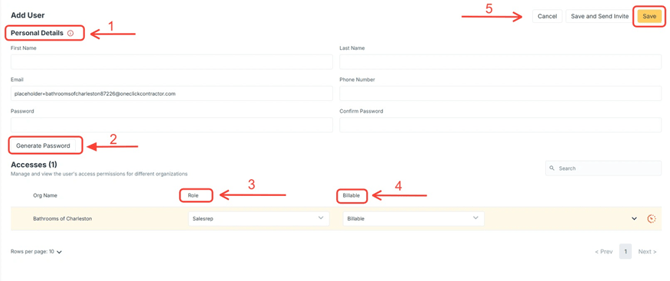
- Enter Personal Details.
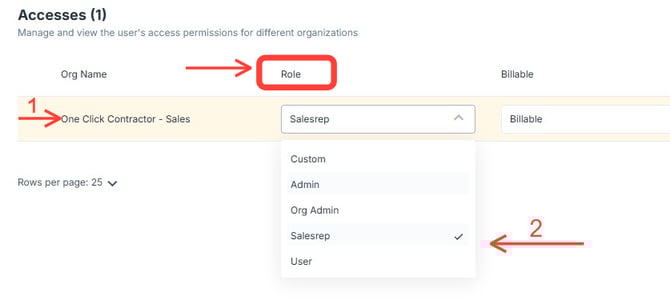
- Select the user role.
- Select the User billable status.
Role definitions
- Org Admin: Admin level access within a specific organization. Admin and Org Admin are part of the organization permission hierarchy.
- Sales Manager – Elevated sales-level access. Can manage and oversee Sales Representatives, review estimates and deals, and access reporting features based on organizational permissions.
- Sales Rep: Standard sales access.
- Custom: If a selected option does not match the standard role categories, the system automatically tags the user as Custom.
Step 2: Save Options
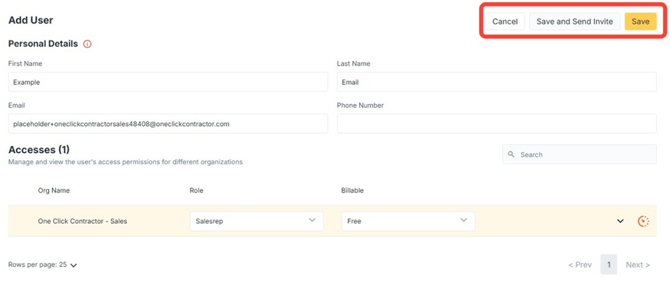
- Save and Send Invite: Creates the user and automatically emails the login information to them.
- Save: Creates the user. Only used in special scenarios.
Step 3: Modify a created user
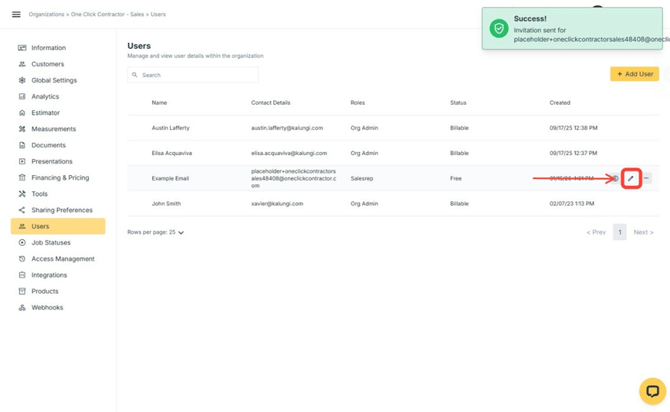
Modifying a created user:
-
Click pen icon to go back to the User Screen
-
Make any adjustments needed
-
Save
Deleting a user
1. Click the three dots on the same line as the user.
-webp.webp?width=670&height=285&name=user_cropped_screenshot%20(2)-webp.webp)
2. Click Delete.
-webp.webp?width=670&height=386&name=user_cropped_screenshot%20(3)-webp.webp)
Reconfirm the intention to Delete.
-webp.webp?width=670&height=413&name=user_cropped_screenshot%20(4)-webp.webp)
💡 Notes:
- Any spaces in between the fields will prompt an error, make sure you review spaces before and after each field information.
- "Generate Password" may be required in some cases, the system will prompt the instructions when needed.
- To send the Set Up Email you'll need to click the "Save and send" option.
- If you use the "Save" option, the user can access the platform at any moment with the saved information.
-
Click on Expand arrow under Role.
-
Select Role
-
The organization will still have access to all deals and estimates associated with the user.
-
Your account’s minimum license count will be adjusted to reflect the additional user.
-
The new billing amount will be effective immediately and remain in place through the end of your contract.