![Icon for Courses-1.png]](https://help.oneclickcontractor.com/hs-fs/hubfs/Icon%20for%20Courses-1.png?height=40&name=Icon%20for%20Courses-1.png)
Article Introduction
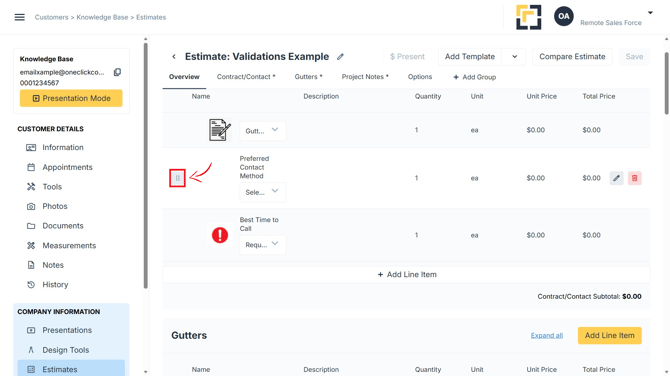
Line items can be moved to a different position within an open estimate in the Estimator. The control used to move a line item is hidden until you hover over or select the line item.
How to Move a Line Item on a Computer
- Locate the line item you want to move.
- Hover over the line item to display the hidden move icon.
- Click and hold the move icon to grab the line item.
- Drag the line item to the position where you want it to appear.
- Release the mouse button to place the line item in its new position.
How to Move a Line Item on a Tablet or Phone
- Locate the line item you want to move.
- Tap a blank area within the line item to display the hidden move icon.
- Press and hold the move icon to grab the line item.
- Drag the line item to the desired position.
- Release it to place the line item in its new position.
How It Looks in the Estimator
Important Notes
- The move icon may not be visible until you hover over or select the line item.
- On a tablet or phone, tap a blank area of the line item rather than a button, field, or editable section.