![Icon for Courses-1.png]](https://help.oneclickcontractor.com/hs-fs/hubfs/Icon%20for%20Courses-1.png?height=40&name=Icon%20for%20Courses-1.png)
Article Introduction
When markup is enabled for your organization and your account has the appropriate permission, the Markups section appears below Discounts.
How to Adjust Markup
- Locate the Markups section below Discounts.
- Select Markups to expand the section.
- Adjust the product or labor markup using either:
- The percentage field beside the markup value
- The drag-and-drop slider
- Review the updated estimate total.
The estimate recalculates immediately after the markup percentage is changed.
Product and Labor Markup
Product and labor markup can be adjusted separately when both options are available.
The available markup percentages may be limited by the minimum and maximum values configured for your organization.
How Markup Works with DiscountsMarkup is calculated before discounts.
After markup is applied, any estimate discounts are calculated using the updated price.
How It Looks in the Estimator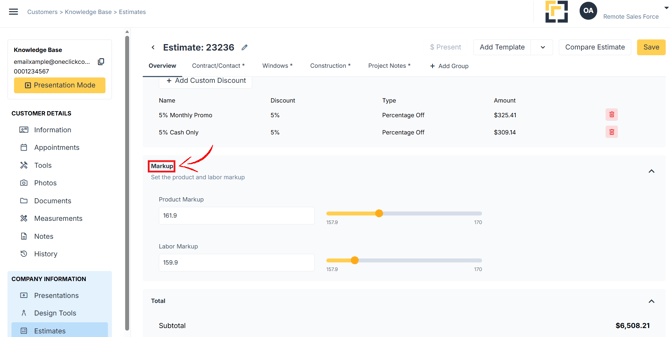
Important Notes
- The Markups section is only visible when markup is enabled for the organization and your account has the appropriate permission.
- Some products or labor amounts may not be eligible for markup.
- Estimates created before markup was enabled begin with a 0% product or labor markup. You will need to create a new one to update the option.
- Markup adjustments must remain within the configured minimum and maximum percentages.
- If the Markups section is missing, contact your Organization Manager or Support