![Icon for Courses-1.png]](https://help.oneclickcontractor.com/hs-fs/hubfs/Icon%20for%20Courses-1.png?height=40&name=Icon%20for%20Courses-1.png)
Accessing the Photos Tab
From the customer record, select Photos in the left-hand navigation under Customer Details. The tab displays a count of all photos currently saved to the job.
Adding Photos
There are two ways to add photos to a job:
Upload directly: Click the + Add Photos button in the top-right corner to select and upload image files from your device.
Send an Upload Invite: Click Send Upload Invite to generate and send a link that allows the customer (or a field technician) to upload photos directly without needing access to the system.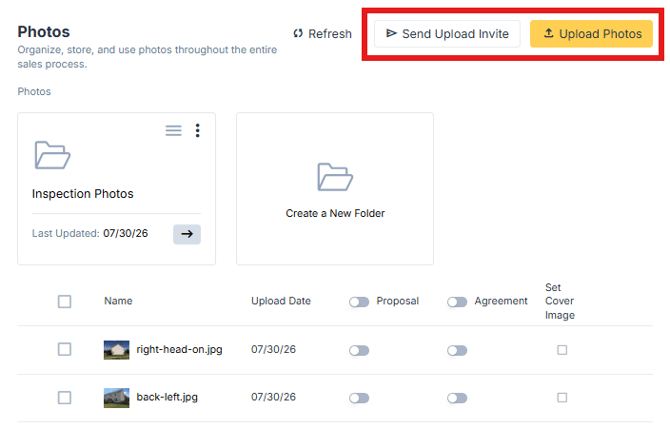
Organizing Photos with Folders
Photos can be organized into folders for easier navigation. For example, Inspection Photos folder has been created, and you can create additional folders by clicking Create a New Folder. Folders display the date they were last updated.
You can click on the empty checkboxes on the left hand side to select or mass select to move the images to another created folder. 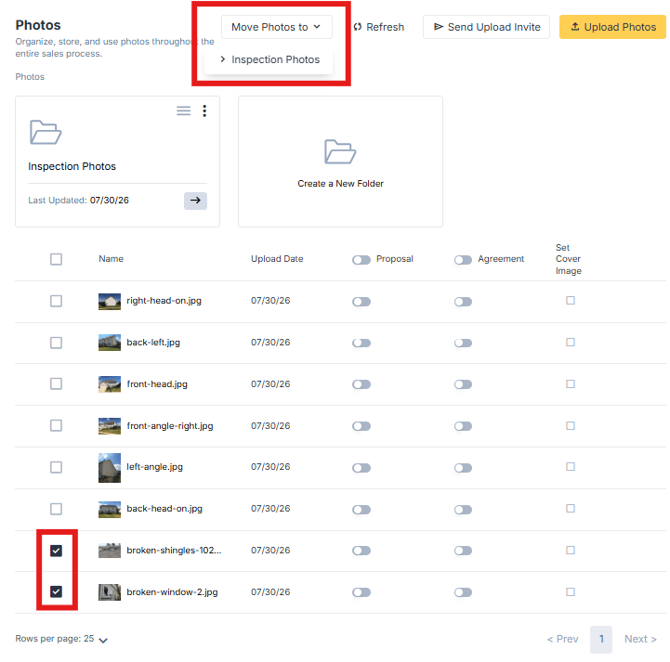
Photo List View
All photos are displayed in a list with the following columns:
- Name – The file name of the uploaded image.
- Uploaded On – The date and time the photo was added to the job.
- Proposal – Checkbox to associate the photo with the job's proposal.
- Agreement – Checkbox to associate the photo with the job's agreement.
- Actions – Options to edit or delete the photo.
Photo Actions
Each photo has the following available actions:
- Set Cover Image– Sets the image as the cover photo for the job.
- Open Image in New Tab – Opens the full-resolution image in a new browser tab.
- Edit Title and Description – Allows you to add or update the photo's title and description.
- Delete Image – Permanently removes the photo from the job record.
Refreshing the Photo List
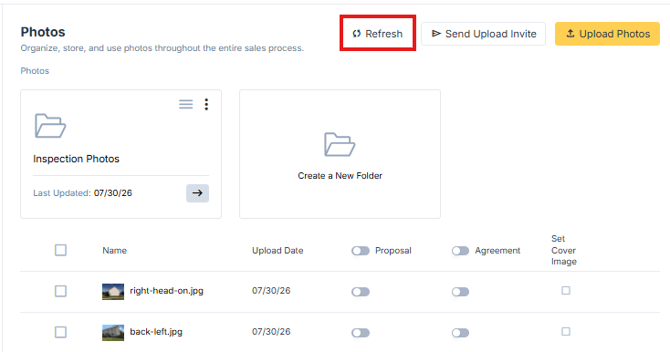
Click the Refresh button to reload the photos list and ensure you're viewing the most up-to-date uploads.