![Icon for Courses-1.png]](https://help.oneclickcontractor.com/hs-fs/hubfs/Icon%20for%20Courses-1.png?width=36&height=36&name=Icon%20for%20Courses-1.png)
ImproveIt360 Classic vs. Lightning
Identify the selected ImproveIt360 platform and compare the integration behavior and data mappings.
OCC supports separate ImproveIt360 Classic and Lightning configurations. The selected platform determines which source objects, field names, result values, filter fields, and document area apply. Identify the platform before troubleshooting or configuring filters.
Identify the configured platform
1. Open ImproveIt360 Settings and read Platform. In Integrations, open the ImproveIt360 card, select Settings, and check whether Platform is Classic or Lightning. Use the matching configuration instructions and API field names below.
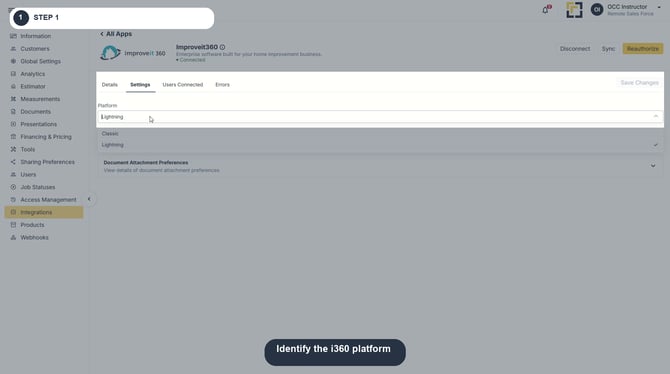
Image description: Identify the i360 platform.
1. Platform Differences
i360 Classic and i360 Lightning both synchronize eligible appointments with One Click Contractor (OCC), but they use different source objects, field mappings, result structures, and document destinations.
Always confirm whether the organization uses Classic or Lightning before validating field mappings, filters, user associations, or synchronization errors.
Source Records and Field Mapping
| Feature | Classic | Lightning |
|---|---|---|
| Appointment Source | i360__Appointment__c |
Lightning appointment records and related sales opportunities |
| Customer Record | Prospect primary contact fields | Contact fields; Account ID retained in metadata |
| Assigned Representative | i360__Sales_Rep_1__c |
i360core__Sales_Rep_1__c |
| Lead Source | i360__Lead_Source__r.i360__Source_Name__c |
No lead-source mapping provided |
| Address Line 2 | Blank; no second address line is mapped | No separate second address line listed in the mapping |
| Phone Numbers | Three Prospect phone slots with corresponding phone types | Contact_Phone__c, parsed as comma-separated name:number entries |
| Appointment Summary | Appointment name; comments supplied separately | Contact name, product categories, and appointment type |
| Appointment Result | i360__Result__c |
i360core__Status__c |
| Result Detail | i360__Result_Detail__c |
i360core__Status_Detail__c |
| Sales Opportunity Results | Not described as a separate result mapping | i360core__Result__c and i360core__Result_Detail__c on the Sales Opportunity object |
2. Staff Matching and Incoming Filters
Staff Synchronization
Both platforms refresh staff records weekly. The matching and association processes are similar, but their source objects are different.
Weekly staff refresh
| Feature | Classic | Lightning |
|---|---|---|
| Staff Object | i360__Staff__c |
i360core__Staff__c |
| Email Matching | Matches staff to OCC users by email; manual association supported | Automatically associates matching emails; unmatched users can be linked manually |
| Incoming Filters | Available; use Classic API field names | Available; use Lightning API field names |
| Filter Example | i360__Result__c |
i360core__Status__c |
Internal references: RSF-25438 (staff matching); RSF-26119 (filter field examples).
Classic and Lightning use different API field names. Verify the selected platform, source field, and allowed value before enabling a filter. An enabled filter excludes records that do not match its criteria.
3. Appointment Synchronization
Both platforms synchronize appointments every 15 minutes at the following minutes after each hour:
| Synchronization Rule | Classic | Lightning |
|---|---|---|
| Frequency | Every 15 minutes | Every 15 minutes |
| Update Lookback | Previous 29 days through current time | Previous 29 days through current time |
| Overlap | No additional overlap specified | Five-minute overlap |
| Assignment | First assigned representative must be actively mapped | First assigned representative must be actively mapped |
| Manual Pull | Sync | Sync |
When an assigned representative changes, the appointment is evaluated during the next synchronization cycle if the replacement representative has an active OCC association and the record meets the applicable eligibility rules.
The individual platform FAQs also describe a reassigned appointment eligibility window from two days before through 30 days after the current date. This should not be confused with the 29-day update lookback.
4. Documents and Result Writeback
Document Destination
| Feature | Classic | Lightning |
|---|---|---|
| Attachment Target | Latest appointment associated with the Prospect | Latest appointment associated with the Contact |
| Document Location | Notes & Attachments | Files |
Result Writeback Differences
| Behavior | Classic | Lightning |
|---|---|---|
| Appointment Results | Writes appointment result, result detail, and notes | Writes appointment result and dependent detail |
| Sales Opportunity Results | Not described as separate sales-opportunity writeback | Writes related sales opportunity results and details |
| Quoted Amount | Can update from the latest estimate total | No equivalent behavior described in the supplied reference |
| Sold Result | Can create a Prospect Sale when configured | No additional sale creation described in the FAQ |
| Non-Sold Result | Can create a Marketing Opportunity / Marketing Task when configured | No additional marketing task described in the FAQ |
| General Job Updates | Not automatically synchronized back | Not automatically synchronized back |
Classic Prospect Sale and Marketing Opportunity creation depend on separate enabled Settings options. Do not assume these behaviors apply to Lightning.
5. Data Flow Common to Both Platforms
Although the source objects differ, both platforms follow the same general synchronization requirements.
Inbound Appointment-to-Job Process
- The source appointment is eligible for synchronization.
- The first assigned sales representative has an active OCC user association.
- The appointment meets all enabled filter conditions.
- A scheduled run or manual Sync retrieves the appointment.
- OCC creates or updates the associated job according to the integration mapping.
Common Operational Rules
- Scheduled appointment synchronization runs every 15 minutes.
- Sync requests a manual pull outside the regular schedule.
- An active user association is required for the first assigned representative.
- Enabled filters can exclude otherwise eligible appointments.
- Deleting source appointments or customer records does not delete the corresponding OCC information.
- Supported appointment-result and document events can write back to i360.
- Ordinary OCC job-status changes and customer/job edits do not automatically synchronize back to i360.
6. Technician Verification Checklist
- Confirm whether the selected Platform is Classic or Lightning.
- Verify the correct source object and API field names.
- Confirm the first sales representative has an active OCC user association.
- Review staff email matching and manual associations.
- Validate filter field names and allowed values.
- Check the 29-day appointment update lookback.
- Account for the Lightning five-minute overlap when applicable.
- Review the next scheduled run at :07, :22, :37, or :52.
- Run Sync when a manual pull is needed.
- Verify result and dependent detail mappings.
- Check the correct document destination for the selected platform.
- Confirm any configured Classic result side effects.
- Review Errors for authorization or field-access problems.
- Confirm the source records still exist before investigating missing updates.
What you see can differ depending on your organization's settings and your permission level. Tab names, headers, and available options are configurable. If you cannot see or perform something described here, ask your manager first. They can contact support.