![Icon for Courses-1.png]](https://help.oneclickcontractor.com/hs-fs/hubfs/Icon%20for%20Courses-1.png?height=40&name=Icon%20for%20Courses-1.png)
Job Resulting is configured from the Global Settings in One Click Contractor. This setup controls what users are asked when marking a job as a Sale or No Sale, and what happens after the result is submitted.
To enable Job Resulting contact the support team.
Step 1: Configure Sale and No Sale
Job Resulting must be configured separately for:
-
Sale
-
No Sale
Each option can have its own:
-
Fields
-
Email subject
-
Email recipients
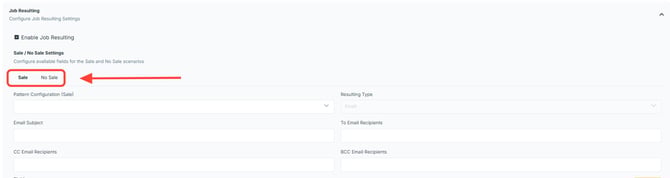
Step 2: Set the Pattern
The pattern controls the document that is generated after a job is resulted.
-
Select Pattern
This determines what the downloaded result will look like.
.webp?width=670&height=340&name=user_cropped_screenshot%20(1).webp)
Step 3: Email Settings
You can control who receives the job result.
-
Enter Email Recipient(s)
-
Separate multiple emails with commas
-
Optional: add CC or BCC recipients
You can also define the subject line:
-
Enter Email Subject
Dynamic values may be used, such as:
.webp?width=670&height=172&name=user_cropped_screenshot%20(2).webp)
Step 4: Add Fields
Fields define what users must complete when resulting a job.
-
Click Add Field
For each field:
-
Enter Name (internal reference)
-
Enter Label (what users will see)
-
Select Type (text, dropdown, date, etc.)
-
Toggle Required On or Off
.webp?width=670&height=375&name=user_cropped_screenshot%20(3).webp)
Example Field Setup
Step 5: Sale Example
-
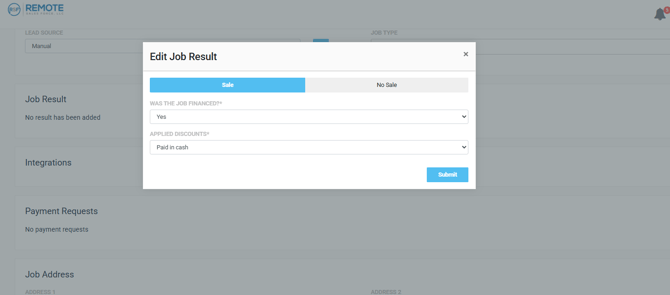
Label: Was this job financed?
-
Type: Dropdown (Yes / No)
-
Required: On
.webp?width=670&height=341&name=user_cropped_screenshot%20(4).webp)
Step 6: No Sale Example
-
Label: Should we follow up?
-
Type: Dropdown (Yes / No)
-
Required: On
Step 7: Save Configuration
-
Click Save
Your Job Resulting setup will now apply to all users.
.webp?width=670&height=376&name=user_cropped_screenshot%20(5).webp)
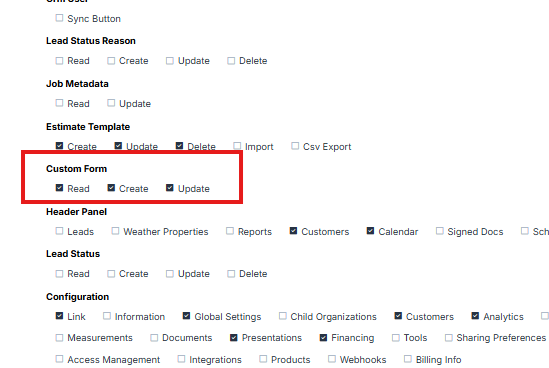
⚠️To ensure that Job Resulting is available for the estimator's users, make sure to enable the permissions.
Quick Peek on how the configuration shows in the estimator
💡 Notes:
- Job Resulting must be configured for both Sale and No Sale to function properly.
- At least one field is required for each result type. You can add as many fields as needed.
- If you are unsure how to structure your configuration, contact your support team for guidance.